
-
×InformationWindows update impacting certain printer icons and names. Microsoft is working on a solution.
Click here to learn moreInformationNeed Windows 11 help?Check documents on compatibility, FAQs, upgrade information and available fixes.
Windows 11 Support Center. -
-
×InformationWindows update impacting certain printer icons and names. Microsoft is working on a solution.
Click here to learn moreInformationNeed Windows 11 help?Check documents on compatibility, FAQs, upgrade information and available fixes.
Windows 11 Support Center. -
- HP Community
- Printers
- Printing Errors or Lights & Stuck Print Jobs
- Re: HELP! Blurry mid-page printing

Create an account on the HP Community to personalize your profile and ask a question
Your account also allows you to connect with HP support faster, access a personal dashboard to manage all of your devices in one place, view warranty information, case status and more.
Check some of the most frequent questions about Instant Ink: HP INSTANT INK, HP+ PLANS: INK AND TONER.
Check out our Black or Color Ink Not Printing, Other Print Quality Issues info about: Print quality and Cartridge Issues.

It has been a while since anyone has replied. Simply ask a new question if you would like to start the discussion again.

08-21-2010 10:31 AM
 HP Recommended
I have an HP PSC 1310 series All-in-One printer. Only recently, I installed a blank ink cartridge, and now the printing down the middle of the page is blurry. It almost looks like the printer is adding a shadow to the text in the center. I've tried re-aligning the cartridges, but the problem remained. Can this be fixed without getting a new ink cartridge? Is that my only solution?
Solved! Go to Solution.
1 ACCEPTED SOLUTION
Accepted Solutions


08-21-2010 11:32 PM - edited 05-21-2013 10:38 AM
HP Recommended
The most likely cause is ink buildup on the encoder strip. The web page HP had on this subject has been removed, but said something like the following:
HP Deskjet, HP Business Inkjet, and HP Color Inkjet Printers - Cleaning the Encoder Strip for Vertical Flaws in Print, Margin Offsets, or "Stair Stepped" Margins
ISSUE:
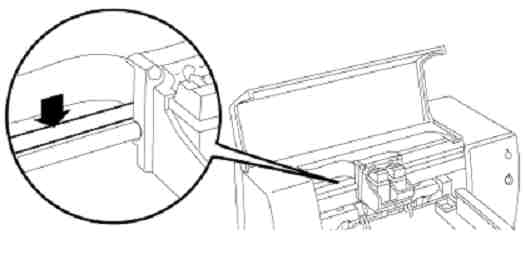
The encoder strip is the semi-clear strip located just behind the carriage rod. Its purpose is to help the print cartridge accurately keep track of its position as it moves along the carriage rod. Sometimes dust, ink, or oil can accumulate on this strip and cause the following problems:
SOLUTION:
Clean the encoder strip inside the printer by following the steps below:
Figure 1: The semi-clear encoder strip.
|
Bob Headrick, HP Expert
I am not an employee of HP, I am a volunteer posting here on my own time.
If your problem is solved please click the "Accept as Solution" button
If my answer was helpful please click "Yes" to the "Was this post helpful" question.
11 REPLIES 11
08-21-2010 11:32 PM - edited 05-21-2013 10:38 AM
HP Recommended
The most likely cause is ink buildup on the encoder strip. The web page HP had on this subject has been removed, but said something like the following:
HP Deskjet, HP Business Inkjet, and HP Color Inkjet Printers - Cleaning the Encoder Strip for Vertical Flaws in Print, Margin Offsets, or "Stair Stepped" Margins
ISSUE:
The encoder strip is the semi-clear strip located just behind the carriage rod. Its purpose is to help the print cartridge accurately keep track of its position as it moves along the carriage rod. Sometimes dust, ink, or oil can accumulate on this strip and cause the following problems:
SOLUTION:
Clean the encoder strip inside the printer by following the steps below:
Figure 1: The semi-clear encoder strip.
|
Bob Headrick, HP Expert
I am not an employee of HP, I am a volunteer posting here on my own time.
If your problem is solved please click the "Accept as Solution" button
If my answer was helpful please click "Yes" to the "Was this post helpful" question.
03-29-2012 06:46 AM
HP Recommended
I followed the steps provided in cleaning the encoder strip and I still have the problem. lst few pages printed fine then started blurring above and below the printed line......very black but doesn't rub off! I've taken the cartridges out and cleaned them. I recently put in a new black cartridge, could I have a bad cartridge or has my printer gone caput? I NEED this printer TODAY. I'm running statements for my husbands business.
10-11-2012 08:39 AM
HP Recommended
Dude.... I just wanted to personally thank you for your post! I've just spent the last 3 hours trying everything in the book to fix my phantom ghostly paper jam..... I was just about to throw the dam printer out the window and then you saved him from going flying..... Or maybe from a hammer slamming into him!!! 🙂 Anyway, I just spent a few moments to register here just so I could personally thank you, so "THANK YOU"
09-08-2013 01:48 PM
HP Recommended
So I have two issues. 1) what ever prints out is blurry and wavy. 2) I tried to scan the document into the computer from the printer but a pop up window on the computer states "HP Photosmart7510 series not found." I am sooooo frustrated with this printer . There are always problems with it.
09-08-2013 06:36 PM
HP Recommended
@belalicia wrote:So I have two issues. 1) what ever prints out is blurry and wavy. 2) I tried to scan the document into the computer from the printer but a pop up window on the computer states "HP Photosmart7510 series not found." I am sooooo frustrated with this printer . There are always problems with it.
Did you try the solution in the thread here?
Bob Headrick, HP Expert
I am not an employee of HP, I am a volunteer posting here on my own time.
If your problem is solved please click the "Accept as Solution" button
If my answer was helpful please click "Yes" to the "Was this post helpful" question.
02-15-2015 12:29 PM
HP Recommended
Bob,
Cleaning the encoder strip was the perfect solution to my problem. Printed copies look great now. Thank you for your excellent and easy to follow instructions. While I was inside the printer, I took the time to wipe off years of collected ink grime...it looks clean and should operate much better now. Thanks again, Bob!
Cleaning the encoder strip was the perfect solution to my problem. Printed copies look great now. Thank you for your excellent and easy to follow instructions. While I was inside the printer, I took the time to wipe off years of collected ink grime...it looks clean and should operate much better now. Thanks again, Bob!

Be alert for scammers posting fake support phone numbers and/or email addresses on the community.
If you think you have received a fake HP Support message, please report it to us by clicking on "Flag Post".
† The opinions expressed above are the personal opinions of the authors, not of HP. By using this site, you accept the Terms of Use and Rules of Participation.


Didn't find what you were looking for? Ask the community
† The opinions expressed above are the personal opinions of the authors, not of HP. By using this site, you accept the <a href="https://www8.hp.com/us/en/terms-of-use.html" class="udrlinesmall">Terms of Use</a> and <a href="/t5/custom/page/page-id/hp.rulespage" class="udrlinesmall"> Rules of Participation</a>.