
-
×InformationNeed Windows 11 help?Check documents on compatibility, FAQs, upgrade information and available fixes.
Windows 11 Support Center. -
-
×InformationNeed Windows 11 help?Check documents on compatibility, FAQs, upgrade information and available fixes.
Windows 11 Support Center. -
- HP Community
- Notebooks
- Notebook Video, Display and Touch
- Re: Black screen on wake from sleep. HP 6910p with ATI X2300...

Create an account on the HP Community to personalize your profile and ask a question
Your account also allows you to connect with HP support faster, access a personal dashboard to manage all of your devices in one place, view warranty information, case status and more.

It has been a while since anyone has replied. Simply ask a new question if you would like to start the discussion again.

01-05-2019 05:52 PM
 HP Recommended
Product: 6910p
Operating System: Microsoft Windows 10 (64-bit)
I know there's a few other people out there running Windows 10 on an older laptop like the 6910p and I think this came up as an issue in the past on Windows 8/8.1 but I never quite figured out the solution.
When the laptop wakes from sleep, all I get is a black screen with the cursor moving around. The laptop has resumed from sleep ok as I can do an Alt+F4. hit R and restart fine. Just as it starts the shutdown process, the desktop flashes up briefly and then it goes to the blue restarting... screen.
I disabled the fast startup option in the power options and that's stopped it from booting to a black screen but now it's just the waking from sleep that is ending up with a black screen.
Did anyone ever figure out a solution to this?
thanks in advance.
5 REPLIES 5


01-07-2019 03:55 PM
HP Recommended
Welcome to HP Forums,
This is a great place to get support, find answers and tips,
Thank you for posting your query, I'll be more than glad to help you out 🙂
I see that the computer does not wake up from sleep mode,
Don't worry as I'll be glad to help, however, to provide an accurate resolution, I need a few more details:
- What is the product number of your device? Use this link to find it: http://support.hp.com/us-en/document/c03754824 (Ensure you do not share any of your personal information such as serial, phone number, email ID, etc...).
- When was the last time it worked fine?
- Have you made any hardware/software changes?
- Did this happen after a recent window or software update?
While you respond to that, I recommend you to perform the following steps to isolate the issue and arrive at a fix:
If you have a notebook computer that cannot return from sleep mode, first make sure it is connected to an AC power source and the power light is on.
Step 1: Restart the computer
Restarting your computer erases all information in the computer memory, which might restore functionality.
If the issue persists after restarting the computer, continue to the next step.
Step 2: Enable the keyboard to wake the computer
Enabling your keyboard to wake your computer from sleep mode might resolve the issue.
-
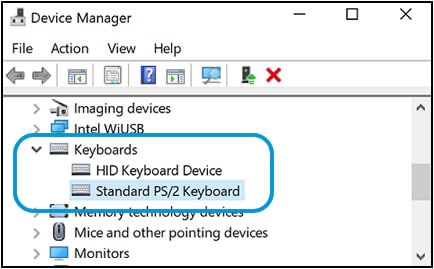
In Windows, search for and open the Device Manager.
-
Click the arrow next to Keyboards, and then double-click the name of your keyboard.
-
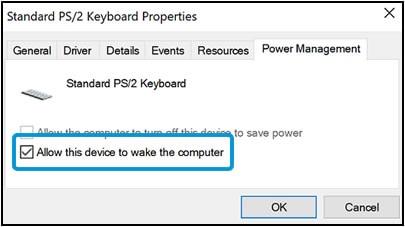
Click the Power management tab.
If the Power Management tab is not available, click the Change Settings button. The same Keyboard Properties window opens with the Power Management tab available.
If you are prompted for an Administrator password or confirmation, type the password or provide confirmation.
-
Select the box next to Allow this device to wake the computer.
-
Click OK.
If the issue persists after setting the keyboard to wake the computer from sleep mode, continue to the next step.
Step 3: Check for Windows updates
Having the most current software and drivers installed on your computer might resolve the issue. Choose your operating system below for steps to check for updates using Windows Update.
Check for updates (Windows 10)
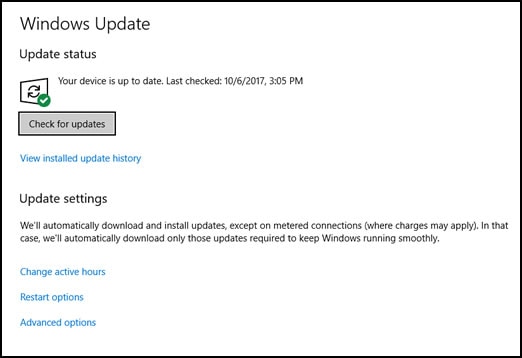
In the Windows search bar, search for and open Check for updates.
If there are any available updates, they begin installing automatically.
Advanced options
Open the Advanced options menu for additional settings for Windows Update.
-
In the Windows Update window, click Advanced options.

-
In the Choose how updates are installed area, you can manage the delivery and installation of updates:
-
Click Give me updates for other Microsoft products when I update Windows to have the computer automatically update other Microsoft products drives and apps when updating Windows.
-
Click Sign-in options to automatically use your password and other sign in information to restart the computer as needed to complete the updates installed on your computer.
-
Click Delivery Optimization to download Windows updates from other computers, which can be faster than downloading updates exclusively from Microsoft. Turn on Allow downloads from other PCs to enable peer-to-peer sharing of Windows updates, and then select PCs on my local network or PCs on my local network, and PCs on the Internet to control where your computer can source the updates.
NOTE: HP recommends getting updates only from sources you know and trust.
-
Click Privacy Settings to change how apps access personal information.
-
For more information about using Windows Update, see Updating Drivers and Software with Windows Update (Windows 10, 😎.
Hope this helps! Keep me posted for further assistance.
If I have helped you resolve the issue, feel free to give me a virtual high-five by clicking the 'Thumbs Up' icon below,
Followed by clicking on "Accept as solution" from the drop-down menu on the upper right corner,
Thank you for posting in the HP Support Forum. Have a great day!
ECHO_LAKE
I am an HP Employee
01-07-2019 05:08 PM
HP Recommended
Thanks but that isn't quite what the problem is as it does wake from sleep, it just isn't displaying the image until it restarts again. It's a weird one but I know there have been other people on this forum who have had the same issue so I'm hoping someone will see this at some point. It has something to do with the ati radeon x2300 and the fact we're running on old drivers designed for Win7 as that's all there is.
thanks anyway.
01-08-2019 03:42 PM
HP Recommended
Thank you for posting back.
As you've performed relevant troubleshooting steps and the issue persists, this sounds like software related problem. And to help you out, I'm sending out a Private message to assist you with the next course of action. Please check your Private message icon on the upper right corner of your HP Forums profile Next, to your profile Name, you should see a little blue envelope, please click on it or simply click on this link: https://h30434.www3.hp.com/t5/notes/privatenotespage
ECHO_LAKE
I am an HP Employee


01-24-2019 01:18 PM
HP Recommended
I was hoping Paul Tikkanen would see this as I have seen in the past that you have responded and helped out on a number of posts regarding the HP 6910p laptop.
I wondered if you still have one and are running Windows 10 on it with the ati x2300 drivers?
On this post from a few years back, Henk had a similar issue on Win8.1 to what I have now on Win10
I've disabled fast startup to get round the booting to a black screen issue similar to what he had but mine still goes black when it wakes from sleep. Windows does wake up, I can ping the pc, browse to shares etc from another device - I just don't get an image until I restart it.
This post on the Microsoft forums sounds like it could be worth a try - https://answers.microsoft.com/en-us/windows/forum/windows8_1-hardware/workaround-to-black-screen-wit...
Any thoughts would be great. Thanks.

Be alert for scammers posting fake support phone numbers and/or email addresses on the community.
If you think you have received a fake HP Support message, please report it to us by clicking on "Flag Post".
† The opinions expressed above are the personal opinions of the authors, not of HP. By using this site, you accept the Terms of Use and Rules of Participation.


Didn't find what you were looking for?
Ask the community
† The opinions expressed above are the personal opinions of the authors, not of HP. By using this site, you accept the <a href="https://www8.hp.com/us/en/terms-of-use.html" class="udrlinesmall">Terms of Use</a> and <a href="/t5/custom/page/page-id/hp.rulespage" class="udrlinesmall"> Rules of Participation</a>.