• ×
    Information
    Need Windows 11 help?
    Check documents on compatibility, FAQs, upgrade information and available fixes.
    Windows 11 Support Center.
  • post a message
  • ×
    Information
    Need Windows 11 help?
    Check documents on compatibility, FAQs, upgrade information and available fixes.
    Windows 11 Support Center.
  • post a message
Guidelines
Join the HP Community Solve‑a‑thon | Help Others & Share Your Solutions | Live on Zoom | 2:30 PM to 2:30 AM IST | Every Wednesday Click here to know more
HP Recommended
HP Spectre x360 14T
Microsoft Windows 10 (64-bit)

Each time I boot up, my desktop icon arrangement changes. Sometimes they are lined up in two columns on the left side of the desktop (which is the normal default arrangement). Other times they are spread out (and spaced farther apart) in a grid across the entire desktop. When they are like that there is nothing I can do to change their arrangement. Auto arrange or Align in the desktop right-click view menu have no effect. Then if I reboot, they all go back to where they should be on the left side of desktop.


I have observed this happening both on the laptops screen and also when I have external monitors connected. I searched for solutions to this and tried many, but none have made a difference. Any ideas?

1 REPLY 1
HP Recommended

@lazerdriver

Thank you for posting on HP Support Community.
 

Don't worry as I'll be glad to help, I have a few troubleshooting steps we could try to fix the issue:  

Hard Reset: Follow steps from the link: https://hp.care/2GnkMa8. (do not skip any troubleshooting steps even if you feel steps are repeating)

BIOS default:

  1. Turn off the computer and wait five seconds.
  2. Press the Power button to start the computer and repeatedly press the F10 key to enter the BIOS setup menu.
  3. On the BIOS Setup screen, press F9 to select and load the BIOS Setup Default settings.
  4. Press F10 to Save and Exit.
  5. Use the arrow keys to select Yes, then press Enter when asked Exit Saving Changes?
  6. Follow the prompts to restart your computer. If the issue persists, follow next steps.

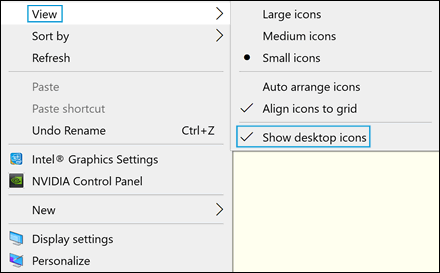
If all desktop icons are missing, right-click an open area of the desktop, select View, and then make sure Show desktop icons is selected.

Show desktop icons


Hope this helps! Keep me posted for further assistance.
Please click “
Accept as Solution” if you feel my post solved your issue, it will help others find the solution.

ECHO_LAKE
I am an HP Employee

† The opinions expressed above are the personal opinions of the authors, not of HP. By using this site, you accept the <a href="https://www8.hp.com/us/en/terms-of-use.html" class="udrlinesmall">Terms of Use</a> and <a href="/t5/custom/page/page-id/hp.rulespage" class="udrlinesmall"> Rules of Participation</a>.