• ×
    Information
    Need Windows 11 help?
    Check documents on compatibility, FAQs, upgrade information and available fixes.
    Windows 11 Support Center.
  • post a message
  • ×
    Information
    Need Windows 11 help?
    Check documents on compatibility, FAQs, upgrade information and available fixes.
    Windows 11 Support Center.
  • post a message
Guidelines
Printing Blank Pages via USB OTG? Here’s How to Fix Your OfficeJet! Click here to check it out!
Check some of the most frequent questions about Instant Ink: HP INSTANT INK, HP+ PLANS: INK AND TONER.


Check out our Black or Color Ink Not Printing, Other Print Quality Issues info about: Print quality and Cartridge Issues.
HP Recommended
HP OfficeJet Pro 8025 All-in-One Printer
Microsoft Windows 11

Printing a 5" x 9" photo using letter sized photo paper using Corel Paintshop or Word. The photo is only half printed and on the edge of the paper. I have checked to see of the paper fed into the printer correctly. The printer and computer are connected wirelessly but only 3 feet apart. If I use plain paper and tell the  printing software to print in normal mode  the photo comes out okay but poor quality on plain paper of course.

1 REPLY 1
HP Recommended

@Cosmicmuffin 


Welcome to the HP Community --


Presumably if the full feature software is installed, Corel will be able to pick up the Printing Preferences (shortcut / settings).  Other settings are provided to the printer in EWS.


Suggestions

  • Make sure the full driver printer software is installed
  • Make sure Printing Preferences are set to the correct Shortcut and the other preferences are set
  • Make sure that Printer Properties > Advanced is pointing to (Driver=) your HP driver
  • Check the specifications,
  • Reload your paper,
  • Change / Modify the paper size / type on the printer control panel or in EWS
  • Try an app to print your photo


================================

Printer Specifications


First check that your Photo paper is supported -- size, type, and weight, too.


HP Printers will generally print on most brands of high-quality paper --

  • Some print surfaces might not do well (for example, semi-gloss)
  • Off brand economy paper might not work


Product Specifications for the HP OfficeJet Pro 8025 All-in-One Printer (3UC61B)

Paper Handling


and

Media Size (facet)Letter; A4; Legal; B5
Media Sizes Custom (imperial)Tray 1: 3 x 5 to 8.5 x 14 in
Media Sizes Custom (metric)Tray 1: 76.2 x 127 to 215.9 x 355.6 mm
Media TypesPlain Paper, HP Photo Papers, HP Matte Brochure or Professional Paper, HP Matte Presentation Paper, HP Glossy Brochure or Professional Paper, Other Photo Inkjet Papers, Other Matte Inkjet Papers, Other Glossy Inkjet Papers, Thick Plain Paper, Light/Recycled Plain Paper, HP Tri-fold Brochure Paper, Glossy
Media Weight Recommended (imperial)16 to 28 lb (plain paper); 60 to 75 lb (photo); 20 to 24 lb (envelope); 90 to 110 lb (card)
Media Weight Recommended (metric)60 to 105 g/m² (plain); 220 to 280 g/m² (photo); 75 to 90 g/m² (envelope); 163 to 200 g/m² (card)
Media Weights Supported, By Paper Path (Imperial)16 to 28 lb (plain paper); 60 to 75 lb (photo); 20 to 24 lb (envelope); 90 to 110 lb (card)
Media Weights Supported, By Paper Path (metric)60 to 105 g/m² (plain); 220 to 280 g/m² (photo); 75 to 90 g/m² (envelope); 163 to 200 g/m² (card)


================================

Printer - Tray and Paper


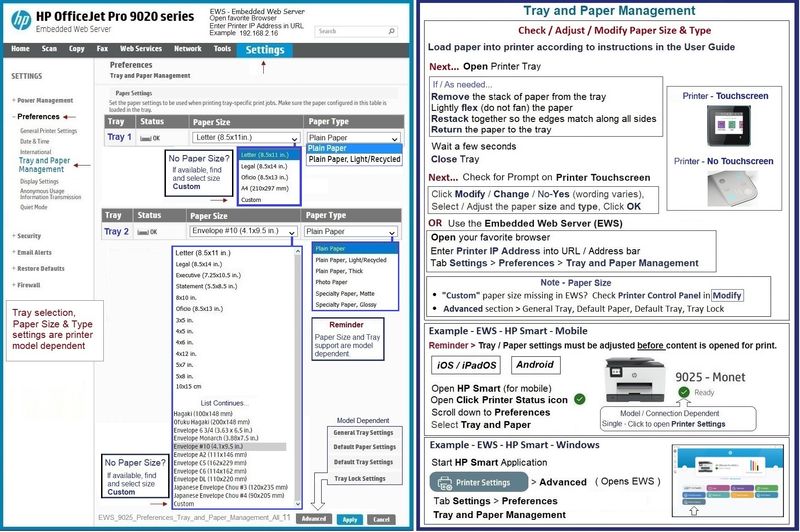
It is important to check / modify the Paper Size / Type settings after the paper has been changed (or if the tray has been opened).


EWS > HP Document / How-to

Use the HP printer Embedded Web Server (EWS)

NOTE:  Find printer IP address

Section Open the EWS over a local network orientation


EWS – Tray and Paper Management


Old Style EWS

Open your Browser > Type / enter the Printer IP address into URL / Address bar

Tab Settings > Preferences > Tray and Paper (Management)

Select / Adjust settings for Paper Size / Type

Model and EWS version Dependent:  Advanced section

Click Apply to save changes


New Style EWS

Open your Browser > Type / enter the Printer IP address into URL / Address bar

Section Paper > Trays > click on Tray to configure


Tray and Paper – Paper Size / Paper Type / Paper Weight


Paper Size, Type, and Weight loaded in the printer tray must be supported for use in that tray.


EWS (Embedded Web Server) provides access and control for Settings, including Tray and Paper.


Reminder

HP Smart Mobile might require that paper size / type is rechecked / adjusted before the content is opened for print.


Notes

Depending on the printer model, the Printer Control Panel touchscreen might provide access to Paper Size / Type settings immediately after the paper is (re)loaded into the appropriate printer intake tray.


New printer?  Touchscreen Printer Control Panel locked against making changes?  Try username "admin" and the PIN located on the sticker on the inside of the front door of the printer.


EWS_9025_Preferences_Tray_and_Paper_Management_All_11EWS_9025_Preferences_Tray_and_Paper_Management_All_11


================================

Printer - Job Setup


If not tried and after the paper is loaded, checked, and ready to print,

Consider using a simple app to test how the setup is working.


Example - Windows Photos - 5x7 inch photo printed on letter size paper

Photos_Print_Letter-5x7_4Photos_Print_Letter-5x7_4


Example - HP Smart - Windows - Simple Photo Print - 4x6 inch print on letter size paper

HP_Smart_Win_Simple_Photo_Print_Letter_4x6_1HP_Smart_Win_Simple_Photo_Print_Letter_4x6_1


References / Resources


HP Printer Home Page - References and Resources

Learn about your Printer - Solve Problems

“Things that are your printer”

When the website support page opens, Select (as available) a Category > Topic > Subtopic

NOTE: Content depends on device type and Operating System

Categories: Alerts, Troubleshooting, Ink & Paper, HP Software / Drivers / Firmware Updates , Setup & User Guides, Product Specifications, Account & Registration, Warranty & Repair

Open

HP OfficeJet Pro 8025 All-in-One Printer  


Thank you for participating in the HP Community --

People who own, use, and support HP devices.

Click Yes to say Thank You

Question / Concern Answered, Click my Post "Accept as Solution"


Dragon-Fur

† The opinions expressed above are the personal opinions of the authors, not of HP. By using this site, you accept the <a href="https://www8.hp.com/us/en/terms-of-use.html" class="udrlinesmall">Terms of Use</a> and <a href="/t5/custom/page/page-id/hp.rulespage" class="udrlinesmall"> Rules of Participation</a>.