• ×
    Information
    Need Windows 11 help?
    Check documents on compatibility, FAQs, upgrade information and available fixes.
    Windows 11 Support Center.
  • post a message
  • ×
    Information
    Need Windows 11 help?
    Check documents on compatibility, FAQs, upgrade information and available fixes.
    Windows 11 Support Center.
  • post a message
Guidelines
If you're having print quality issues Click here for more tips!
Check some of the most frequent questions about Instant Ink: HP INSTANT INK, HP+ PLANS: INK AND TONER.


Check out our Black or Color Ink Not Printing, Other Print Quality Issues info about: Print quality and Cartridge Issues.
HP Recommended

OfficeJet Pro 6978.  installed new black ink cartridge.  Received error message " One or more cartridges are missing or damaged" .  Get same message every attempt to take out and put back in.

1 REPLY 1
HP Recommended

Hi @Brooks15,


Welcome to the HP Support Community


I understand you are facing an issue cartridges are missing or damaged" error message with your HP OfficeJet Pro 6978. Not to worry I will help you to get a resolution to resolve the issue.


Let's perform a power drain: 

  • With the printer turned on, disconnect the power cord from the rear of the printer and also unplug the power cord from the wall outlet.
  • Remove USB cable, if present.
  • Wait for 2-3 minutes, press and hold the power button on your printer for about 30 seconds to remove any additional charge.
  • Now plug back the power cable straight to a wall outlet without any surge protector or an extension cord (This is important) and then plug back the power cord to the printer.
  • Turn on the printer and wait till warm-up period finishes and the printer is idle


Update the printer firmware 


  • Click here to download and install the latest printer firmware from your product
  • Click here to know different methods of updating printer firmware.
  • click here and follow the troubleshooting steps

Make sure the ink cartridges are properly vented and seated correctly

Check the vents on the top of the ink cartridges. If they are clogged or obstructed, the ink cartridges might not work properly, which can affect print quality.

NOTE:

To avoid print quality issues and dried out ink cartridges, do not leave any ink cartridges outside the printer for longer than 30 minutes.

Turn on the printer, if it is not already turned on.

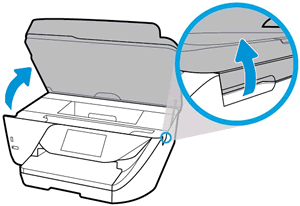
Open the ink cartridge access door.

The carriage moves to the center of the printer.

Open the cartridge access door

Wait until the carriage stops moving before you continue.

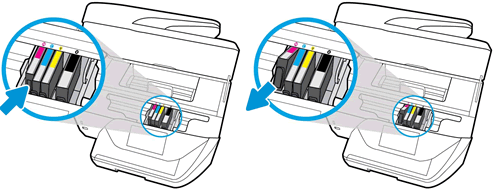
Press the tab inward on the front of the old ink cartridge to release it, and then pull up on the ink cartridge to remove it from the slot.

Pushing the ink cartridge inward and then pulling up to remove it

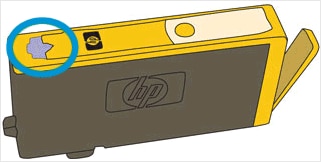
Examine the vent area above the HP logo on the top of the ink cartridge.

Image: Examine the vent area on the top of the cartridge

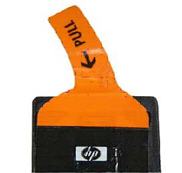
If the ink cartridge still has the orange pull-tab attached, pull to remove it.

Image: Remove the orange pull-tab

If the vent is clogged, use a straight pin to gently remove excess adhesive from the vent.

Clogged vent

With a straight pin, gently remove excess adhesive from the vent

Unclogged vent

Turn the ink cartridge so that the ink cartridge contacts face downward, and then match the label color with the color dot on the carriage.

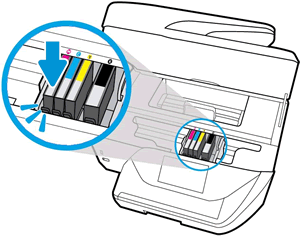
Slide the ink cartridge into its slot, and then gently press the ink cartridge down until it snaps into place.

Reinserting the ink cartridge

Repeat these steps to inspect the vents on each of the ink cartridges.

Make sure each ink cartridge is firmly installed in its slot. Run your finger along the top of the ink cartridges to feel for any that are protruding, and if any are, press down firmly until each ink cartridge snaps into place.

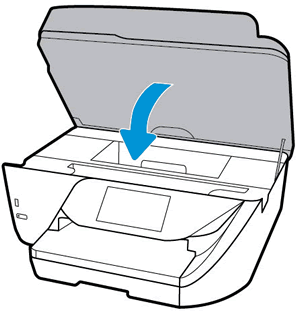
Close the ink cartridge access door.

Closing the ink cartridge access door

Try to print. If these steps resolved the issue, you do not need to continue troubleshooting.

If the issue persists, then please follow the steps mentioned in this document:

Clean the printhead


The printhead could be clogged, and you might need to clean the printhead several times to restore print quality. Use an automated tool from the printer control panel to clean the printhead.

  CAUTION:

Never turn off the printer when ink cartridges are not installed. To avoid issues that require cleaning the printhead or that can damage the ink system, always replace ink cartridges as soon as possible, and always turn off the printer using the Power button.

From the printer control panel, open the Setup menu.

Open the Printer Maintenance menu.

If necessary, open the Tools menu, and then touch Clean Printhead.

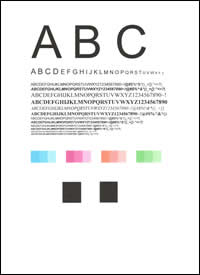
A test page prints.

Example of the printhead cleaning test page

Examine the test page.

If the print quality is unacceptable, touch Clean Again to continue the next level of cleaning. If necessary, repeat these steps for the third cleaning cycle.

NOTE:

If the printhead is badly clogged, it might require another cleaning cycle. If so, wait 30 minutes before you perform all three levels of cleaning again.

If the print quality is acceptable, touch Done.


Hope this helps! Keep me posted. 


Please click “Accepted Solution” if you feel my post solved your issue, it will help others find the solution. Click the “Kudos/Thumbs Up" on the bottom right to say “Thanks” for helping!


A_Gayathri
HP Support Community Administrator.
† The opinions expressed above are the personal opinions of the authors, not of HP. By using this site, you accept the <a href="https://www8.hp.com/us/en/terms-of-use.html" class="udrlinesmall">Terms of Use</a> and <a href="/t5/custom/page/page-id/hp.rulespage" class="udrlinesmall"> Rules of Participation</a>.