• ×
    Information
    Need Windows 11 help?
    Check documents on compatibility, FAQs, upgrade information and available fixes.
    Windows 11 Support Center.
  • post a message
  • ×
    Information
    Need Windows 11 help?
    Check documents on compatibility, FAQs, upgrade information and available fixes.
    Windows 11 Support Center.
  • post a message
Guidelines
If you're having print quality issues Click here for more tips!
Check some of the most frequent questions about Instant Ink: HP INSTANT INK, HP+ PLANS: INK AND TONER.


Check out our Black or Color Ink Not Printing, Other Print Quality Issues info about: Print quality and Cartridge Issues.
HP Recommended
HP OfficeJet Pro 8020e All-in-One Printer
Microsoft Windows 10 (64-bit)

I have a HP Officejet Pro 8020e that creates a large margin on the leading edge which then compresses the document so that it doesn't fit centrally on the page. The other 3 margins are of equal but altered size to fit the document on to the page.

1 REPLY 1
HP Recommended

@Retepstuff 


Welcome to the HP Community Forum.


@Retepstuff wrote:
Operating System: Microsoft Windows 10 (64-bit)

I have a HP Officejet Pro 8020e that creates a large margin on the leading edge which then compresses the document so that it doesn't fit centrally on the page.

The other 3 margins are of equal but altered size to fit the document on to the page.


This printer series supports a decent margin area:

Print Margin Bottom (A4)2.9 mm
Print Margin Left (A4)2.9 mm
Print Margin Right (A4)2.9 mm
Print Margin Top (A4)2.9 mm


If you have not done so,

Try / Consider


Install the Full Feature Software.


Video

HP Officejet Pro 8025 | 8020 | 8035 : Download and install full software solution (updated Feb2021)


Next,

Make sure you are selecting the HP driver in the Printer Properties as opposed to the Microsoft / IPP Class driver.

Why?  The standard Microsoft drivers do not always provide the expected results.

The HP driver can be selected / made default in Printer Properties and can be selected in the current job configuration.


Example - Printer Properties > Tab Advanced > Driver

9025_Printer_Properties_Advanced_Driver_List_89025_Printer_Properties_Advanced_Driver_List_8


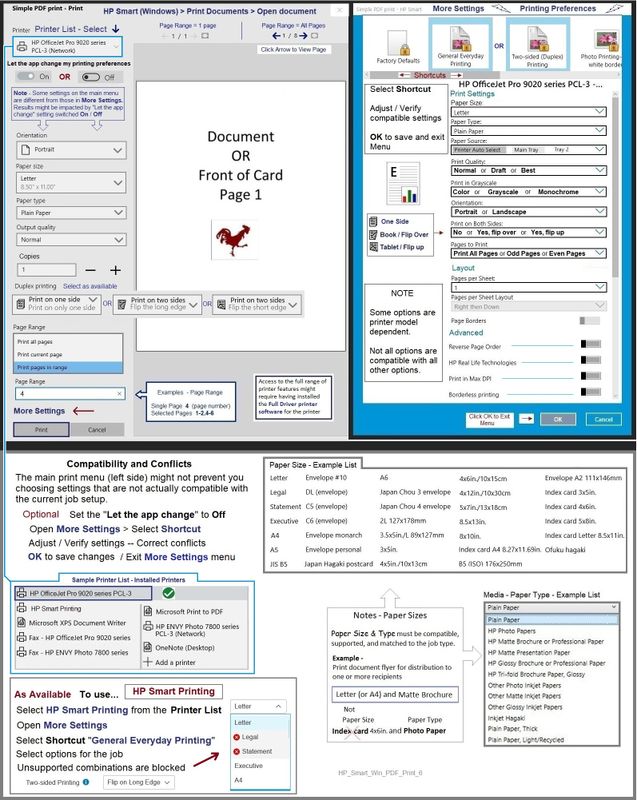
General Example - HP Smart - Simple PDF Print

HP_Smart_Win_PDF_Print_6HP_Smart_Win_PDF_Print_6


=+=+=+=+=+=+=+=+=+=+=+=+=+=+=+=+=+=+=+=+=+=+

References / Resources


General Example - Windows - Parts to the Software - FYI only

Parts_to_Printer_Software_5Parts_to_Printer_Software_5


HP Printer Home Page - References and Resources

Learn about your Printer  - Solve Problems

“Things that are your printer”

When the website support page opens, Select (as available) a Category > Topic Subtopic

NOTE:  Content depends on device type and Operating System

Categories:  Alerts, Access to the Print and Scan Doctor (Windows), Warranty Check, HP Drivers / Software / Firmware Updates, How-to Videos, Bulletins/Notices, Lots of How-to Documents, Troubleshooting, Manuals > User Guides, Product Information (Specifications), Supplies, and more

Open

HP OfficeJet Pro 8020e All-in-One Printer


Thank you for participating in the HP Community:

People who own, use, and support HP devices.

Click Yes to say Thank You

Question / Concern Answered, Click "Accept as Solution"


Dragon-Fur

† The opinions expressed above are the personal opinions of the authors, not of HP. By using this site, you accept the <a href="https://www8.hp.com/us/en/terms-of-use.html" class="udrlinesmall">Terms of Use</a> and <a href="/t5/custom/page/page-id/hp.rulespage" class="udrlinesmall"> Rules of Participation</a>.