• ×
    Information
    Need Windows 11 help?
    Check documents on compatibility, FAQs, upgrade information and available fixes.
    Windows 11 Support Center.
  • post a message
  • ×
    Information
    Need Windows 11 help?
    Check documents on compatibility, FAQs, upgrade information and available fixes.
    Windows 11 Support Center.
  • post a message
Guidelines
Seize the moment! nominate yourself or a tech enthusiast you admire & join the HP Community Experts!
Archived This topic has been archived. Information and links in this thread may no longer be available or relevant. If you have a question create a new topic by clicking here and select the appropriate board.

HP Recommended
Hp deskjet 2540
Microsoft Windows 10 (32-bit)

Hi there,

rcently u purchased new ink cartridges that are from a home brand. other ones from this brand worked in my printer previously, but now it says the ink cartridge is damaged and not original, so it doenst work anymore. i heared this is a common problem for Hp printers, so i would really like some help with this. 


cheers!

1 REPLY 1
HP Recommended

@Mici-94

A very warm welcome to the HP community. A very good day to you. 

I understand that you have an HP Deskjet 2540 All-in-One Printer and it does not accept the cartridges that are from a home brand. The other cartridges from this brand worked fine previously. And now the printer says that the ink cartridges are damaged and not original. Not to worry, I'll do my best to help you.

I would like to know the following information to assist you better:

  • By saying "home brand", are you referring to non HP ink or original HP ink cartridges?
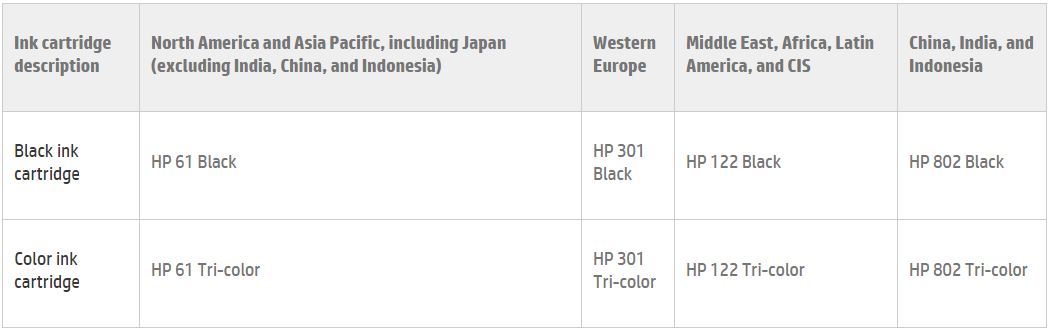
  • Below mentioned is the list of ink cartridges that are compatible with your printer:

  • Disconnect the power cable from the printer while the printer is still ON.
  • Disconnect any other cables if connected the printer.
  • Press and hold the printer’s power button for 15 seconds.
  • The printer should be directly connected to the wall outlet and not to a surge protector. Reconnect the power cable to print and the printer should power ON by itself. If the printer doesn’t power ON then please manually power it ON.

If the error continues to appear then please refer to the steps from this link: http://hp.care/2nGXnE5

Feel free to let me know how it goes. 🙂 Cheers! 

Archived This topic has been archived. Information and links in this thread may no longer be available or relevant. If you have a question create a new topic by clicking here and select the appropriate board.
† The opinions expressed above are the personal opinions of the authors, not of HP. By using this site, you accept the <a href="https://www8.hp.com/us/en/terms-of-use.html" class="udrlinesmall">Terms of Use</a> and <a href="/t5/custom/page/page-id/hp.rulespage" class="udrlinesmall"> Rules of Participation</a>.