-
×InformationNeed Windows 11 help?Check documents on compatibility, FAQs, upgrade information and available fixes.
Windows 11 Support Center. -

-
×InformationNeed Windows 11 help?Check documents on compatibility, FAQs, upgrade information and available fixes.
Windows 11 Support Center. -
- HP Community
- Printers
- Printing Errors or Lights & Stuck Print Jobs
- Black Screen after standby

Create an account on the HP Community to personalize your profile and ask a question
11-06-2018 01:21 AM
Hi,
i have 3 HP PageWide 377 dw MFP and after the last firmware update i have a lot of problem.
When the printers go in standby (after 1 h), the printers stop working.
If i print the PC say me "Priter offline" and also if i click on the printer screen nothing apper.
If i try to switch off, printers still on ON.
To reset them i have to disconnect the AC Power.
How can i fix? (HP Scan and Doctor doesn't work.)
Best regards,
Luca
01-03-2019 12:48 PM
hi Ltboi,
HP has created a new firmware update for the HP PageWide 377dw, HP PageWide Pro 477dw/dn, and HP PageWide Pro 577dw/57750dw products to help mitigate the “Unable to Wake from Standby Mode” problem that some users experience after updating to version 001.1839A firmware (and also on certain older versions).
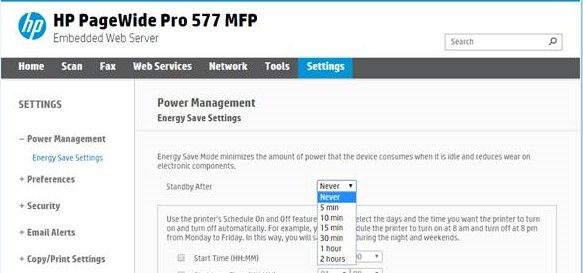
The specific change included in this new firmware release adds the ability to set the Power Management Energy Save “Standby After” setting to “Never” as shown here:
SETTING STANDBY TO “NEVER”
Changing the Energy Save Setting to Standby After “Never” will prevent the device from entering Standby Mode, and therefore prevent the problem of not being able to wake up from Standby Mode.
Getting the New Firmware
If your printer is not set to update automatically and/or has not already been updated, you can manually check for the update via the Embedded Web Server (EWS) on the product.
To check the version of firmware on your printer, enter the IP address of your printer into your web browser to view the EWS, then select the "Tools" tab, then select "Printer Updates", and then "Firmware Updates" on the left panel.
The firmware version which provides the ability to set the Standby time to "Never" has the characters of "1850B.00" at the end of the firmware version. If your printer has a lower version number, go to the "Check for Printer Updates" section lower on the page and click on the "Check Now" button, then follow the prompts to download and install the printer update.
HP Retired, however my posts and replies are my own, not HP's.
Was your question answered? Mark it as an Accepted Solution!
See a great post? Give it a Kudos!