• ×
    Information
    Need Windows 11 help?
    Check documents on compatibility, FAQs, upgrade information and available fixes.
    Windows 11 Support Center.
  • post a message
  • ×
    Information
    Need Windows 11 help?
    Check documents on compatibility, FAQs, upgrade information and available fixes.
    Windows 11 Support Center.
  • post a message
Guidelines
Here is the solution for Blue screen error 83C0000B on HP OfficeJet Pro 8010e, 9020e Printer Series: Click here to view.
Check some of the most frequent questions about Instant Ink: HP INSTANT INK, HP+ PLANS: INK AND TONER.


Check out our Black or Color Ink Not Printing, Other Print Quality Issues info about: Print quality and Cartridge Issues.
HP Recommended
HP 8600
Microsoft Windows 10 (64-bit)

I read previous posts of this issue but it referred to a wireless connection to the printer.


I have an Ethernet connection.


The printer keeps loosing connection to the network.


I go to printer properties and select ports.  I pick any other  than TCP, click apply, then re-select TCP and click apply.


The printer is then connected to the network.  I have to do this several times a day.  If I don't, then when I print it can take up to 10 minutes or more to print.


I have the IP address as static and the router has the mac address and IP address locked.


Any suggestions for a permanent fix?

1 REPLY 1
HP Recommended

 Hi @clapperloader,


I'd like to help with the printer connectivity issue.


 Use HP Print and Scan Doctor to check connectivity

Download a special version of HP Print and Scan Doctor specifically created to help with printer offline conditions.

  1. Download HP Print and Scan Doctor.
  2. Run HPPSdr.exe from the download location on your computer.
  3. Once HP Print and Scan Doctor opens, click Start, and then select your printer.
    • If your printer in not in the list, turn it off and on, and then click Retry.
    • If there is a connection problem, follow the instructions in HP Print and Scan Doctor.
  4. If a screen prompts you to turn on printer updates, click Yes.
  5. If a screen prompts you to make your printer the default printer, click Yes.

Set a manual IP-


To set a manual IP and try the steps below -


--->Touch on the wifi icon ((i)) on the printer, and take down the IP address 

--->Open a web browser (ex Chrome or Mozilla) and type in the printer's IP

--->then go to network ---> general ---> network protocols ---> select IPV4 only-->apply 

--->go to wireless ---> wireless 802.11---> select manual ip ---> apply

--->Enter 8.8.8.8 for the first DNS and 8.8.4.4 for the second DNS.  

--->then go to settings on the main ews page --> power management ---> select sleep mode to max 15min


 Install the printer driver with the Add Printer wizard

Use the Add Printer tool in Windows to install the built-in driver. 

In Windows, search for and open Control Panel.

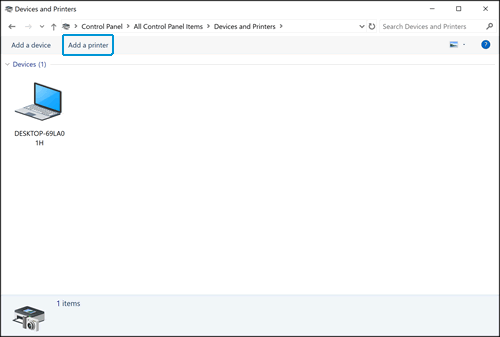
  1. Click Devices and Printers, and then click Add a printer.

    Clicking Add a printer

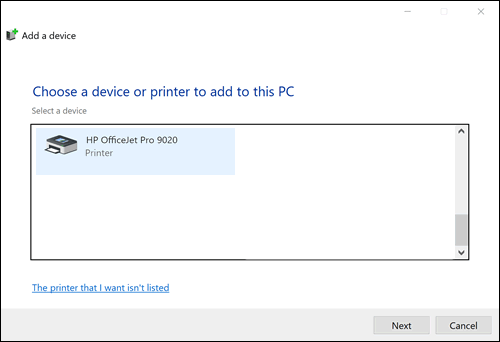
  2. On the Choose a device or printer to add to this PC window, select your printer, click Next, and then follow the on-screen instructions to install the driver. If your printer is not in the list, continue with these steps.

    Example of printers found in the Choose a device or printer to this PC window

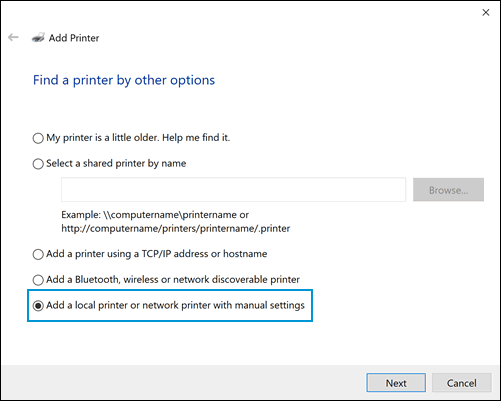
  3. Click The printer I want isn't listed, and then select Add a local printer or network printer with manual settings.

    Selecting Add a printer using local or network printer with manual settings

  4. Click Next.

  5. Select the port to be used by your printer, such as USB001 for a USB connected printer, and then click Next.

  6. Click Windows Update, and then wait for the print drivers to update.

  7. Click HP, Hewlett-Packard, or Hewlett Packard in the Manufacturer pane, and then click the name of your printer in the Printers pane.

    • If your printer is in the list, select it, click Next, and then follow the on-screen instructions to install the driver.

    • If your printer is not in the list, click the back arrow in the upper left corner of the window two times to return to the Find a printer by other options step, and then continue with these steps.

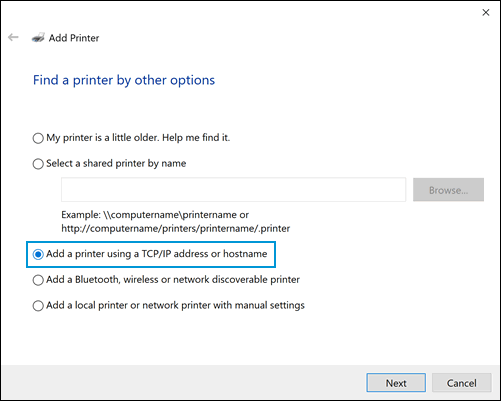
  8. Select Add a printer using TCP/IP address or hostname, and then click Next.

    Selecting Add a printer using TCP/IP address or hostname

  9. Select Autodetect from the Device type drop-down list.

  10. Type your printer IP address into the text box, and then click Next.

    To find the printer IP address, print a Wireless Network Test report or a Network Configuration page.

  11. Wait for the computer to connect to the printer, and then click Next to install the print driver.

When you are finished with the Add Printer wizard, the printer driver is set up and ready to use.


Hope this helps! Keep me posted. 


And, Welcome to the HP Support Community. 


Please click “Accept as Solution” if you feel my post solved your issue, it will help others find the solution.

Click the “Kudos, Thumbs Up" on the bottom right to say “Thanks” for helping 

† The opinions expressed above are the personal opinions of the authors, not of HP. By using this site, you accept the <a href="https://www8.hp.com/us/en/terms-of-use.html" class="udrlinesmall">Terms of Use</a> and <a href="/t5/custom/page/page-id/hp.rulespage" class="udrlinesmall"> Rules of Participation</a>.