• ×
    Information
    Need Windows 11 help?
    Check documents on compatibility, FAQs, upgrade information and available fixes.
    Windows 11 Support Center.
  • post a message
  • ×
    Information
    Need Windows 11 help?
    Check documents on compatibility, FAQs, upgrade information and available fixes.
    Windows 11 Support Center.
  • post a message
Guidelines
Here is the solution for Blue screen error 83C0000B on HP OfficeJet Pro 8010e, 9020e Printer Series: Click here to view.
Check some of the most frequent questions about Instant Ink: HP INSTANT INK, HP+ PLANS: INK AND TONER.


Check out our Black or Color Ink Not Printing, Other Print Quality Issues info about: Print quality and Cartridge Issues.
HP Recommended
HP Ink Tank Wireless 415
Microsoft Windows 10 (64-bit)

Hello,


The copy option(both black and color) in the printer was working fine but few days ago I noticed the printed copy isn't printing the last few lines or the last part of a page. The scan option is working fine and when I print a document from PC it prints the complete page, but only when I photocopy the document, it leaves to print the last part of every page(its just few lines but the printed page is incomplete). Please help.


I have given relevant information given below and have also attached images for better understanding.

Note: Look at the 3rd image in the photocopy page. It is not complete.


Thanks for the help!

Vipin Bhatt


Printer: HP Ink Tank Wireless 415

OS: Windows 10

Changes to PC: Reinstalled windows after which the issue occured. But have updated all drivers.  1.jpg2.jpg

3 REPLIES 3
HP Recommended

Hi @Vipin_Bhatt,


Welcome to the HP Support Community. 


I'd like to help!


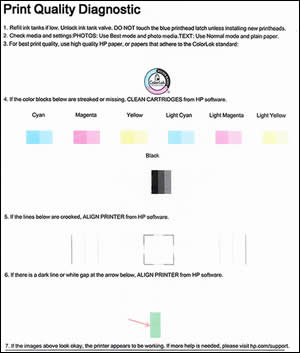
Print a Print Quality Diagnostic page.

Press and hold the Start Copy Color button on the printer control panel for 3 seconds to print a Print Quality Diagnostic page.

Example of a Print Quality Diagnostic page

Review the Cyan, Magenta, Yellow, and Black boxes, checking for missing colors, fading, and white lines.

If the color blocks do not show white lines, and are not faded or missing, the printer is working correctly. Check for image resolution problems, application errors, or other issues that might affect the printout.

If it prints fine, then follow the below steps:

In the software application you are trying to print from, click File, and then click Print.

The Print window opens.

Open the Properties dialog box.

Depending on the software application, the button might be Properties, Options, Printer Setup, Printer, or Preferences.

Depending on your print job, you might consider modifying the following settings:

Paper Type: If you are printing on photo paper, select the type of photo paper you are attempting to print on.

Print Quality: If you are dissatisfied with the quality of your printouts, increase the print quality. Select the Best mode.

If that does not print fine, clean the printheads

Open or search for the HP folder in your list of installed software applications, click the folder for your printer, and then click the name of your printer.

HP Printer Assistant opens.

On the HP Printer Assistant window, click Maintain Your Printer.

Click the Device Services tab, and then click Clean Ink Cartridges.

A Print Quality Diagnostic page prints.

Example of a Print Quality Diagnostic page


You can refer to this HP document for more assistance:- Click here


Hope this helps! Keep me posted for further assistance.
Please click “Accepted Solution” if you feel my post solved your issue, it will help others find the solution. Click the “Kudos/Thumbs Up" on the bottom right to say “Thanks” for helping!

Nal_NR-
HP Community Moderator


HP Recommended

Hello Elohi_NR,


Thank you for the prompt response.


I would like to inform you that the print option of the printer is working fine, but I am currently facing issue with the photocopy option in the printer.

The printing and scanning options of the printer are working fine.

The printer scans the complete document and the printer prints the complete document when a document is printed from PC, but whenever I photocopy the document (A4 page) the last few lines in the page is not printed.


All the options are in default mode, the page size is A4 and the paper type is Pain Paper.


Please help as I am unable to photocopy document as it prints incomplete page (for both black & white and color). I will have to scan the documents and then print which is tedious work when I have to photocopy large number of documents.


Thank You

HP Recommended

Hi @Vipin_Bhatt ,


We are sorry that the issue is not resolved when the above troubleshooting steps were performed.

This might require one on one interaction to fix the issue


I've sent you a private message with further instructions. In order to access your private messages, click the private message icon on the upper right corner of your HP Support Community profile, next to your profile Name or simply click on this link.


If the information I've provided was helpful, give us some reinforcement by clicking the Accepted Solution button, that'll help us and others see that we've got the answers!

Nal_NR-
HP Community Moderator


† The opinions expressed above are the personal opinions of the authors, not of HP. By using this site, you accept the <a href="https://www8.hp.com/us/en/terms-of-use.html" class="udrlinesmall">Terms of Use</a> and <a href="/t5/custom/page/page-id/hp.rulespage" class="udrlinesmall"> Rules of Participation</a>.