• ×
    Information
    Need Windows 11 help?
    Check documents on compatibility, FAQs, upgrade information and available fixes.
    Windows 11 Support Center.
  • post a message
  • ×
    Information
    Need Windows 11 help?
    Check documents on compatibility, FAQs, upgrade information and available fixes.
    Windows 11 Support Center.
  • post a message
Guidelines
Here is the solution for Blue screen error 83C0000B on HP OfficeJet Pro 8010e, 9020e Printer Series: Click here to view.
Check some of the most frequent questions about Instant Ink: HP INSTANT INK, HP+ PLANS: INK AND TONER.


Check out our Black or Color Ink Not Printing, Other Print Quality Issues info about: Print quality and Cartridge Issues.
HP Recommended
OfficeJet Pro 6978
Microsoft Windows 8 (32-bit)

Installed new in cartridges and printer now only produces copies in red ink. Tried all trouble shooting software. All updates done. Cleaned Cartridges. Aligned cartridges. Tried unpluguing printer and pluging back in to reset.

1 REPLY 1
HP Recommended

@typhoon222


Welcome to the HP Support Community!

  • Have you tried with alternate ink cartridges?
  • Try making a standalone copy and check the print quality.

Cleaning the printhead and updating the printer firmware may resolve this issue. Let us try these steps:


Step 1: Reset the printer

1. With the printer turned on, disconnect the power cord from the rear of the printer.

2. Wait at least 60 seconds.

3. Reconnect the power cord to the rear of the printer.

4. Turn ON the printer, if it does not automatically turn on.

5. Wait until the printer is idle and silent before you proceed.


Step 2: Update the printer firmware

Click here to download and install the latest firmware from your computer.

Click here to know different methods of updating printer firmware.\


Step 3: Clean the printhead

  1. From the printer control panel, open the Setup  menu.

  2. Open the Printer Maintenance menu.

  3. If necessary, open the Tools menu, and then touch Clean Printhead.

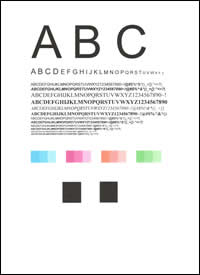
    A test page prints.

    Example of the printhead cleaning test page

Step 4: Perform steps 9 and 10 from this document


Step 5: If the issue persists, please contact our HP Support team for Service Options:

1) Click on this link - https://support.hp.com/us-en/contact-hp

2) Select your product type below.

3) Enter the serial of your device.

4) Select the country from the drop-down.

5) Select the appropriate option based on your preference.

6) Fill the web-form and proceed further.


Keep me posted for any other assistance.


Please click “Accept as Solution” if you feel my post solved your issue, it will help others find the solution. Click the “Kudos/Thumbs Up" on the bottom right to say “Thanks” for helping!

KUMAR0307
I am an HP Employee

† The opinions expressed above are the personal opinions of the authors, not of HP. By using this site, you accept the <a href="https://www8.hp.com/us/en/terms-of-use.html" class="udrlinesmall">Terms of Use</a> and <a href="/t5/custom/page/page-id/hp.rulespage" class="udrlinesmall"> Rules of Participation</a>.