-
×InformationNeed Windows 11 help?Check documents on compatibility, FAQs, upgrade information and available fixes.
Windows 11 Support Center. -

-
×InformationNeed Windows 11 help?Check documents on compatibility, FAQs, upgrade information and available fixes.
Windows 11 Support Center. -
- HP Community
- Printers
- Scanning, Faxing, and Copying
- HP Smart not Scanning

Create an account on the HP Community to personalize your profile and ask a question
06-22-2024 10:07 PM
I cannot scan from the HP Smart app. It works on my iphone but not on this desktop. I believe i have all the right drivers and such but when I try to scan from the app it tells me that it "cannot connect to server". Has anybody got any ideas? Thanks in advance for your help[\support.
Rando
06-23-2024 10:03 AM
Welcome to the HP English Community --
After the very recent version update to HP Smart, we are seeing an uptick in the number of HP Smart "cannot scan" reports.
The issue has been reported to our Community admins.
For the moment, consider using other methods to scan.
=================================================
If you wish to try and fix the issue,
Consider / Try the following, starting with a Restart of your devices, printer, and router.
If you wish to skip this part, scroll down to section:
Full Driver Printer Software - Details, Download page, Examples
-----------------------------------------------------------------------
Restart everything, including the router that controls your network.
Next,
Check / Update >> Every device (computer(s) and / or mobile) where HP Smart is installed should be running the latest version of the HP Smart application available for that device platform (Operating System / Version).
Next,
Windows
Check / Run Windows Updates > Install any pending updates
Next,
If not previously completed,
Restart everything, including the router that controls your network.
Can’t stand it? Consider: Restart computer(s) and printer.
Next,
Reset the HP Smart application - This action removes the app data.
How to...
Windows 10 -
Settings > Apps > Apps and Features
OR
Windows 11 -
Settings > Apps > Installed Apps
Next,
Search / Find HP Smart in the apps list
Open Advanced options > Reset the app
Restart the computer and log in
Open HP Smart > Sign in > Add Printer(s)
What if?
If the app Reset does not work by itself,
Next,
Uninstall the HP Smart App from Settings > Apps > Apps and Features / Installed Apps
Restart the computer and log in
“Get” a new copy of the HP Smart application from the Microsoft Store
Open HP Smart > Sign in > Add Printer(s)
Still Rubbish
Provided FYI
If nothing else works – Consider --
Uninstall the HP Smart app from Windows > Restart the computer and log in
AND
While connected to the same (home / office) network as your computer,
Uninstall the HP Smart app from other device(s) on your network
After the app is removed > Restart the device (for example, iPad, iPhone)
Next,
Repeat for each mobile device where you want to install the HP Smart application:
Install the HP Smart app on the mobile device
Start HP Smart app > Sign into the app > Add printer(s)
Next,
Restart the computer and log in
Install a fresh copy of the HP Smart application for Windows
================== =====================
Full Driver Printer Software - Details, Download page, Examples
==================================
Printer - Full Feature Software
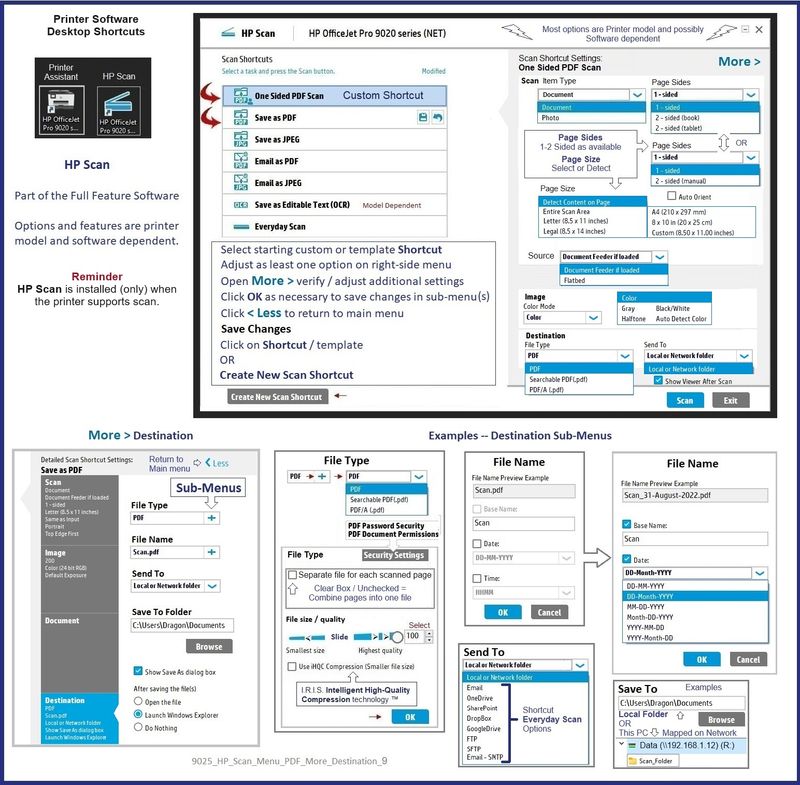
HP Full Feature Software / Full Driver printer software - supports printing and scanning from the web, printing in in other software and programs (for example, Word), and provides access to the full range of Printing Preferences / Shortcuts. The full driver generally adds at one, possibly least one, possibly two shortcuts to the Desktop: Printer Assistant, HP Scan Assistant, and/or HP Scan.
NOTES:
HP Scan is not installed if the printer does not support Scan.
The Printer Assistant is not installed if the type of full driver software does not support it. If the printer model includes built-in Fax hardware, the software supports the setup and use of the Fax driver. No Sign-in required.
Reinstalling?
- Uninstall existing full driver printer software from Programs and Features.
- If your printer includes a separate "help" in Programs and Features, uninstall that, too.
- Restart the computer and log in.
- If the printer is connected to the computer using a printer USB cable, remove / disconnect the cable before loading the software.
Details Page - Driver - For your Printer
>>> Full Feature Software - Web Pack Installation Package - Information - Download / Save / (then) Install <<<
HP Easy Start Printer Setup Software – Offline Use Only
If / When asked, opt for the Full Driver / Full Software to be installed.
After the software is installed, Restart the computer and sign in.
The installation of the full driver generally adds at least one or more shortcuts to the Desktop.
Note: Printer Assistant, HP Scan Assistant, and HP Scan are dependent on printer model and supported software options.
- Printer Assistant – Where still supported as part of the full driver printer software
- HP Scan Assistant – For those printers that no longer provide the Printer Assistant
- HP Scan – Shortcut on Desktop named for the printer model
- When installed, HP Universal Scan software adds a separate self-named “HP Scan” shortcut
Printer Assistant shortcut > Tab Scan > Manage Scan to Computer > Enable
Or
HP Scan Assistant shortcut > Manage Scan to Computer > Enable
Example - Windows - Full Feature Software - Installed
Programs_and_Features_Printer_Desktop_Icons_14
Example - HP Scan - Menu - More > Destination
9025_HP_Scan_Menu_PDF_More_Destination_9
------------------------------------------------------
Message Content References
User Guide - HP DeskJet 2700e All-in-One series
Technology Tips Video Gallery from our HP Expert greenturtle
Technology Tips– YouTube Video Help for Printers
and
------------------------------------------------------------------
Windows Scan – Microsoft Store (formally Windows Store) - Requires Windows 8 or higher
“Get” the application from the Store > Windows Scan
Help File: Install and use a scanner in Windows 10
=--=--=--=--=--=--=--=--=--=--=--=--=--=--=--=--=--=
References / Resources
HP Printer Home Page - References and Resources
Learn about your Printer - Solve Problems
“Things that are your printer”
When the website support page opens, Select (as available) a Category > Topic > Subtopic
NOTE: Content depends on device type and Operating System
Categories: Warranty Check, Alerts, Troubleshooting, Ink & Paper, HP Software & Drivers / Firmware Updates, Setup & User Guides, Product Specifications, Account & Registration, Warranty & Repair
Open
Enter the device type and model name of your HP product
OR
Select a saved product from HP Account Dashboard
OR
HP DeskJet 2742e All-in-One Printer
Thank you for participating in the HP Community --
People who own, use, and support HP devices.
Click Yes to say Thank You
Question / Concern Answered, Click my Post "Accept as Solution"
06-25-2024 11:03 AM
Hello HP community!
After posing this question and pulling half of my hair out, I contacted the helpdesk. We worked on the problem for about an hour and came to the conclusion that there was no conclusion. In One last ditch effort I pulled the USB Cord from between my desktop and the computer and went wireless and everything came together. It seems that HP Smart is designed to be a wireless tool and not an old school #DATA tool. I’m not sure if it was the cord that I was using which is probably 20 years old or better or if it was just a cord period but it all works beautifully now with no glitches.
So please pass this on to the rest of the community that asks the same question. I’m not sure if I’m the only one to figure this out or if I just stumbled upon something someone else has done but it surely helped my frustration. Thanks to all. Just remember “NO SCAN;NO CORDS”
Thanks to all (especially Dragon Fur)
randostepho