
-
×InformationNeed Windows 11 help?Check documents on compatibility, FAQs, upgrade information and available fixes.
Windows 11 Support Center. -
-
×InformationNeed Windows 11 help?Check documents on compatibility, FAQs, upgrade information and available fixes.
Windows 11 Support Center. -
- HP Community
- Printers
- Scanning, Faxing, and Copying
- hp officejet pro 7740 - scanner unable to scan yellow highli...

Create an account on the HP Community to personalize your profile and ask a question
Your account also allows you to connect with HP support faster, access a personal dashboard to manage all of your devices in one place, view warranty information, case status and more.
Common problems HP Solution Center not working : Adobe Flash Player Error and Unable to scan
We would like to share some of the most frequently asked questions about HP Solution Center not working : Adobe Flash Player Error and Unable to Scan.

It has been a while since anyone has replied. Simply ask a new question if you would like to start the discussion again.

12-02-2018 06:47 PM
 HP Recommended
Product: hp officejet pro 7740
Operating System: Microsoft Windows 10 (64-bit)
Hi, I'm facing some problem on my new hp officejet pro 7740:-
1) scanner unable to scan the yellow highlighter
2) scanner able to scan others colour of highlighter, but the colour in scan result is diffrent tone. example orange highlighter scan become brown colour.
thanks.
JW
5 REPLIES 5


12-04-2018 06:13 PM
HP Recommended
Thank you for joining HP Forums.
It's a pleasure assisting you in finding answers to your technical queries.
To provide you with an accurate solution, I'll need a few more details:
Are you facing the same issue while making a copy?
Let's follow the below steps,
Step 1: Confirm the issue is not printing-related
The steps in this document resolve quality issues when scanning only.
If quality issues occur when printing from the computer, do not continue with these steps. Go to HP Customer Support, type your printer model number if necessary, then search for print quality to find the Fixing Poor Print Quality document for steps to resolve the issue.
If quality issues occur when scanning, continue to the next step.
Step 2: Clean the scanner
Fingerprints, smudges, dust, or debris on the scanner glass, under the scanner lid, or in the document feed slot can cause lines and color bands. Clean these parts with a soft, lint-free cloth sprayed with glass cleaner.
Read one of the following sections for steps to clean these components, depending on your printer type.
Printer with flatbed scanner glass and lid
Printer with a document scan feeder
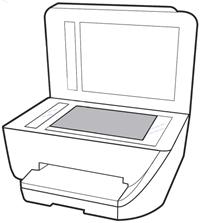
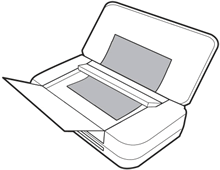
Printers with a flatbed scanner glass and lid
Clean the scanner glass and underside of the scanner lid with a soft, lint-free cloth sprayed with glass cleaner.
-
Turn the printer off, then disconnect the power cord.
-
Lift the scanner lid.
-
Spray a soft, lint-free cloth with glass cleaner, then wipe the scanner glass, glass strip (if present), the white backing under the scanner lid, and the white strip under the lid (if present) until clean, dry, and streak-free.
CAUTION:
To protect the interior printer parts, do not spray the cleaner directly on the glass or on the underside of the lid.
Figure: Clean the scanner glass and under the lid, and any glass or white strips (if present)
-
White scanner lid backing
-
White ADF scanner lid strip (if present)
-
Glass ADF scanner strip (if present)
-
Main scanner glass
-
-
Reconnect the power cord, turn on the printer, then close the scanner lid completely.
-
Load the original document or photo, then try to scan. Make sure the original document or photo is in good condition and free of tears, creases, folds, staples, or tape.
Then, click on this link: https://support.hp.com/us-en/product/hp-officejet-pro-7740-wide-format-all-in-one-printer-series/768... and follow the troubleshooting from step 3.
Keep me posted, how it goes!
If the information I've provided was helpful, give us some reinforcement by clicking the Accepted Solution and Kudos buttons, that'll help us and others see that we've got the answers!
Have a great day!
Cheers:)
Raj1788
I am an HP Employee
12-06-2018 04:17 PM
HP Recommended
Thanks for the reply.
Try to make a copy with the highlighter and check if you are facing the same issue?
Are you using an app or printer drivers for scanning?
Update the firmware for the printer using this link: https://support.hp.com/us-en/product/hp-officejet-pro-7740-wide-format-all-in-one-printer-series/768...
Restart the printer.
Keep me posted, how it goes!
If the information I've provided was helpful, give us some reinforcement by clicking the Accepted Solution and Kudos buttons, that'll help us and others see that we've got the answers!
Have a great day!
Cheers:)
Raj1788
I am an HP Employee
12-09-2018 12:19 PM
HP Recommended
Hi @Raj1788,
I have make a copy on the page with highlighter,below is the outcome:
- yellow highlighter colour came out in very light yellow colour,
- orange higlighter colour came out in something like light brown colour,
- pink highlighter colour still ok, just the colour quite light and saturation is different.
I am using the HP Smart apps as recommended during my installation.

12-09-2018 03:10 PM
HP Recommended
I see that you were interacting with @Raj1788. I'd like to help.
I am sending you a private message. Please check the mailbox icon at the top-right corner of this screen.
I hope this helps resolve this issue completely.
Cheers.
Sandytechy20
I am an HP Employee

Be alert for scammers posting fake support phone numbers and/or email addresses on the community.
If you think you have received a fake HP Support message, please report it to us by clicking on "Flag Post".
† The opinions expressed above are the personal opinions of the authors, not of HP. By using this site, you accept the Terms of Use and Rules of Participation.


Didn't find what you were looking for?
Ask the community
† The opinions expressed above are the personal opinions of the authors, not of HP. By using this site, you accept the <a href="https://www8.hp.com/us/en/terms-of-use.html" class="udrlinesmall">Terms of Use</a> and <a href="/t5/custom/page/page-id/hp.rulespage" class="udrlinesmall"> Rules of Participation</a>.