• ×
    Information
    Need Windows 11 help?
    Check documents on compatibility, FAQs, upgrade information and available fixes.
    Windows 11 Support Center.
  • post a message
  • ×
    Information
    Need Windows 11 help?
    Check documents on compatibility, FAQs, upgrade information and available fixes.
    Windows 11 Support Center.
  • post a message
Guidelines
Seize the moment! nominate yourself or a tech enthusiast you admire & join the HP Community Experts!
HP Recommended

I am having the exact same issue!  I have had the printer about a year and it worked great.  Until it didn't. Rapid red and green flashing charging light, won't hold charge.  Help????

1 REPLY 1
HP Recommended

@scrapperpdx, Welcome to HP Support Community!


Upgrade the Sprocket firmware

HP regularly releases firmware updates. Upgrading the firmware might resolve the issue.

  1. Make sure the Sprocket is on and your mobile device is connected to the Internet.

  2. On your mobile device, open the HP sprocket app.

  3. Tap the Menu icon , and then tap sprocket.

  4. Tap Manage Printers, make sure your Sprocket is selected, and then tap Printer Settings.

  5. Under the Status section, locate Battery.

    • If the battery charge is 25% or higher, continue with these steps.

    • If the battery charge is 24% or lower, charge the battery for at least 30 minutes, and then continue with these steps.

  6. In Printer Settings, look for a firmware upgrade.

    • If a firmware upgrade displays, tap Get Firmware Upgrade and then follow the on-screen prompts to complete the update.

    • If a firmware upgrade option does not display, the firmware is up-to-date.

Reset the printer

Reset the printer with a straight pin to clear any errors.

  1. Turn on the printer.

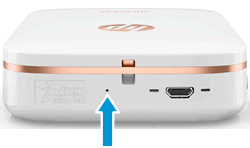
  2. Locate the Reset button near the charging port.

    Locating the reset button

  3. Gently insert the straight pin into the reset button access point, and then press the Reset button for 3 seconds.

    The printer resets and turns off.

  4. Turn on the printer.

Let me know the outcome.

Cheers 🙂


Please click “Accept as Solution” if you feel my post solved your issue, it will help others find the solution. Click the “Kudos/Thumbs Up" on the bottom right to say “Thanks” for helping!


TEJ1602
I am an HP Employee

† The opinions expressed above are the personal opinions of the authors, not of HP. By using this site, you accept the <a href="https://www8.hp.com/us/en/terms-of-use.html" class="udrlinesmall">Terms of Use</a> and <a href="/t5/custom/page/page-id/hp.rulespage" class="udrlinesmall"> Rules of Participation</a>.