• ×
    Information
    Need Windows 11 help?
    Check documents on compatibility, FAQs, upgrade information and available fixes.
    Windows 11 Support Center.
  • post a message
  • ×
    Information
    Need Windows 11 help?
    Check documents on compatibility, FAQs, upgrade information and available fixes.
    Windows 11 Support Center.
  • post a message
Guidelines
Seize the moment! nominate yourself or a tech enthusiast you admire & join the HP Community Experts!
HP Recommended
Sprocket 100
iOS 12 - 12.0.1

Brand new sprocket kept printing photos with vertical lines on it. Tried updating firmware, charging it to full, and calibrating with the blue paper but to no avail. Need some help before I waste more precious papers again. Haii.

1 REPLY 1
HP Recommended

@Rayxian


Greetings!

 
Welcome to the HP Support Community. This is a great place to get support, find answers and tips to your technical queries. I have reviewed your post and I understand, there's an issue with the print quality.


This could be due to various reasons like print settings, firmware update, hardware,.. to name a few.


Appreciate you trying the steps on your own. Don't worry, I'm here to help! 


Let's try these steps -


Step 1 Use genuine HP ZINK photo paper.


Step 2 Upgrade the Sprocket firmware -


1) Make sure the Sprocket is on and your mobile device is connected to the Internet.
2) On your mobile device, open the HP sprocket app.
3) Tap the Menu 
icon, and then tap sprocket.
4 Tap Manage Printers, make sure your Sprocket is selected, and then tap Printer Settings.
5) Under the Status section, locate Battery.

  • If the battery charge is 25% or higher, continue with these steps.
  • If the battery charge is 24% or lower, charge the battery for at least 30 minutes, and then continue with these steps.

6) In Printer Settings, look for a firmware upgrade.

  • If a firmware upgrade displays, tap Get Firmware Upgrade and then follow the on-screen prompts to complete the update.
  • If a firmware upgrade option does not display, the firmware is up-to-date.


Step 3 Clean the Sprocket paper path rollers -


1) Remove the paper cover, and then remove any photo paper from the input tray.
2) Check the photo paper and remove any severely bent, wrinkled, or torn photo paper from the stack.
3) Reload the photo paper with the colored card on the bottom of the stack with the barcode facing down.
4) Replace the paper cover, and then send a print job.


Step 4 Reset the printer - 


1) Turn on the printer.
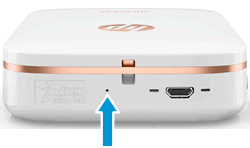
2) Locate the Reset button near the charging port.


Locating the reset button


3) Gently insert the straight pin into the reset button access point, and then press the Reset button for 3 seconds.
The printer resets and turns off.
4) Turn on the printer.


Hope this helps!


Let me know how that goes. 


To thank us for our efforts to help you, please mark the public post as "Accept as solution" and click on the blue "Thumbs up".  
 

Have a great day!

Asmita
I am an HP Employee

† The opinions expressed above are the personal opinions of the authors, not of HP. By using this site, you accept the <a href="https://www8.hp.com/us/en/terms-of-use.html" class="udrlinesmall">Terms of Use</a> and <a href="/t5/custom/page/page-id/hp.rulespage" class="udrlinesmall"> Rules of Participation</a>.