- HP Support Forum Home
- >
- Laptop & Notebook
- >
- Other Notebook
- >
- Delete HP_Tools Partition
HP Support Forums
Join in the conversation.
- Subscribe
- Mark Topic as New
- Mark Topic as Read
- Float this Topic to the Top
- Bookmark
- Subscribe
- Printer Friendly Page
Delete HP_Tools Partition
- Mark as New
- Bookmark
- Subscribe
- Subscribe to RSS Feed
- Highlight
- Report Inappropriate Content
01-17-2011 03:55 PM
Can I delete the HP_Tools partition and then convert it to free space, or is it required for my computer to work properly? I ordered a set of recovery disks so that I can restore back to factory defaults should I have to. I am planning on deleting both the HP_Tools and HP_Recovery partitions so that I can have more free room on my drive.
This might be an obvious question, but do I have to convert the FAT32 to NTFS in order to use it for free space? I noticed that the Tools partition is in FAT32 format...
Re: Delete HP_Tools Partition
- Mark as New
- Bookmark
- Subscribe
- Subscribe to RSS Feed
- Highlight
- Report Inappropriate Content
01-17-2011 04:46 PM
1. it is not very big, probably not worth doing it. (mine is 103MB)
2. It contains Hardware diagnostics, which is important when diagnosing a problem especially when it is under warranty.
.
Re: Delete HP_Tools Partition
- Mark as New
- Bookmark
- Subscribe
- Subscribe to RSS Feed
- Highlight
- Report Inappropriate Content
01-18-2011 03:27 PM
here is the step to remove
Removing the HP Recovery Partition
but I would wait till you have the media
Re: Delete HP_Tools Partition
- Mark as New
- Bookmark
- Subscribe
- Subscribe to RSS Feed
- Highlight
- Report Inappropriate Content
02-19-2011 02:58 AM
OK. I am in the same dilemma...
Windows does not allow more than 4 primary partitions...
But for some of us we need to create more partitions to keep our datas separate from c:
I know the importance of Recovery/Hp_tools whatevr, but is there a way HP can club all these in one partition so that it does not restrict users from creating partitions?
By default on my Hp laptop I have : system | c|recovery | hp_tools partitons. Its already four partitions.
We have no choice but to remove recovery or hp_tools to create partitions to install another OS or just to have a separate partitons... this is lame.
Re: Delete HP_Tools Partition
- Mark as New
- Bookmark
- Subscribe
- Subscribe to RSS Feed
- Highlight
- Report Inappropriate Content
04-15-2011 01:07 AM
that seems not a good idea, the HP tools contain some useful data, such as recovery data and others, and it's also not so big, if you delete it, it may not much help, if you really want to resize your HD, why not use the built-in disk management (only windows 7/vista/2008 has the resize fuction) or other third-party software, such as Partition Assistant, disc director, and GPard, I think this atrticle about "how to resize partition" may give you some suggestion.
Re: Delete HP_Tools Partition
- Mark as New
- Bookmark
- Subscribe
- Subscribe to RSS Feed
- Highlight
- Report Inappropriate Content
05-28-2012 02:12 PM
Re: Delete HP_Tools Partition
- Mark as New
- Bookmark
- Subscribe
- Subscribe to RSS Feed
- Highlight
- Report Inappropriate Content
05-29-2012 12:02 PM
FYI, the HP_TOOLS partion contains the BIOS... do NOT delete this unless you arew CERTAIN you have a backup bios on a flash drive that you know will run, there is a special procedure to booting from bios via a flash drive, if i were you, it;s not worth the hassle.
There is however a thread stickied up the top here outlining how to create one 'extra' partion, by shifting things aroind and whatnot - http://h30434.www3.hp.com/t5/Other-Notebook-PC-Que
PERFECT SOLUTION : Delete HP_Tools Partition
[ Edited ]- Mark as New
- Bookmark
- Subscribe
- Subscribe to RSS Feed
- Highlight
- Report Inappropriate Content
06-28-2012 08:38 PM - edited 06-28-2012 08:50 PM
Perfect Solution to Problem:
Precautions:
1.Create your recovery DVD's from recovery partition before proceding, or order them from hp so as in case of any error or in worst case system can be set to factory restore.
2.BACK UP YOUR DATA.
3.FOLLOW ON YOUR OWN RISK , NO RESPONSIBILTY FOR DATA LOSS , SYSTEM CRASH, OR LOSS OF RECOVERY PARTITION.
4.Hopefully you have read this , if any consequences arises take it on your part , nothing to do with it, you can leave the rest of reding part if not ready,
THANKS FOR READING........
OOP'S you are here,,,,,,,,,then lets continue at y
Statement:
You are using this guide at your own risk. I don't
Important informations !
Before you will do anything please create a set of
Both these steps will save you a lot of troubles i
Resource:
From experience
Remember that if you will decide to use the recove
Introduction:
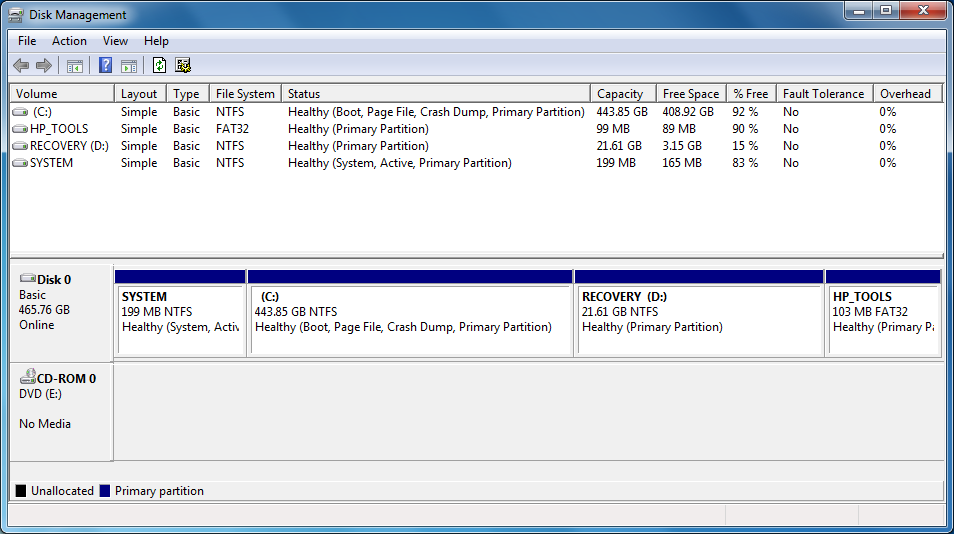
Below screenshot shows pre-configured partitions o
As you see mounted HDD has four primary partitions
- C - partiton with the operating system.
- HP_TOOLS - partition which allow to use diagnostic tools aft
er pressing F2 on startup.
- RECOVERY - partiton which allows to recover system by pressi
ng F11 on startup.
- SYSTEM - active partition which boots the operating system.
Here begins our problem. A standard partition tabl
This means that a hard disk could have a maximum o
To deal with this limitation we may:
----> Delete hp tools partiton , and create new lo
PROCESS:
Note:
Please perform each operation individually.
Using several operations at one time may end with
1.Hope you have your recovery media , recovery media dvd set and DRIVER DVD,if not then please get it first for safety..
2. Download and install MiniTool Partition Wizard Home Edition.
3.Please back all of your data on HARDDISK before proceding.......
4.Go to START> COMPUTER > RIGHT CLICK ON IT > MANAGE
5.A window opens, select disk management from it , given on left hand side....
6.It will display your harddisk partitions as displayed in image.....carefully locate HP_TOOLS Partition in given table.....
7.Right click on HP_TOOLS Partition and Delete it.........it will prompt for response say yes.........
8.Now must have left with 3 partitons.........HP_TOOLS have been deleted...
9.Now action time...........
10.Start Minitool Partition wizard.......it will diaplay your partitons.........select C: partition......right click on it .....select option move/resize...
11.New dialog box appears displays currents stats use the drag corners on top to reduce size for C: drive ......set the new size according to use..........But new size must not be less than 150 gb to avoid any data loss.....
12.leave rest of options intact.........click ok...........this will return you to minitool partiton wizrd home screen........click on apply at leftmost top corner..........it asks for permission say yes........then it displays that drive is in use you need to restart............
13.Click on Restart Computer........
14.Your Computer will restart in Mini tool partition boot mode dont press any key...........after loading it will start processing and shrinking............then copying data...........it will restart automatically after progress is done 100%..........be patient.........it takes upto 5-10 mins......
15.If every thing goes fine your computer will start normally.........then go to START> COMPUTER > RIGHT CLICK ON IT > MANAGE
16. New window opens, select disk management from it , given on left hand side....now you can see your C: partition has been reduced in size according to your size specified...........and unallocated space have been created along by C: partion.
17. Finally right click on unallocated space and select NEW SIMPLE VOLUME......a dialog box appers specify size to create a new logical partition...........you may create any number of logical drives till there is free space left...........
18.Now open My Computer ...........you can see your new custom partitions have been created........
19. Done.........enjoy.......
SUPPLEMENTARY:-
1. You can create any image creation tool......to
2. In future if you want to recover system,,,,,you
Drawbacks:
Running Recovery form DVD or recovery partiton may
RESOURCES:
FROM EXPERIENCE
ADVICE:
USE IMAGE CREATION SOFT FOR CREATING SYSEM IMAGES
WARNING:
ALL INFO IS FROM BEST OF MY KNOWLEDGE,,,,,,,,,,BUT
SYSTEM CRASH,, OR VIOLATION OF WARRANTY...........
After you delete HP_TOOLS partition, BEWARE about one thing: do you have something called HP support assistant in your laptop? if yes, beware when it wants to upgrade HP software, because it will make HP_TOOLS partition reappear without your permission!!
(u may ask for any further any queries,,,,,wll b hppy to help)
Your Support:
ACCEPT IT AS SOLUTION,,,REFER TO OTHER,,, AND CLICK ON KUDOS!!!!!!!!!!!
THANKS,,,,,,,,,(SRY FOR BAD ENGLISH)
////////Clicking Accept as Solution on a Reply that solves your issue helps others who are searching///////
Re: Delete HP_Tools Partition
- Mark as New
- Bookmark
- Subscribe
- Subscribe to RSS Feed
- Highlight
- Report Inappropriate Content
05-14-2013 01:23 PM
Advise:
Perhaps you the user should look into increasing the size of your hard drive. I personally was thinking the same thing until I did a little research and finally just made the decision to cloning my drive to a new hard drive of larger size and it fixed my problem.
2TB notebook hard drive will run you roughly $179.99 on newegg.com
I've been pleased with the outcome and not complaining about size at all.