- HP Support Forum Home
- >
- Printers & All-In-Ones
- >
- Print Install/Setup
- >
- Re: how do I remove rocketlife communicator?
HP Support Forums
Join in the conversation.
- Subscribe
- Mark Topic as New
- Mark Topic as Read
- Float this Topic to the Top
- Bookmark
- Subscribe
- Printer Friendly Page
how do I remove rocketlife communicat or?
- Mark as New
- Bookmark
- Subscribe
- Subscribe to RSS Feed
- Highlight
- Report Inappropriate Content
06-08-2012 07:36 PM
Some virus called "rocketlife communicator" was installed with "photo creations" that came with my HP printer. How can I get rid of this? I can't have some "communicator" running on my PC - I could lose my job. Do I have to return the printer and uninstall all this stuff? I wish HP products had a warning about this. I didn't get an option to opt-out of their spyware.
Re: how do I remove rocketlife communicat or?
[ Edited ]
- Mark as New
- Bookmark
- Subscribe
- Subscribe to RSS Feed
- Highlight
- Report Inappropriate Content
06-09-2012 12:59 PM - edited 06-19-2012 06:10 PM
Hi Steve.
Communicator is a part of HP Photo Creations, the creative printing software developed by RocketLife. Communicator displays a brief alert on your screen when there are software updates, special offers, or other news. Subscribing to Communicator messages is an option when you install the software.
To turn off specific types of messages (for example, special offers):
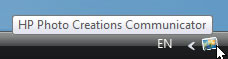
- Look for the Communicator icon at the bottom right of your screen. (It looks like a blue and orange painting.) You may need to click the white triangle to show hidden icons.
- If the Communicator icon is present, right-click on it and choose Quit.
- Start HP Photo Creations. Allow it to update itself if requested.
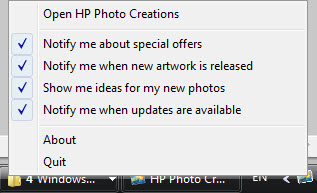
- The next time a Communicator message appears, right-click on the Communicator icon.
- Uncheck the types of messages you don't want to receive:
To turn off all Communicator messages:
- Look for the Communicator icon at the bottom right of your screen. (It looks like a blue and orange painting.) You may need to click the white triangle to show hidden icons.
- If the Communicator icon is present, right-click on it and choose Quit.
- Start HP Photo Creations. Allow it to update itself if requested.
- Click the Online Feature Options button at the top right of HP Photo Creations. (It looks like a lightning bolt):
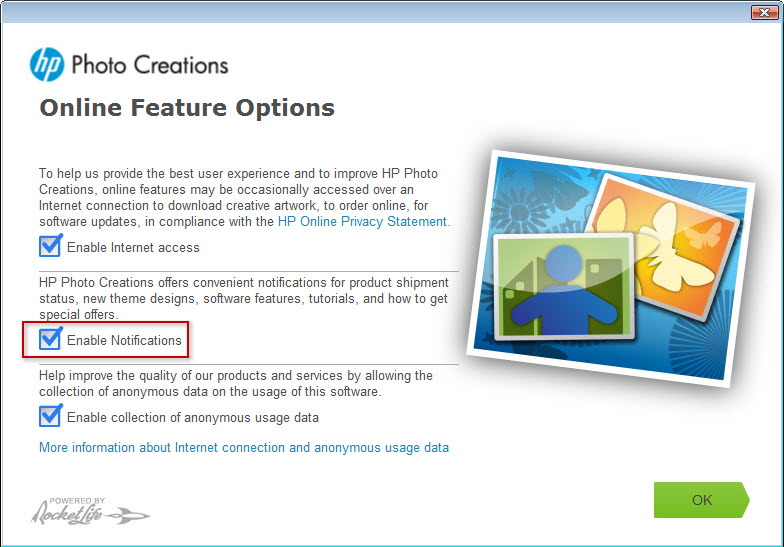
- Uncheck the box labeled Enable Notifications:
While you're on the Online Feature Options screen (as well as during installation), you can choose how HP Photo Creations interacts with the Internet. The screenshot above shows the options:
- Enable Internet access is very helpful; it keeps the program up to date with new features, projects, and graphics. This option also lets you order your creations for home delivery or store pickup, and share projects online with friends. You may want to disable Internet access temporarily if you're connecting to the Internet via a service that charges for connection time.
- Enable Notifications turns off all Communicator messages. To turn off just specific types, click the Communicator icon instead.
- Enable collection of anonymous usage data helps us improve the program by gathering anonymous data on how people use it.
Note that you don't need to have HP Photo Creations installed to use your printer, but we hope you'll find it makes your printer much more fun and useful.
Our customer service team can help. Please contact them at hpphotocreations@hp.com.
Thank you for writing,
RocketLife
RocketLife, developer of HP Photo Creations
••••••••••••••••••••••••••••••••••••••••••••••••••••••••••••••••••••••••••••••••••••••••••••••••••••••••••••••••
» Visit the HP Photo Creations Facebook page — news, answers, and inspiration
» See the HP Photo Creations video tours — cool tips in under 2 minutes
Re: how do I remove rocketlife communicat or?
- Mark as New
- Bookmark
- Subscribe
- Subscribe to RSS Feed
- Highlight
- Report Inappropriate Content
06-11-2012 06:33 AM
Thank you for the response. It sounds like I need to uninstall Photo Creations to remove the RocketLife communicator from my computer.
Disappointing that there isn't a way to just uninstall the communicator portion, but as you mentioned, I don't need Photo Creations to use the printer. Too bad, I thought it might come in handy.
Thank you.
Re: how do I remove rocketlife communicat or?
- Mark as New
- Bookmark
- Subscribe
- Subscribe to RSS Feed
- Highlight
- Report Inappropriate Content
06-11-2012 11:56 AM
Hi Steve.
No need to uninstall. You can disable Communicator messages by going to HP Photo Creations' Online Feature Options screen and unchecking "Enable Notifications," as shown above.
Hope this helps,
RocketLife
RocketLife, developer of HP Photo Creations
••••••••••••••••••••••••••••••••••••••••••••••••••••••••••••••••••••••••••••••••••••••••••••••••••••••••••••••••
» Visit the HP Photo Creations Facebook page — news, answers, and inspiration
» See the HP Photo Creations video tours — cool tips in under 2 minutes
Re: how do I remove rocketlife communicat or?
- Mark as New
- Bookmark
- Subscribe
- Subscribe to RSS Feed
- Highlight
- Report Inappropriate Content
06-23-2012 09:53 AM
this Rocketlife icon appeared on my tool bar after installing a new HP printer. I find this program way too controlling and I do not use it nor ever intend to use it - so how do I uninstall this program?
Regards
Ralph Nutter
Re: how do I remove rocketlife communicat or?
- Mark as New
- Bookmark
- Subscribe
- Subscribe to RSS Feed
- Highlight
- Report Inappropriate Content
06-24-2012 12:17 AM
Please see the instructions above. Our customer support team can help. They're at hpphotocreations@hp.com.
Thank you,
RocketLife
RocketLife, developer of HP Photo Creations
••••••••••••••••••••••••••••••••••••••••••••••••••••••••••••••••••••••••••••••••••••••••••••••••••••••••••••••••
» Visit the HP Photo Creations Facebook page — news, answers, and inspiration
» See the HP Photo Creations video tours — cool tips in under 2 minutes
Re: how do I remove rocketlife communicat or?
- Mark as New
- Bookmark
- Subscribe
- Subscribe to RSS Feed
- Highlight
- Report Inappropriate Content
08-12-2012 06:43 AM
Re: how do I remove rocketlife communicat or?
- Mark as New
- Bookmark
- Subscribe
- Subscribe to RSS Feed
- Highlight
- Report Inappropriate Content
08-12-2012 11:03 AM
Hi Steve.
Running that uninstaller program will remove HP Photo Creations. To turn off just the Communicator messages, use the instructions above. In short, right-click the Communicator icon to choose the types of messages you want, or click the lightning-bolt button HP Photo Creations to turn off all Communicator messages.
Our customer support team can help. Their email address is hpphotocreations@hp.com.
Thank you,
RocketLife
RocketLife, developer of HP Photo Creations
••••••••••••••••••••••••••••••••••••••••••••••••••••••••••••••••••••••••••••••••••••••••••••••••••••••••••••••••
» Visit the HP Photo Creations Facebook page — news, answers, and inspiration
» See the HP Photo Creations video tours — cool tips in under 2 minutes
Re: how do I remove rocketlife communicat or?
- Mark as New
- Bookmark
- Subscribe
- Subscribe to RSS Feed
- Highlight
- Report Inappropriate Content
10-08-2012 08:46 PM
HP has done the public a disservice.
Re: how do I remove rocketlife communicat or?
[ Edited ]
- Mark as New
- Bookmark
- Subscribe
- Subscribe to RSS Feed
- Highlight
- Report Inappropriate Content
10-09-2012 12:36 PM - edited 10-09-2012 12:37 PM
normpon6 wrote:HP has done the public a disservice.
Have you read this thread? See especially the response by Rocketlife which gives a detailed procedure for uninstalling this software or turning off notification features.
<---- If my answer was helpful please click the "Kudos" star to say "Thank You".
If your problem is solved please click the "Accept as Solution" button ---->