-
×InformationNeed Windows 11 help?Check documents on compatibility, FAQs, upgrade information and available fixes.
Windows 11 Support Center. -

-
×InformationNeed Windows 11 help?Check documents on compatibility, FAQs, upgrade information and available fixes.
Windows 11 Support Center. -
- HP Community
- Printers
- 3D Scanning
- 3D scans Sizes and alignment issues

Create an account on the HP Community to personalize your profile and ask a question
12-16-2019 10:11 AM
Hello HP 3D scan community.
I have an HP 3D scanner SLS Dual camera S3 PRO system.
Well, I'm having issues running manual scanning sequences due to I'm getting different scan sizes and then wrong alignments.
But, the problem is noticed in automatics scan sequences as well.
I had found that each scan is slightly different (bigger or smaller) from the other shots, even when I only changed the vertical angle -like viewing the object from just a little bit up-.
Is there any way to assure the scanning precision? and also How to verify the scan's accuracy?.
What is the use of different pattern calibration sizes over the scanned result's real impact?, Why I can't set a 30 mm calibration when I use a dual-camera S3 PRO scanner?
Could it help to calibrate cameras separately?.
Thank you very much for your concern on this matter.
01-01-2020 10:48 AM
@Rhinotrainer wrote:What is the use of different pattern calibration sizes over the scanned result's real impact?, Why I can't set a 30 mm calibration when I use a dual-camera S3 PRO scanner?
The size of the calibration zone must be appropriate for the object being scanned. If I scan a coin, then I choose a 30mm table, if something larger is 50, 80 or 110mm (these are tables that I made myself).
P.S. If something is even larger, then you have to scan in parts with a rather weak faithfulness that everything will turn out as it should (due to the fact that the software does not support working with markers).
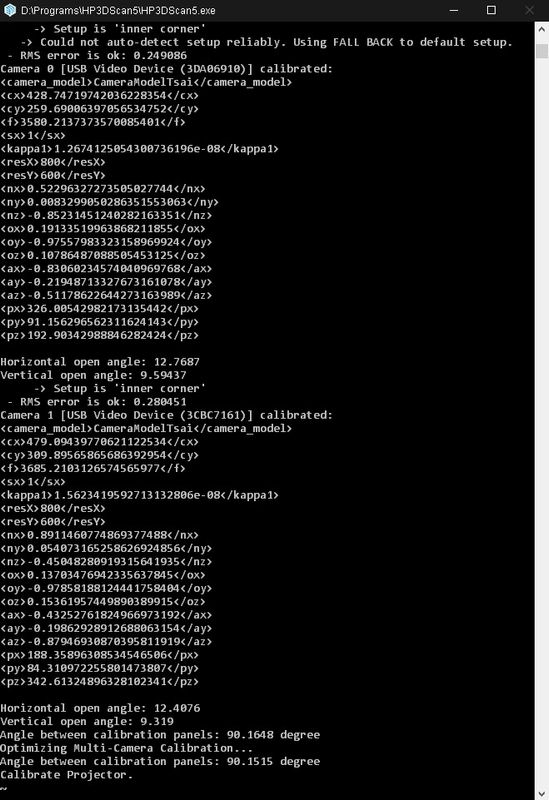
In the dual-camera mode, in any case, calibration is performed separately for each camera (this information can be seen in the program command window)
Here you can see the calibration results for camera 0 and camera 1: