
-
×InformationNeed Windows 11 help?Check documents on compatibility, FAQs, upgrade information and available fixes.
Windows 11 Support Center. -
-
×InformationNeed Windows 11 help?Check documents on compatibility, FAQs, upgrade information and available fixes.
Windows 11 Support Center. -
- HP Community
- Notebooks
- AI PCs
- Re: Windows error code 0x800701b1 on USB-A flashdrive

Create an account on the HP Community to personalize your profile and ask a question
Your account also allows you to connect with HP support faster, access a personal dashboard to manage all of your devices in one place, view warranty information, case status and more.

05-28-2026 10:49 AM - edited 05-28-2026 10:58 AM
 HP Recommended
I've just had an auto BIOS update installed from HP and since then I'm getting Windows 0x800701b1 errors when trying to access a USB-A flashdrive. This same drive was working OK before the BIOS update. Has anybody else experienced the same, or got any ideas on how to fix it please?
Slight update - it only appears to affect the two USB-A ports on the right-hand side of the laptop; the one on the left appears to be OK.
9 REPLIES 9


05-29-2026 12:41 PM
HP Recommended
Hi @aajlamb
Welcome to the HP Support Community.
Thank you for posting your query.
The Windows error code 0x800701b1 after your HP BIOS update usually indicates that Windows cannot properly access the USB device , often due to driver conflicts, power management changes in BIOS, or file system corruption on the flash drive.
Update USB Drivers:
- Open Device Manager (press Win + X and select Device Manager).
- Expand Universal Serial Bus controllers and right-click on your USB device to update the driver.
Run Windows Troubleshooter:
- Go to Settings > Update & Security > Troubleshoot > Additional Troubleshooters.
- Select Hardware and Devices, then click Run the troubleshooter.
Check if BIOS settings changed
Enter BIOS setup and look for:
- USB Configuration
- USB legacy support
- Thunderbolt / USB4 settings
- Fast boot
- Modern standby options
If available:
- Try restoring BIOS defaults once
- Save and reboot
Hope this helps, Please revert if the issue persists.
Take care and have an amazing day!
I'm an HP Employee.
If this reply helped resolve your issue, please select the Accept as Solution as it helps others in the community quickly find the answer they’re looking for.
And if you found this reply helpful, clicking Yes below is a great way to let us know we’re providing the support you need, as it encourages us to keep improving and sharing helpful guidance.
06-02-2026 11:30 AM
HP Recommended
Hi Pallipurath, thanks for the reply. I'm sorry it's taken a while to respond, but I'm currently on holiday 😊
I went through your suggestions and unfortunately they didn't change anything.
I tried updating the drivers and running the troubleshooter - no change.
I cannot see any options in the BIOS settings for USB configuration or the other settings you mentioned, Restoring the BIOS defaults didn't change anything either.
It seems a bit strange that it's only the two USB-A ports on the right -hand side of the laptop that have this issue, with the left-hand one being OK.
06-04-2026 07:21 AM
HP Recommended
Hi @aajlamb,
Thank you for responding.
I regret to hear that the issue is not resolved, to further assist you I would request you to please share the model of your device?
Need help finding your product number? We've got you covered! Check out this handy guide:
https://support.hp.com/in-en/document/ish_2039298-1862169-16
Meanwhile, you can refer to the following I would request you to perform the below steps.
Rescan Disks in Disk Management
Forcing Windows to re-evaluate the laptop's hardware connections often restores access to a dropped drive.
- Right-click the Start menu and select Disk Management.
- Click Action on the top menu bar.
- Select Rescan Disks. Check to see if your missing drive reappears without errors.
Reinstall the USB/Storage Drivers
Corrupted drivers can disrupt communication mid-transfer.
- Press Windows Key + X and select Device Manager.
- Expand Universal Serial Bus controllers (or Disk drives if it is an internal drive).
- Right-click your specific drive or the USB Controller and choose Uninstall device.
- Restart your HP laptop; Windows will automatically reinstall a clean driver version.
Run a Disk Check via Command Prompt
File system corruption can trick Windows into thinking a physical drive was removed.
- Type cmd into the Windows search bar, right-click Command Prompt, and select Run as administrator.
- Type the following command (replace X: with your actual drive letter) and hit Enter:
chkdsk X: /f /r - If prompted to unmount the volume, type Y and hit Enter.
I would request you to please follow the steps:
Have a good day.
I'm an HP Employee.
If this reply helped resolve your issue, please select the Accept as Solution as it helps others in the community quickly find the answer they’re looking for.
And if you found this reply helpful, clicking Yes below is a great way to let us know we’re providing the support you need, as it encourages us to keep improving and sharing helpful guidance.
06-08-2026 12:47 PM
HP Recommended
Hi Pallipurath,
The product number for the laptop is: BG3H4EA#ABU.
The USB-A port on the left-hand side of the laptop appears to be OK. The two USB-A ports on the right-hand side display different symptoms for the same USB device when it is plugged in,
The port nearest the hinge for the screen will allow me to use File Explorer to look at the device and see files on it. However, if I try and access a file e.g. an mp4 file, it will not play the video, but says there is an error and it displays the Windows error code.
When I plug the same device into the second port on the right (furthest away from the screen hinge) the device is visible briefly, then disappears within a second, then re-appears and disappears continuously, as though there is some sort of loop. The device appears and disappears from Device Manager as well.
Disk Management does not like this second port either.

Updating the USB drivers has no effect and chkdsk finds no errors.
The laptop is still under warranty and so raising this as an issue via the warranty may be my best option
06-08-2026 02:24 PM
HP Recommended
Hi @aajlamb
Thank you for responding.
Thank you for providing the product number and the detailed observations regarding the USB ports. The fact that the left-side USB-A port appears to function normally while the two right-side USB-A ports exhibit different issues is very helpful information. Please be informed that as per the User Guide
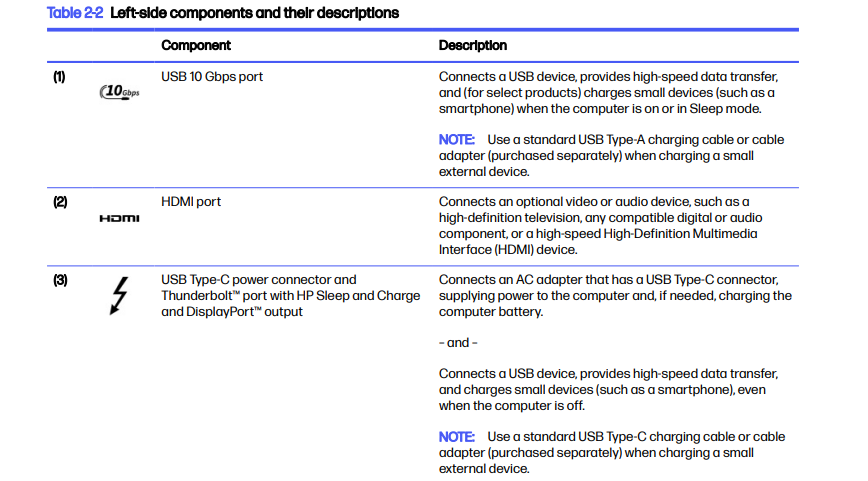
However the rightside port
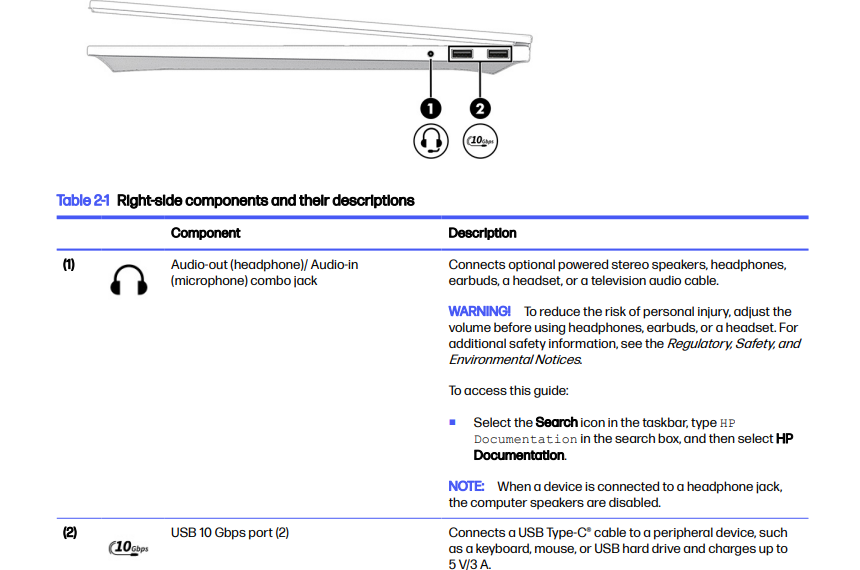
Please find the UserGuide from https://support.hp.com/au-en/products
Have a good day.
I'm an HP Employee.
If this reply helped resolve your issue, please select the Accept as Solution as it helps others in the community quickly find the answer they’re looking for.
And if you found this reply helpful, clicking Yes below is a great way to let us know we’re providing the support you need, as it encourages us to keep improving and sharing helpful guidance.
06-09-2026 05:07 AM
HP Recommended
Hi Pallipurath,
I checked the user guide that you included a link for and this does NOT match up with the ports on the right of the laptop itself. The laptop has 2 USB-A ports, plus the headphone socket i.e. no USB-C ports.
The only USB-C ports are on the left-hand side.
06-11-2026 07:06 AM
HP Recommended
Hi @aajlamb
Thank you for resopnding.
I regret to hear that the Ports did not match your device, I would request you to please share me the Serial number of th Unit via private message.
To access your private message, just click the little blue envelope icon on the upper right corner of your HP Community profile, next to your profile name. Alternatively, you can click on this link.
You can use this link as well:
Private Messages - HP Support Community
Have a good day.
I'm an HP Employee.
If this reply helped resolve your issue, please select the Accept as Solution as it helps others in the community quickly find the answer they’re looking for.
And if you found this reply helpful, clicking Yes below is a great way to let us know we’re providing the support you need, as it encourages us to keep improving and sharing helpful guidance.
06-11-2026 08:19 AM
HP Recommended
Hi Pallipurath,
I've just checked the documentation again and it is incorrect / inconsistent.
In table 1.1 it lists the ports on the laptop and says "USB 3.2 Gen 2 Type-A (one on left side and two on right side". This is correct, matching with the physical laptop.
In section 2, table 2.1 it says there are two USB-C ports on the right-side:
(2) USB 10 Gbps port (2) Connects a USB Type-C® cable to a peripheral device, such as a keyboard, mouse, or USB hard drive and charges up to 5 V/3 A. This is incorrect
06-11-2026 02:25 PM
HP Recommended
Hi @aajlamb
Thank you for responding.
I regret to hear that the Ports did not match your device, I would request you to please share me the Serial number of th Unit via private message.
Have a good day
I'm an HP Employee.
If this reply helped resolve your issue, please select the Accept as Solution as it helps others in the community quickly find the answer they’re looking for.
And if you found this reply helpful, clicking Yes below is a great way to let us know we’re providing the support you need, as it encourages us to keep improving and sharing helpful guidance.

Be alert for scammers posting fake support phone numbers and/or email addresses on the community.
If you think you have received a fake HP Support message, please report it to us by clicking on "Flag Post".
† The opinions expressed above are the personal opinions of the authors, not of HP. By using this site, you accept the Terms of Use and Rules of Participation.


Didn't find what you were looking for?
Ask the community
† The opinions expressed above are the personal opinions of the authors, not of HP. By using this site, you accept the <a href="https://www8.hp.com/us/en/terms-of-use.html" class="udrlinesmall">Terms of Use</a> and <a href="/t5/custom/page/page-id/hp.rulespage" class="udrlinesmall"> Rules of Participation</a>.