• ×
    Information
    Need Windows 11 help?
    Check documents on compatibility, FAQs, upgrade information and available fixes.
    Windows 11 Support Center.
  • post a message
  • ×
    Information
    Need Windows 11 help?
    Check documents on compatibility, FAQs, upgrade information and available fixes.
    Windows 11 Support Center.
  • post a message
Guidelines
Seize the moment! nominate yourself or a tech enthusiast you admire & join the HP Community Experts!
HP Recommended
HP Pavilion All-in-One - 27-r045qe
Microsoft Windows 10 (64-bit)

I have a Critical Default, Blue screen. I have completed all resets, reboots, and re install Win 10, all without success. Would a new hard drive install with Win 11 capability solve the issue? If so, where should I look for the new hard drive for my HP Pavilion?

3 REPLIES 3
HP Recommended

@leon180,


Welcome to HP Support Community,


Thank you for posting your query; I’m here to help by guiding you through steps to resolve this issue


We can narrow drive which drive has an issue by running the diagnostics test manually.


Power on your notebook and press the F2 key at boot to load the HP Diagnostics Utility.  Here, you can choose to test by component, select hard drive, then select the drive you wish to test and perform the extensive test.


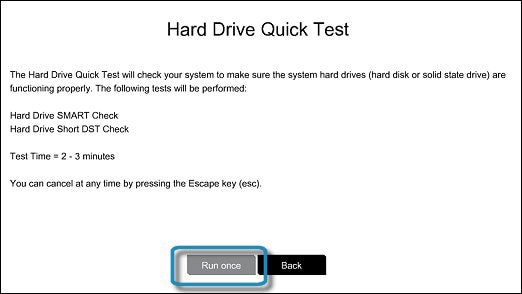
To run the Hard Drive Quick Test, follow these steps:

  1. In the Component Tests menu, select Hard Drive.
  2. Click on Quick Test to begin the test. This test typically takes 2 to 3 minutes to complete.

If the Quick Test doesn't detect any issues, consider running the Extensive Test, which may take 2 hours or longer and includes a Loop Until Error option.

Garp_Senchau
I am an HP Employee

HP Recommended

Selecting the Hard Drive Quick Test


Hard Drive Quick Test - Run once

Garp_Senchau
I am an HP Employee

HP Recommended

The Hard Drive Quick Test will begin once initiated. If your computer has multiple hard drives, select the drive you wish to test. To test all hard drives, choose Test All Hard Drives.

Once the test is complete, the results will appear on the screen. You can also access the test results in the Test Logs from the main menu.


If the hard drive passes the Quick Test but you're still experiencing issues, proceed with the Extensive Test. This includes the SMART Check, Short DST, Optimized DST, and Long DST. You can run these tests individually by selecting them from the Hard Drive Tests menu.


If the hard drive fails any of the tests, make sure to note down the failure ID (a 24-digit code) so you can send it to me. You can also find this information in the Test Logs on the main menu.


visit: HP Support Assistant - Diagnostics and select diagnose PC hardware issues outside os


I hope these steps help resolve the issue

Please feel free to reply here if you have any questions or if you need further clarification on any of the steps. 


Take care and have a good day. 


If this reply nailed it, 🔨 mark it as the "Accepted Solution"—it’s like a spotlight for future problem solvers.  And clicking 'yes' under 'Was this reply helpful?' is the cherry 🍒 on top of the solution sundae. Sharing is caring! 💕


Regards,

Garp_Senchau
I am an HP Employee

† The opinions expressed above are the personal opinions of the authors, not of HP. By using this site, you accept the <a href="https://www8.hp.com/us/en/terms-of-use.html" class="udrlinesmall">Terms of Use</a> and <a href="/t5/custom/page/page-id/hp.rulespage" class="udrlinesmall"> Rules of Participation</a>.