• ×
    Information
    Need Windows 11 help?
    Check documents on compatibility, FAQs, upgrade information and available fixes.
    Windows 11 Support Center.
  • post a message
  • ×
    Information
    Need Windows 11 help?
    Check documents on compatibility, FAQs, upgrade information and available fixes.
    Windows 11 Support Center.
  • post a message
Guidelines
Join the HP Community Solve‑a‑thon | Help Others & Share Your Solutions | Live on Zoom | 2:30 PM to 2:30 AM IST | Every Wednesday Click here to know more
HP Recommended
HP Notebook - 15-da0388tu
Microsoft Windows 10 (64-bit)

One day I was using my laptop and when I put it into charge, it was not charging . The charger was properly connected and there was no electricity cut. Just after 2 day , when I decided to check last time ,before taking my laptop to service centre, for my surprise it was charging . My laptop gets fully charged withing 45-60 min. So the charging worked for the whole time . but when I used it in the evening and put the charger on , the charging was suddenly stopped after 5 min.Then again the charging worked the next day  but the next day it stopped after taking 5 min charge. Now , I got to know that ,if I put my laptop charger with a gap of  1 or 2 days , it works .Even the battery is not damaged cuz I am working on the same latop now. Please suggest me some help. Is there any hardware issue or software issue. I m not able to use my laptop everyday because of this charging problem.

1 REPLY 1
HP Recommended

It is possible a weak charger cannot charge the battery at the same time as the laptop is being used.  Normally it simply takes a lot longer to get to %100 .  Alternately you cable is not making a good connection.  Try wiggling it and see if it is loose.


Depending on how smart the laptop or charger adapter is, it may turn off the charging if it detects too much current or a high temperature.


Please run the battery report and post  the summery (cycle count and age)
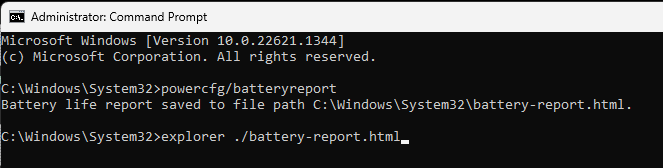
you run the battery report by bringing up the administrator command windows "cmd" and running powercfg/batteryreport as shown below

After entering that explorer line you should see something like the following. You will have to click on it as it is long
https://stateson.net/docs/SP4_battery-report.html
You can use the WindowsKey + shift + S to copy and past a small image.


Thank you for using HP products and posting to the community.
I am a community volunteer and do not work for HP. If you find
this post useful click the Yes button. If I helped solve your
problem please mark this as a solution so others can find it
† The opinions expressed above are the personal opinions of the authors, not of HP. By using this site, you accept the <a href="https://www8.hp.com/us/en/terms-of-use.html" class="udrlinesmall">Terms of Use</a> and <a href="/t5/custom/page/page-id/hp.rulespage" class="udrlinesmall"> Rules of Participation</a>.