• ×
    Information
    Need Windows 11 help?
    Check documents on compatibility, FAQs, upgrade information and available fixes.
    Windows 11 Support Center.
  • post a message
  • ×
    Information
    Need Windows 11 help?
    Check documents on compatibility, FAQs, upgrade information and available fixes.
    Windows 11 Support Center.
  • post a message
Guidelines
Seize the moment! nominate yourself or a tech enthusiast you admire & join the HP Community Experts!
HP Recommended
Pavillion 20
Microsoft Windows 10 (64-bit)

Pavillion 20 - Having problems with the DVD CD-ROM drive. 


Had some kinda virus or something, it was advancing quickly and the drive stopped working during the course of this.  Did factory restore then spent hours trying this and that, troubleshooting, updating drivers, uninstalling, and so forth. 


Got it to where pre-recorded DVD's will play.  Interestingly, this came about while creating a set of backup discs, which I did in desperation, hoping it would trigger something.  Which it did.  That got it to where it'll recognize DVD's.  But it still won't recognize software discs.


Initially, subsequent to the restore, in Device Manager, under DVD/CD-ROM drives, 2 were listed.  Uninstalled both thinking they'd reinstall.  But only one, HP DVD A, reinstalled. 


Also went to HP website and ran all the suggested updates.  This did not help with the CD-ROM/software discs issue.  And it seems this also backpeddled the startup hp troubleshooting options (which now are very limited). 


In any case, at this point I"m mainly trying to resolve the DVD CD-ROM issue (but I'm open to any suggestions about the startup options issue as well).  Just re-upgraded to Windows 10 (subsequent to the factory restore).  Problem still exists.  Be nice if I could re-install the rest of the software that the restore wiped out.


Any help would be truly appreciated.  Thanks! 

1 REPLY 1
HP Recommended

@ellielouya
Thank you for posting on the HP Support Community.


I have a few troubleshooting steps we could try to fix the issue,
Firstly, let's clear the upper and lower registry filters:

  1. Unplug all non-essential external plug and play devices, especially cameras.

  2. In Windows, search for and open regedit.

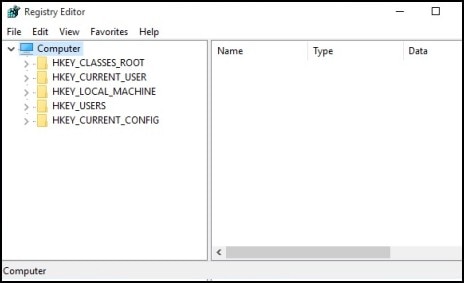
  3. Select Computer in the main window.

    Image of Registry Editor

  4. Click File, click Export, type a filename that is easy for you to remember, then click Save.

    A copy of the registry has been saved for back-up purposes to the Documents folder. If problems occur after using these steps, browse to the file and double-click it to restore the registry.

  5. Click the arrow next to each of the following items in the list:

    • HKEY_LOCAL_MACHINE

    • SYSTEM

    • CurrentControlSet

    • Control

    • Class

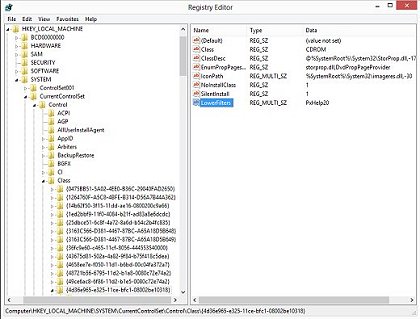
  6. Select 4D36E965-E325-11CE-BFC1-08002BE10318. Make sure you have selected this exact key name.

  7. If a LowerFilters value is listed on the right side of the Registry Editor window, select the LowerFilters value and press the Delete key. Confirm the deletion by clicking Yes.

    The Registry Editor with Lower Filters highlighted

  8. If an UpperFilters value is also listed, select UpperFilters in the right side of the window and press the Delete key.

    Confirm the deletion by clicking Yes.

  9. Delete LowerFiltersall other UpperFilters and values within the 4D36E965-E325-11CE-BFC1-08002BE10318 key if any exist.

  10. Close the Registry Editor, and then restart the computer. The disc drive should now be recognized by Windows.

Hope this helps! Keep me posted for further assistance.
Please click “
Accept as Solution” if you feel my post solved your issue, it will help others find the solution.

ECHO_LAKE
I am an HP Employee

† The opinions expressed above are the personal opinions of the authors, not of HP. By using this site, you accept the <a href="https://www8.hp.com/us/en/terms-of-use.html" class="udrlinesmall">Terms of Use</a> and <a href="/t5/custom/page/page-id/hp.rulespage" class="udrlinesmall"> Rules of Participation</a>.