• ×
    Information
    Need Windows 11 help?
    Check documents on compatibility, FAQs, upgrade information and available fixes.
    Windows 11 Support Center.
  • post a message
  • ×
    Information
    Need Windows 11 help?
    Check documents on compatibility, FAQs, upgrade information and available fixes.
    Windows 11 Support Center.
  • post a message
Guidelines
Seize the moment! nominate yourself or a tech enthusiast you admire & join the HP Community Experts!
Check out our WINDOWS 11 Support Center info about: OPTIMIZATION, KNOWN ISSUES, FAQs, VIDEOS AND MORE.
HP Recommended

HP Pavillion 500-C60

Operating on Windows 10

Product No: F3D80AA#ABA

Serial No: [removed per Rules Of Participation}

Restarted PC, and went almost 2 hours on a screen saying Attempting Automatic Repairs. Then a screen saying Automatic repair failed: turn off or advanced options.

When I click on advanced options; then Troubleshooting; then Recovery Manager. I bought a USB flash drive and reformatted it to NTFS. I plug in USB, let recovery manager scan through files, and only choose documents and emails to back up. Free space on flash drive: 57.2GB. File size for documents to back up: 30 GB. I start recovery process, but it never makes it past 42%, then gives me a pop up saying 

"Recovery Manager could not back up your files. Possible causes: 1) The removable disc drive doesn't have enough free space available. 2) The system partition doesn't have enough free space available. 3) a drive/disc compatibility issue. 4) destination device is not connected. Error code: 0xe0ef000e

I disabled secure boot and went through the process again, with no change. This is a business computer and our only computer. It has extremely important information I need to back up. PLEASE HELP.

1 REPLY 1
HP Recommended

@JKateGuffey 

If this were my PC, rather than messing around with built-in backup solutions that don't appear to work, I would open the case, remove the drive, and then, after connecting the drive to a working PC using an adapter, retrieve the files I need and store them on the second PC.


Your best bet for recovering data now is to do the following:
1) Remove the hard drive from the old PC
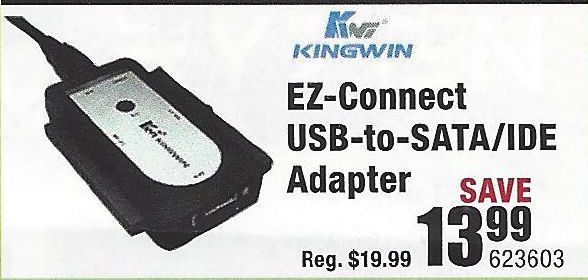
2) Purchase a USB-to-Hard Driver adapter kit (like the one illustrated below)

USB-Drive-Adapter.jpg

3) Connect the old drive to a working PC using that adapter
4) Try to retrieve the files and folders you want to save from the old drive and copy them to the new PC.

If this does not work, then you need to do the following:
1) Download and install this utility on a working PC http://www.majorgeeks.com/news/story/recover_data_in_3_steps_with_minitool_power_data_recovery_free_...
2) Run the data recovery utility to see what can be retrieved from the old drive.

If that tool does not find what you need, an alternative is Recuva http://www.piriform.com/recuva

And, if that does not work well, the best tool out there is this one, but only the trial version is free http://www.file-recovery.com/


I am a volunteer and I do not work for, nor represent, HP
† The opinions expressed above are the personal opinions of the authors, not of HP. By using this site, you accept the <a href="https://www8.hp.com/us/en/terms-of-use.html" class="udrlinesmall">Terms of Use</a> and <a href="/t5/custom/page/page-id/hp.rulespage" class="udrlinesmall"> Rules of Participation</a>.