-
×InformationNeed Windows 11 help?Check documents on compatibility, FAQs, upgrade information and available fixes.
Windows 11 Support Center. -

-
×InformationNeed Windows 11 help?Check documents on compatibility, FAQs, upgrade information and available fixes.
Windows 11 Support Center. -

Create an account on the HP Community to personalize your profile and ask a question
04-05-2020
08:26 AM
- last edited on
04-06-2020
09:39 AM
by
kevin-t
I can't set to original date of purchase
HP 24-b274c S/N [edited]
Product Z5M62AA
Windows 10 Home 64-bit
When I go to HP Support Assistance
and click on Diagnostic and tools
I get 9 choices Only HP Network works
the rest give me a see next paragraph below
An error occurred while attempting to load the content
Please help thank you
you requested.
04-05-2020 12:45 PM
It's not clear what you are trying to do. IF you are trying to do a Factory Reset, then that is an issue.
Somehow, the infamous Factory Reset has taken on the value of an Urban Legend that is a Miracle Cure for any ailing PC. Not only does it rarely fix the PC, if there is an underlying hardware issue with the PC, it will make matters WORSE by leaving the PC in an unusable state.
And -- a really SLOW PC is nearly always caused by failing hardware -- which a factory reset will do NOTHING to fix.
The HP Factory Reset function relies critically on the contents of the Recovery partition being intact. If those contents get corrupted, which can happen either due to hard drive failing or due to Win10 Upgrade from an older OS, the reset simply will not work -- and will TRASH the PC in the process.
So, you go from having a SLOW PC, to having NO PC. That's not an improvement.
To check for hard drive failing, if your PC is new enough to support UEFI, you can use these steps to test the hard drive: http://support.hp.com/us-en/document/c00439024
If not, you have to follow these steps:
1) Press Esc key repeatedly, several times a second, while rebooting the laptop. Do NOT hold the key down, just press it over and over.
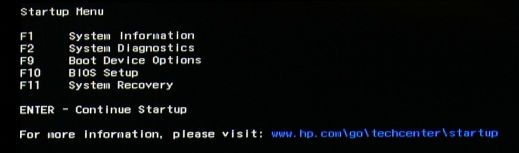
2) Eventually, you will see an HP Startup Menu -- that will look similar to the image below
3) press the Function key for testing the hard drive (usually F2) and let it run.
I am a volunteer and I do not work for, nor represent, HP