• ×
    Information
    Need Windows 11 help?
    Check documents on compatibility, FAQs, upgrade information and available fixes.
    Windows 11 Support Center.
  • post a message
  • ×
    Information
    Need Windows 11 help?
    Check documents on compatibility, FAQs, upgrade information and available fixes.
    Windows 11 Support Center.
  • post a message
Guidelines
Join the HP Community Solve‑a‑thon | Help Others & Share Your Solutions | Live on Zoom | 2:30 PM to 2:30 AM IST | Every Wednesday Click here to know more
Check out our WINDOWS 11 Support Center info about: OPTIMIZATION, KNOWN ISSUES, FAQs, VIDEOS AND MORE.
HP Recommended
HP Envy x360 14 inch 2-in-1 Laptop PC 14-fc0000 (8Z8M0AV)
Microsoft Windows 11

Wondering if anyone can help with this. Pretty much every time I boot up my envy laptop i get an 'intel management engine data was corrupted' message, then have to enter my bitlocker key, then am forced to reset my pin to sign into the laptop. I have now reset my pin at least 10 times in the past 48 hours. The laptop also shuts off randomly and either requires me to change my pin or use the bitlocker key or both. Wondering if theres a quick fix for this? I use the laptop solely as a workhorse for uni work and all files are saved to my uni cloud, so I have no qualms doing a factory reset if needs be. cheers. 

3 REPLIES 3
HP Recommended

Hi @exitthedragon73 


Welcome to the HP Support Community.


Thank you for posting your query.


I understand that you are facing issues with BitLocker which is full disk encryption software created by Microsoft software. It is designed to protect your PC against offline attacks and is intended to add an additional level of security, ensuring that only the authorized owner of the computer can unlock the device and restore access, typically if your device gets stolen. 

BitLocker was activated by someone and during the PC activation time it prompts the user to save/store the key in a safe place.


  • If this is a company owned asset/device, you should turn to your company's IT support guys and they should be able to provide you with the recovery key - search for the PC name in Active Directory and check its properties.
     
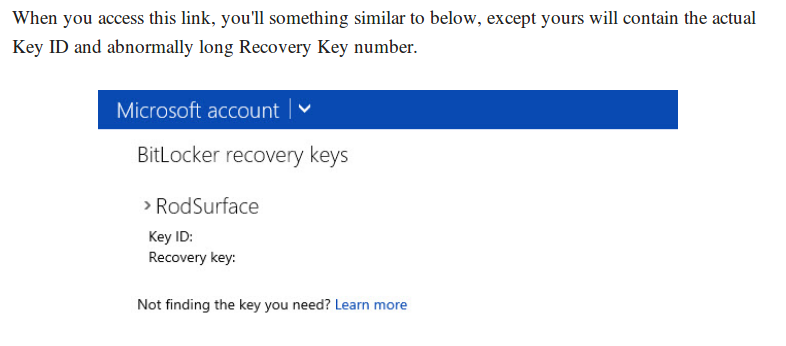
  • If this is your own personal device, and if you are not aware of Bitlocker key, most probably you use a slightly different BitLocker version for certain PCs and tablets known as Device encryption. Probably your key is stored in the Microsoft Cloud - OneDrive. It should be accessible with your Microsoft account here >> https://onedrive.live.com/recoverykey

Use another secure computer or a smartphone to open the link.


bitlocker111.png

Please, note that it is very important for security reasons that you keep the encryption key (Bitlocker key) in a secure place so that only you know it. Once you locate it, enter it to unlock your device.

Unfortunately, if you can't find your key, or your key does not display on the Microsoft account page, you'll need to restore the computer or tablet to factory default settings, i.e., start over


Some HP systems use automatic encryption tied to your Microsoft account. If you’re repeatedly prompted for a recovery key:

Use Control Panel (if BitLocker is active)

  • Press Win + S and search for Control Panel
  • Navigate to System and Security > BitLocker Drive Encryption
  • If BitLocker is enabled on the C: drive, click Turn Off BitLocker
  • Wait for decryption

Hope this helps, Please revert if the issue persists.


Take care and have an amazing day!

I'm an HP Employee.


If this reply helped resolve your issue, please select the Accept as Solution as it helps others in the community quickly find the answer they’re looking for.


And if you found this reply helpful, clicking Yes below is a great way to let us know we’re providing the support you need, as it encourages us to keep improving and sharing helpful guidance.

HP Recommended

Hi,

So my issue isn't that I can't get past the bitlocker window - I have access to my key and can use it anytime. The issue is that completely randomly, even if the laptop is sat idle, the laptop will crash, display a 'intel management data was corrupted and has been automatically recovered' message, then will require me to enter the bitlocker key. Once this is done, it often but not always says there was an error with my regular sign in pin and forces me to change it. Any ideas how to stop this?


HP Recommended

Hi @exitthedragon73


Thank you for responding.


I'm sorry to hear about the issues you're experiencing with your laptop. The situation you're describing, where you need to enter your BitLocker key frequently and encounter error messages about data corruption, suggests there may be underlying issues with your system's hardware or software. Here are some steps you can take to address and troubleshoot the problem:


Run HP Hardware Diagnostics

Restart your laptop.

  • As soon as the HP logo appears, press Esc repeatedly.
  • From the Startup Menu, press F2 to open HP PC Hardware Diagnostics UEFI.
  • Run System Tests → Extensive Test for both Memory and Hard Drive.
  • Allow the tests to complete (this may take over an hour).
  • Note down any error codes or failures — these are critical for escalation.

Update Drivers and BIOS

  • Go to the HP Customer Support – Software and Driver Downloads page. https://support.hp.com/in-en/drivers 
  • Enter your laptop model (HP Laptop 1354tu).
  • Download and install the latest BIOS update.
  • Update chipset drivers, storage drivers, and other critical system drivers.
  • Restart your laptop after updates.

Review BitLocker Settings

  • Open Control Panel → BitLocker Drive Encryption.
  • Check if BitLocker is enabled on your system drive.
  • If you are prompted for the recovery key frequently, ensure:
  • Secure Boot is enabled in BIOS.
  • TPM (Trusted Platform Module) is active and not reporting errors.
  • You can also temporarily suspend BitLocker protection:
  • In BitLocker settings, click Suspend Protection.
  • Restart your laptop and check if the issue persists.
  • If suspending resolves the issue, re‑enable BitLocker after testing.

Run Windows Update

  • Press Windows + I → Update & Security → Windows Update.
  • Click Check for updates and install all pending updates.
  • Restart your laptop after updates.
  • This ensures system stability and compatibility with BitLocker.

Hope this helps, Please revert if the issue persists.


Have a good day.

I'm an HP Employee.


If this reply helped resolve your issue, please select the Accept as Solution as it helps others in the community quickly find the answer they’re looking for.


And if you found this reply helpful, clicking Yes below is a great way to let us know we’re providing the support you need, as it encourages us to keep improving and sharing helpful guidance.

† The opinions expressed above are the personal opinions of the authors, not of HP. By using this site, you accept the <a href="https://www8.hp.com/us/en/terms-of-use.html" class="udrlinesmall">Terms of Use</a> and <a href="/t5/custom/page/page-id/hp.rulespage" class="udrlinesmall"> Rules of Participation</a>.
-->