• ×
    Information
    Need Windows 11 help?
    Check documents on compatibility, FAQs, upgrade information and available fixes.
    Windows 11 Support Center.
  • post a message
  • ×
    Information
    Need Windows 11 help?
    Check documents on compatibility, FAQs, upgrade information and available fixes.
    Windows 11 Support Center.
  • post a message
Guidelines
Seize the moment! nominate yourself or a tech enthusiast you admire & join the HP Community Experts!
Check out our WINDOWS 11 Support Center info about: OPTIMIZATION, KNOWN ISSUES, FAQs, VIDEOS AND MORE.
HP Recommended
HP OfficeJet Pro 8710 All-in-One Printer
Microsoft Windows 11

I received an e mail confirming a reservation for a cruise.  There were several attachments some of them printed and otheres did not.  all I receiverd out of thr printer were little squares where the letteres and numbers belonged.. How do I fi that??

1 REPLY 1
HP Recommended

@Walter5502 


Welcome to the HP Community --


Sounds like a translation error -- the printer does not recognize the fonts used in the document.

What?

Even with the full driver printer software installed, the printer must still translate the file into "printer language" to print the content onto the paper.  Sometimes websites (or even documents) use fonts or other characters the printer cannot understand.


Download / Save the document as a PDF file.


Open and read the PDF file  -- for example, use Adobe Reader DC 

Try printing the PDF file.


If that still won't work -- or if you want to skip the "Try",

Download / Save the file.

Open in Adobe Reader DC 

Print as image


All the rest...

PDF - Print as Image


Reinstall / Update your PDF Reader (Adobe Reader DC /Optional Foxit Reader)

  • HINT: Watch out for and UNCHECK unwanted extra software
  • Adobe Reader DC software should be installed even if you do not open / view / print PDF files directly from the software.


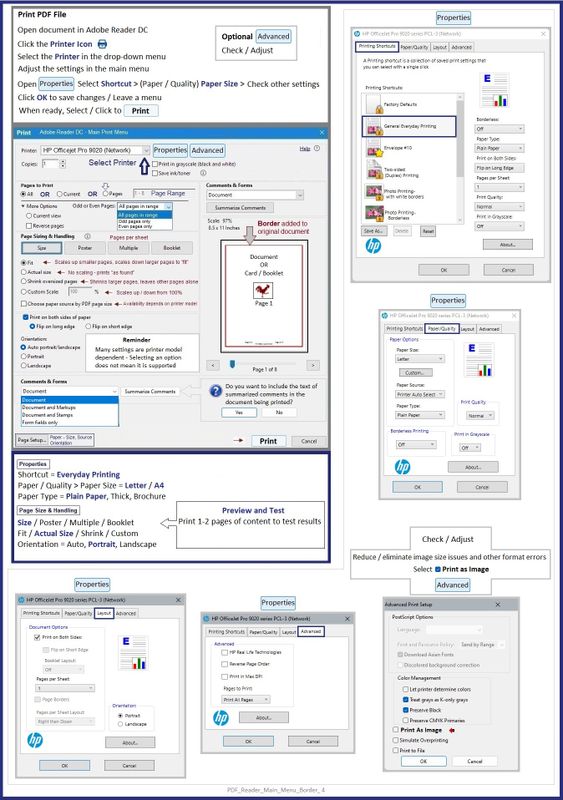
If the file will not print due to unusual content (odd fonts, color schemes, Tables, other oddities), print the file as an Image. Image printing does not require the printer software to translate file content.


  • Export and Save the document to your computer in PDF format.
  • Open the offending document in Adobe Reader DC
  • Click Print icon > Set other options on the menu > Click Advanced button
  • Set the printer select the colors (Optional)
  • Select Print the PDF file as an image


Example - Adobe Reader DC - PDF - Menu options

See "Advanced > Print as Image" in lower right corner

PDF_Reader_Main_Menu_Border_4PDF_Reader_Main_Menu_Border_4


==========================================


What else?


If all else fails,

Snip an image of the reservation from your screen > Save the snip as a .jpg file

Print the photo / image file using HP Smart or any app / software that can print image files.


Snip – available since Vista! Check out the “delay” feature in Windows 10

Snipping Tool in Windows 10 / 8 / 7: Tips & Tricks to capture screenshots


From Microsoft

Use Snipping Tool to capture screenshots

And / or

Microsoft - Open Snipping Tool and take a Screenshot

Windows 11  / Windows 10


=+=+=+=+=+=+=+=+=+=+=+=+=+=

References / Resources


Adobe Acrobat Reader Learn & Support

Acrobat Reader DC Help

Adobe Reader – Print PDFs

Print PDF as an image


-----------------------------------------------------------------

HP Printer Home Page - References and Resources

Learn about your Printer - Solve Problems

“Things that are your printer”

When the website support page opens, Select (as available) a Category > Topic > Subtopic

NOTE: Content depends on device type and Operating System

Categories: Alerts, Troubleshooting, Ink & Paper, HP Software / Drivers / Firmware Updates , Setup & User Guides, Product Specifications, Account & Registration, Warranty & Repair

Open

HP OfficeJet Pro 8710 All-in-One Printer series  


Thank you for participating in the HP Community --

People who own, use, and support HP devices.

Click Yes to say Thank You

Question / Concern Answered, Click my Post "Accept as Solution"


Dragon-Fur

† The opinions expressed above are the personal opinions of the authors, not of HP. By using this site, you accept the <a href="https://www8.hp.com/us/en/terms-of-use.html" class="udrlinesmall">Terms of Use</a> and <a href="/t5/custom/page/page-id/hp.rulespage" class="udrlinesmall"> Rules of Participation</a>.