-
×InformationNeed Windows 11 help?Check documents on compatibility, FAQs, upgrade information and available fixes.
Windows 11 Support Center. -

-
×InformationNeed Windows 11 help?Check documents on compatibility, FAQs, upgrade information and available fixes.
Windows 11 Support Center. -
- HP Community
- Desktops
- Desktop Video, Display and Touch
- AIO Touchscreen won't work

Create an account on the HP Community to personalize your profile and ask a question
07-13-2019 07:14 PM
When I purchased the computer the touch screen worked until a Windows update installed. I contacted HP support and I had to ship the AIO computer to HP support. I got it back and the touch screen worked until the next Windows update installed again. So, I contacted HP support and they wanted me to ship it to them. I told them NO. Who wants to ship their computer to support every time a Windows update takes place? This is terrible quality and support. Searching Google this seems to have always been a problem with HP and I so wish I would have did my research before buying this PC. Ten years with my previous Dell AIO computer and it never lost the touchscreen capabilities and it did Windows updates all the time.
Does any one know of a way to fix this without sending it to HP support? I will mention also when you look in device manager it doesn't show any of the touch screen HID information and based on what you see you would think it was a non-touch screen PC, but I assure you it has a touch screen it is just not working. It is like the Windows updates removes everything about the touch screen and the computer thinks it is a non-touch screen. Terrible server and quality from such a large company.
07-16-2019 03:42 PM
@danwilk
Thank you for posting on the HP Support Community.
I appreciate your efforts to try and resolve the issue. Use the troubleshooting steps in this section if the touch screen does not respond, or if the screen sometimes responds and sometimes does not.
-
In Windows, search for and open Device Manager.
-
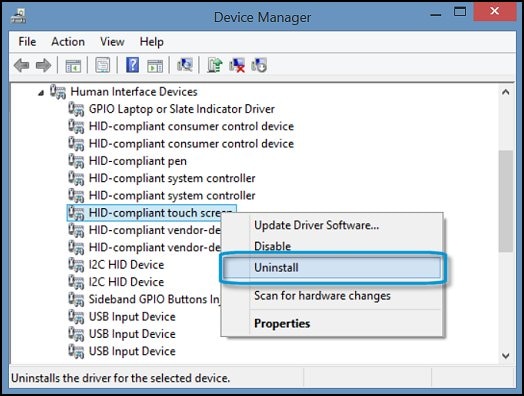
Expand the Human Interface Devices list.
-
Right-click the touch screen device, and then click Enable, if possible. If the Enable option does not display, continue to the next step.

-
Tap the screen to see if it responds. If it does not, continue with these steps.
-
Right-click the touch screen device, and then click Uninstall.

-
Restart the computer to reinstall the touch screen driver.
-
Tap the screen to see if it responds. If it does not, continue to the next step from this link: https://support.hp.com/in-en/document/c03488148
Hope this helps! Keep me posted for further assistance.
Please click “Accept as Solution” if you feel my post solved your issue, it will help others find the solution.
ECHO_LAKE
I am an HP Employee
07-17-2019 05:35 PM
@danwilk
Thank you for posting back.
Let's perform a microsoft system restore which will returns your computer to the files and settings from the restore point. Your personal files and documents are not affected. Click here to perform Microsoft System Restore (Windows 10, 😎
This should help! Keep me posted for further assistance.
Please click “Accept as Solution” if you feel my post solved your issue, it will help others find the solution.
ECHO_LAKE
I am an HP Employee