
-
×InformationNeed Windows 11 help?Check documents on compatibility, FAQs, upgrade information and available fixes.
Windows 11 Support Center. -
-
×InformationNeed Windows 11 help?Check documents on compatibility, FAQs, upgrade information and available fixes.
Windows 11 Support Center. -
- HP Community
- Archived Topics
- Desktops (Archived)
- Re: Thumb Drive

Create an account on the HP Community to personalize your profile and ask a question
Your account also allows you to connect with HP support faster, access a personal dashboard to manage all of your devices in one place, view warranty information, case status and more.
 This topic has been archived. Information and links in this thread may no longer be available or relevant. If you have a question create a new topic by clicking here and select the appropriate board.

02-07-2019 11:02 AM
 HP Recommended
Iv'e run all the diagnostics. I insert a thumb dive. It shows all the files but stops there. It will not go to the install. I've tried the thumb drive on other machine and it works. I've tried other devices on the drive on my desktop and it works. I had a second thumb drive sent and that doesn't work as well. HELP!!! Am I missing a setting or something???
12 REPLIES 12


02-07-2019 11:48 AM - edited 02-07-2019 11:51 AM
HP Recommended
It might be of some help to indicate what is on the thumb drive. If you can see files, then what is it supposed to do?
If you are expecting to boot from this thumb drive to run a setup, then change the boot setup in the BIOS to pick the USB as the first boot device
I'm not an HP employee.
Did this message answer your question? Please indicate below as an Accepted Solution!
Did you find this message useful? Click on the "Was this reply helpful" Yes button.
02-07-2019 11:52 AM - edited 02-07-2019 11:53 AM
HP Recommended
OK. You mean the thumb drive has setup files to install software?
If yes, then do not change the boot order in the BIOS.
I'm not an HP employee.
Did this message answer your question? Please indicate below as an Accepted Solution!
Did you find this message useful? Click on the "Was this reply helpful" Yes button.
02-07-2019 02:17 PM
HP Recommended
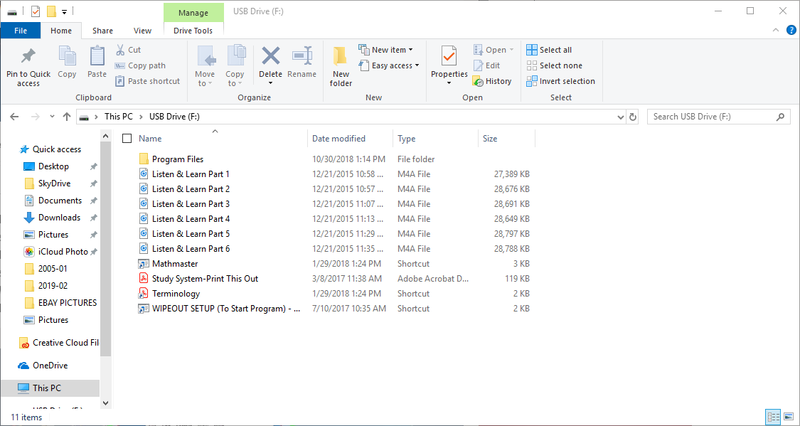
If you can see the files, look for a setup.exe or something similar. Some PC's will not autostart an install. If in question, show a screen shot of the files from the "This PC" window
I'm not an HP employee.
Did this message answer your question? Please indicate below as an Accepted Solution!
Did you find this message useful? Click on the "Was this reply helpful" Yes button.
02-10-2019 03:10 PM - edited 02-10-2019 03:14 PM
HP Recommended
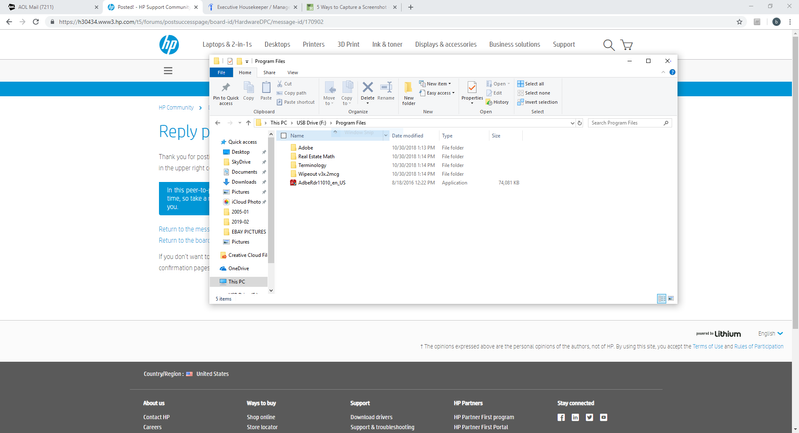
From those two screen shots, there are no install setups. The only application appears to be Adobe Reader and if you have that alreay, then it is not needed.
There is a shortcut to start an application called "Wipeout setup" what happens if you double click that?
Or open the Wipeout folder to look for the application.
I'm not an HP employee.
Did this message answer your question? Please indicate below as an Accepted Solution!
Did you find this message useful? Click on the "Was this reply helpful" Yes button.
This topic has been archived. Information and links in this thread may no longer be available or relevant. If you have a question create a new topic by clicking here and select the appropriate board.
† The opinions expressed above are the personal opinions of the authors, not of HP. By using this site, you accept the Terms of Use and Rules of Participation.


Didn't find what you were looking for?
Ask the community
† The opinions expressed above are the personal opinions of the authors, not of HP. By using this site, you accept the <a href="https://www8.hp.com/us/en/terms-of-use.html" class="udrlinesmall">Terms of Use</a> and <a href="/t5/custom/page/page-id/hp.rulespage" class="udrlinesmall"> Rules of Participation</a>.