• ×
    Information
    Need Windows 11 help?
    Check documents on compatibility, FAQs, upgrade information and available fixes.
    Windows 11 Support Center.
  • post a message
  • ×
    Information
    Need Windows 11 help?
    Check documents on compatibility, FAQs, upgrade information and available fixes.
    Windows 11 Support Center.
  • post a message
Guidelines
Seize the moment! nominate yourself or a tech enthusiast you admire & join the HP Community Experts!
Archived This topic has been archived. Information and links in this thread may no longer be available or relevant. If you have a question create a new topic by clicking here and select the appropriate board.

HP Recommended
110-303 na Pavillion
Microsoft Windows 8.1 (64-bit)

Windows 10  updates stuck on 5% . Also settings for updates is stuck on never update ( not recommed ) .

Bought this P C with windows 8 . 1 two years ago Microsoft added windows 10 last year .


I know very little about computers is this going to be a complicated fix ? . Complicated for me that is .


Is there any point in me paying H P to fix it if this is going to continue like this .


Thank you all in advance .


Regards


Frank

3 REPLIES 3
HP Recommended

@frank1847


Thanks for reaching out to us on HP Support Forums. 🙂 I came across your post and would like to help.


I understand that you have an HP 110-303na Desktop PC and it has been upgraded to Windows 10. I read that the Win10 updates are stuck at 5% and also the settings for updates is stuck on never update (not recommended). Not worry, I'll do my best to help you. 


Please change the settings for the updates to "Automatic (recommended) and click on apply/OK.


You may refer to "Understanding Windows Update" and "Installing updates using Windows Update" from this link.


Please use the "Windows Update Troubleshooter" if the updates still do not happen. 


If the updates still do not happen for Windows 10 then I suggest you to perform the following steps:


  1. Disable your antivirus software using the following steps.

    1. In the Windows search bar, type System Configuration.

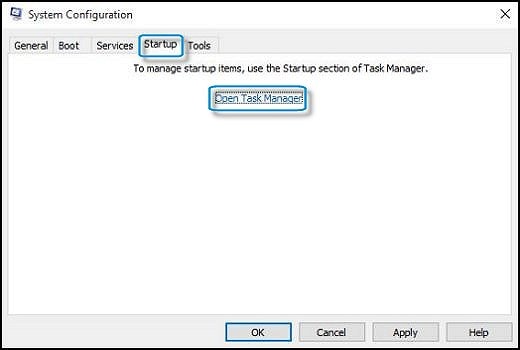
    2. Click the Startup tab, then click Open Task Manager.

      Figure : Startup tab in System Configuration

      Startup tab in System Configuration

      Task Manager opens.

    3. Find the antivirus software in the list, select it, and select Disable.

    4. Close Task Manager.

  2. Perform a clean boot using the following steps to disable startup items.

    1. In Windows, search for and open System Configuration.

      The System Configuration window opens.

    2. In System Configuration, click the Services tab.

      Click the Hide all Microsoft services check box, then click Disable all.

      Figure : Services tab in System Configuration

      Services tab in System Configuration
    3. Click the Startup tab, then click Open Task Manager.

      Figure : Startup tab in System Configuration

      Startup tab in System Configuration

      Task Manager opens.

    4. Click each enabled startup item, then select Disable, and close Task Manager.

    5. In the System Configuration Services tab, click OK.

    6. Restart the computer.

  3. Restart Windows Update Services using the following steps:

    1. Press the Windows key plus R to open the Run box.

      Type Services.msc in the Run box, and press Enter.

    2. In the Services list, look for the following services :

      • Background Intelligent Transfer Service

      • Cryptographic Services

      • Windows Updates

    3. Right-click each of them, and select Restart.

  4. In Windows, search for Command Prompt. If necessary, right-click and select Run as administrator.

    • Figure : Opening Command Prompt as administrator

      Opening Command Prompt as administrator
    • Command Prompt

      Figure : Command Prompt

      Opened to the command prompt
  5. In the Command Prompt window, type the commands in the following list, pressing Enter after each command.

    • net stop bits

    • net stop cryptsvc

    • net stop wuauserv

    • net start bits

    • net start cryptsvc

    • net start wuauserv

  6. Delete the files in the Temp folder using the following steps:

    1. Press the Windows key plus R (Win+R) to open the Run box.

    2. Type %temp% and click OK. A list of files in the Temp folder displays.

    3. Delete all the files in the Temp folder.

  7. Rename the SoftwareDistribution & catroot2 folder using the following steps.

    1. Open the Command Prompt again.

      In Windows, search for Command Prompt. Right-click and select Run as administrator.

    2. At the prompt, type net stop wuauserv and press Enter.

    3. At the prompt, type ren %windir%\SoftwareDistribution SoftwareDistribution.old and press Enter.

    4. At the prompt, type ren %windir%\system32\catroot2 catroot2.old and press Enter.

  8. Restart the computer.


I sincerely hope this fixes the issue. Let me know what happens. Cheers! 🙂

HP Recommended

 Hi MKazi


Thank you for your reply and your help .


First off my update settings are " stuck " as in stuck at " never update " that means they are stuck there , if I could simply change this setting to " auto update " and click o k , I would .


I had read " Installing and  Useing  windows update's " before I came here .


Windows update troubleshooter is nether use nor orniment .


I tried your method listed below twice , it doesent work .

This is my second brand new  H P comuter in two years I had exactley the same problem with the first one .


More fool me .

I wont be buying another on from H P or a computer with windows 10 .


Can you answer me this ? . Is it worh me asking H P to  repair it , or will that be a waste of time ? .

If it wont update  later on .

Which is exactley what happened to my foist computer .


After wasting a day and a half of my life trying to update this piece of junk , I putting my feet up and forgetting  about it for a while .


Thank you once again for your reply .


Frank


HP Recommended

@frank1847


I have escalated your concern to HP’s Support Team in your region to have it reviewed for available options, if any.  You should be contacted within 4 business days (Excluding holidays & Weekends).  

Response times may vary by region. Please send a Private Message, if you aren’t contacted within 4-5 business days.


Archived This topic has been archived. Information and links in this thread may no longer be available or relevant. If you have a question create a new topic by clicking here and select the appropriate board.
† The opinions expressed above are the personal opinions of the authors, not of HP. By using this site, you accept the <a href="https://www8.hp.com/us/en/terms-of-use.html" class="udrlinesmall">Terms of Use</a> and <a href="/t5/custom/page/page-id/hp.rulespage" class="udrlinesmall"> Rules of Participation</a>.