
-
×InformationNeed Windows 11 help?Check documents on compatibility, FAQs, upgrade information and available fixes.
Windows 11 Support Center. -
-
×InformationNeed Windows 11 help?Check documents on compatibility, FAQs, upgrade information and available fixes.
Windows 11 Support Center. -
- HP Community
- Gaming
- Gaming Notebooks
- Re: Fan keeps running

Create an account on the HP Community to personalize your profile and ask a question
Your account also allows you to connect with HP support faster, access a personal dashboard to manage all of your devices in one place, view warranty information, case status and more.

It has been a while since anyone has replied. Simply ask a new question if you would like to start the discussion again.

09-29-2019 05:32 PM
 HP Recommended
Product: Omen 17-ap052nr
Operating System: Microsoft Windows 10 (64-bit)
Hello everyone,
I am having an issue with the fan running almost constantly. Since I am not tech savvy does anyone have any suggestions on what to do. I do usually have a lot of tabs open in Chrome and always have so I installed an extension that suspends the tabs when not in use.
Karen in MA
5 REPLIES 5

09-29-2019 07:31 PM
HP Recommended
Hello again Karen.
Is this Omen X the second replacement that you said you got last year after all the issues with the power disconnect?
Either way, OK lets see whats up. When you say the fan is always running, clarify what you mean.
Is it that its just on or is it running at an extremely high speed constantly?
If the laptop is idle, the fans will run low speed. IF you do anything like run a browser, the fans will usually run faster. If gaming, the fans will eventually run even faster still as it gets hotter.
Also you should have the Omen Command Center installed. Is it showing up in the Start menu? If so, run it and tell me what the CPU temperature is while you're using it and what is open when you check the temps.
09-30-2019 09:53 PM
HP Recommended
Yes it is. The CPU is running around 65 C. The biggest issue with the fan is it gets going and sounds like a plane taking off. At any given time I have Chrome open with a bunch of tabs and a label printing software I use.
Karen in MA
09-30-2019 10:48 PM
HP Recommended
OK thanks. Ya when the system starts to get that hot, the fans are going to rev up and I imagine the model is going to get a little noisy since its HPs top line gaming system for 2017.
Open the Omen Command Center again (should be version 9.2.6.0) and see if it now has Performance Control on the left side list of features. It didnt originally come with that option, but I though HP updated the older machines to include it now.
IF you do, select it and see if there is an option for Comfort Mode.
If you are lucky and it does now, select it to enable it.
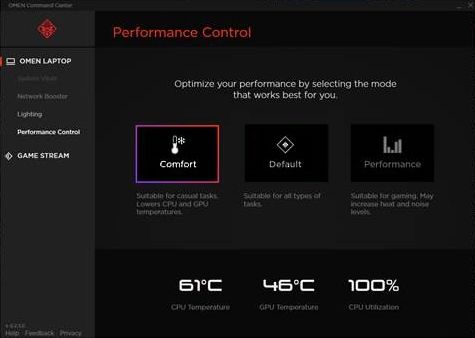
Let me know what you find.
10-01-2019 07:50 AM
HP Recommended
So I did not have that feature in my command center. I went to the app store and re downloaded it and it had an update. Now that that is done when I try and open Command Center I get just a black screen. Now I have no way of getting in and looking or changing anything in regards to lighting or macro buttons. Does anyone have any suggestions?
Karen in MA
10-01-2019 03:52 PM
HP Recommended
OK. Give this a try...
Install this file... Get HP System Event Utility - Microsoft Store
Then also reinstall this file... OMEN Command Center SDK Package sp98588.exe
Go to Windows updates and force it to check for updates. To do this, click the Check for Updates button, even if it shows its up to date. If Updates are already pending, let them install and reboot. Then go back and manually force it to check again. If it finds updates, reboot and do it again. Do this process until there are no more found.
Let me know if that helps.

Be alert for scammers posting fake support phone numbers and/or email addresses on the community.
If you think you have received a fake HP Support message, please report it to us by clicking on "Flag Post".
† The opinions expressed above are the personal opinions of the authors, not of HP. By using this site, you accept the Terms of Use and Rules of Participation.


Didn't find what you were looking for?
Ask the community
† The opinions expressed above are the personal opinions of the authors, not of HP. By using this site, you accept the <a href="https://www8.hp.com/us/en/terms-of-use.html" class="udrlinesmall">Terms of Use</a> and <a href="/t5/custom/page/page-id/hp.rulespage" class="udrlinesmall"> Rules of Participation</a>.