-
×InformationNeed Windows 11 help?Check documents on compatibility, FAQs, upgrade information and available fixes.
Windows 11 Support Center. -

-
×InformationNeed Windows 11 help?Check documents on compatibility, FAQs, upgrade information and available fixes.
Windows 11 Support Center. -
- HP Community
- Gaming
- Gaming Notebooks
- Freezing on second display

Create an account on the HP Community to personalize your profile and ask a question
07-08-2019 03:21 AM
Hi, I have a little problem with my hp omen laptop and second display (hp omen 25).
When laptop is open and image duplicate on laptop and second display, everything its ok. But when I closing laptop, image on second display having a freezing. If I restarting windows, freezing is gone. I dont want to restarting windows every time, when I turn on laptop. Maybe have a solution for this problem?
07-10-2019 11:18 AM
Thank you for posting your query on HP Community,
Let's start off by updating the Bios, Chipset and graphics card drivers on your PC either from our HP support website, using this link or download it using HP Support Assistant.
I suggest you download and run the HP Support Assistant from this Link: https://www8.hp.com/us/en/campaigns/hpsupportassistant/hpsupport.html?jumpid=va_r602_us/en/any/psg/p...
HPSA will automatically search for all the latest drivers for your Notebook
-
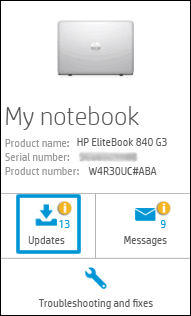
Click My devices in the top menu, and then click Updates in the My PC or My notebook pane.

-
Click Check for updates and messages to scan for new updates.

-
Review the list of updates. Updates with a yellow information icon are recommended. Updates with a blue information icon are optional.
-
Click the update name for a description, version number, and file size.
-
Select the box next to any updates you want to install, and then click Download and install.
Also ensure Windows is up to date.
Select the Start button, and then go to Settings > Update & security > Windows Update , and select Check for updates. If Windows Update says your device is up to date, you have all the updates that are currently available
Keep me posted how it goes
Thank you and have a wonderful day
If the information I've provided was helpful, give us some reinforcement by clicking the "Solution Accepted" on this Post and it will also help other community members with similar issue.
Jeet_Singh
I am an HP Employee
07-14-2019 05:29 PM
Let's run an extensive system test as well as test on the graphics card(Video) which is under Component test from F2.
1. Hold the power button for at least five seconds to turn off the computer.
2. Turn on the computer and immediately press Esc repeatedly, about once every second.
When the menu appears, press the F2 key.
3. On the HP PC Hardware Diagnostics (UEFI) main menu, click System Tests.
4. Click Extensive Test.
5. Click Run once, or Loop until error.
While the test is running, the time remaining and test result for each component are
shown on the screen.
6. If a component fails a test, write down the failure ID (24-digit code) so you have it
available when you contact HP Customer Support. The information is also available in
Test Logs on the main menu.
Refer this article to know more information about running system diagnostics on your PC. Click Here
Let me know the outcome!
Thank you 🙂
Jeet_Singh
I am an HP Employee