-
×InformationNeed Windows 11 help?Check documents on compatibility, FAQs, upgrade information and available fixes.
Windows 11 Support Center. -

-
×InformationNeed Windows 11 help?Check documents on compatibility, FAQs, upgrade information and available fixes.
Windows 11 Support Center. -
- HP Community
- Gaming
- Gaming Notebooks
- Laptop Making Strange Sounds (Link To Video On Post)

Create an account on the HP Community to personalize your profile and ask a question
12-18-2018 12:48 AM
I was playing a game and had Omen Command Center running in the background for that Dual Force feature. As I exited the game the laptop started making a strange sound which I have never heard before.
Link to video : https://drive.google.com/open?id=1fiHxwMIfE0tfxJsU0-bN6__Xi41cdYLy
Could someone please assist as this is worrying me
Solved! Go to Solution.
Accepted Solutions
12-19-2018
02:57 PM
- last edited on
08-22-2024
07:44 AM
by
JessikaV
Welcome to HP Forums,
This is a great place to get support, find answers and tips,
Thank you for posting your query, I'll be more than glad to help you out 🙂
I see that you're experiencing noisy fan operation,
Don't worry as I'll be glad to help, however, to provide an accurate resolution, I need a few more details:
- What is the product number of your device? Use this link to find it: https://support.hp.com/us-en/document/ish_2039298-1862169-16 (Ensure you do not share any of your personal information such as serial, phone number, email ID, etc...).
- Have you tried any troubleshooting steps?
While you respond to that, I recommend you to perform the following steps to isolate the issue and arrive at a fix:
Using Windows Task Manager to identify corrupt processes:
-
Close all open Programs and save your work.
-
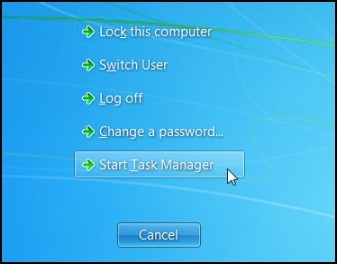
Press Ctrl, Alt, Delete, and then click Start Task Manager or Task Manager, depending on your version of Windows, to open Windows Task Manager.
-
Figure: Opening Windows Task Manager

-
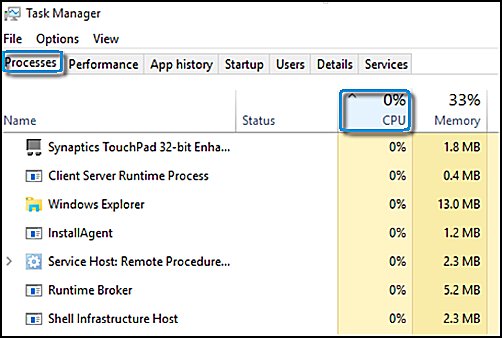
Select the Processes tab, and then to sort the processes by CPU load, click the CPU column header.
-
Figure: Processes tab

-
Look through the list for suspect processes.
-
To find more information about a process, search the Internet using the process name that displays in the Windows Task Manager. Look for information that mentions the issue through other reports and suggests steps for resolving the issue.
Also, let's update system bios: Click here
Hope this helps! Keep me posted for further assistance.
If I have helped you resolve the issue, feel free to give me a virtual high-five by clicking the 'Thumbs Up' icon below,
Followed by clicking on "Accept as solution" from the drop-down menu on the upper right corner,
Thank you for posting in the HP Support Forum. Have a great day!
ECHO_LAKE
I am an HP Employee
12-19-2018
02:57 PM
- last edited on
08-22-2024
07:44 AM
by
JessikaV
Welcome to HP Forums,
This is a great place to get support, find answers and tips,
Thank you for posting your query, I'll be more than glad to help you out 🙂
I see that you're experiencing noisy fan operation,
Don't worry as I'll be glad to help, however, to provide an accurate resolution, I need a few more details:
- What is the product number of your device? Use this link to find it: https://support.hp.com/us-en/document/ish_2039298-1862169-16 (Ensure you do not share any of your personal information such as serial, phone number, email ID, etc...).
- Have you tried any troubleshooting steps?
While you respond to that, I recommend you to perform the following steps to isolate the issue and arrive at a fix:
Using Windows Task Manager to identify corrupt processes:
-
Close all open Programs and save your work.
-
Press Ctrl, Alt, Delete, and then click Start Task Manager or Task Manager, depending on your version of Windows, to open Windows Task Manager.
-
Figure: Opening Windows Task Manager

-
Select the Processes tab, and then to sort the processes by CPU load, click the CPU column header.
-
Figure: Processes tab

-
Look through the list for suspect processes.
-
To find more information about a process, search the Internet using the process name that displays in the Windows Task Manager. Look for information that mentions the issue through other reports and suggests steps for resolving the issue.
Also, let's update system bios: Click here
Hope this helps! Keep me posted for further assistance.
If I have helped you resolve the issue, feel free to give me a virtual high-five by clicking the 'Thumbs Up' icon below,
Followed by clicking on "Accept as solution" from the drop-down menu on the upper right corner,
Thank you for posting in the HP Support Forum. Have a great day!
ECHO_LAKE
I am an HP Employee