
-
×InformationNeed Windows 11 help?Check documents on compatibility, FAQs, upgrade information and available fixes.
Windows 11 Support Center. -
-
×InformationNeed Windows 11 help?Check documents on compatibility, FAQs, upgrade information and available fixes.
Windows 11 Support Center. -
- HP Community
- Gaming
- Gaming Notebooks
- Re: Laptop Randomly Shutting Down

Create an account on the HP Community to personalize your profile and ask a question
Your account also allows you to connect with HP support faster, access a personal dashboard to manage all of your devices in one place, view warranty information, case status and more.

It has been a while since anyone has replied. Simply ask a new question if you would like to start the discussion again.

12-30-2018 10:38 AM
 HP Recommended
Product: HP Omen
Operating System: Microsoft Windows 10 (64-bit)

Hey guys, my laptop is randomly shutting down (turning off) with no error message I had a hard drive test and memory test proof here, I passed all tests.
8 REPLIES 8


01-01-2019 04:18 PM
HP Recommended
Thank you for joining HP Forums.
It's a pleasure assisting you in finding answers to your technical queries.
To provide you with an accurate solution, I'll need a few more details:
Any hardware or software changes made in the notebook?
Are you facing this issue after an update?
How long are you facing this issue?
Let me know if you see any error message.
To resolve the problem, follow the steps in this section.
Step 1: Disable the automatic restart option to view error messages
Errors might occur but not display with Automatic restart enabled. Disable this option to allow the computer to display error messages instead of restarting.
-
In Windows, search for and open View advanced system settings.
-
Click Settings in the Startup and Recovery section.
-
Remove the check mark next to Automatically restart, and then click OK.
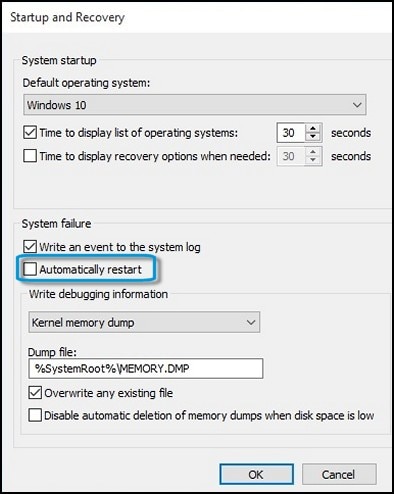
-
Restart the computer.
The computer no longer restarts automatically when a problem occurs. Instead, a blue screen displays with useful information. You can search for a resolution using the information in the error.
Step 2: Check for failed hardware
Hardware problems can cause unexpected results. Go to Testing for Hardware Failures for more information.
NOTE:Increased heat inside the computer can cause hardware failures. Go to Reducing Heat Inside the Laptop to Prevent Overheating(notebook computers) or Computer Overheating Prevention (desktop computers) for more information.
Step 3: Update the BIOS
Click on this link: https://support.hp.com/in-en/drivers/selfservice/swdetails/omen-by-hp-15-ce000-laptop-pc/15551437/sw... to download and update the BIOS.
Keep me posted, how it goes!
If the information I've provided was helpful, give us some reinforcement by clicking the Accepted Solution and Kudos buttons, that'll help us and others see that we've got the answers!
Have a great day!
Cheers:)
Raj1788
I am an HP Employee
01-02-2019 11:18 PM
HP Recommended
Any hardware or software changes made in the notebook? Changed the system language from russian to english and that's about it.
Are you facing this issue after an update? No
How long are you facing this issue? A week after I bought my laptop so about 3-4 months ago
Let me know if you see any error message. Nope, no error messages.
@Raj1788 wrote:Thank you for joining HP Forums.
It's a pleasure assisting you in finding answers to your technical queries.
To provide you with an accurate solution, I'll need a few more details:
Any hardware or software changes made in the notebook?
Are you facing this issue after an update?
How long are you facing this issue?
Let me know if you see any error message.
To resolve the problem, follow the steps in this section.
Step 1: Disable the automatic restart option to view error messages
Errors might occur but not display with Automatic restart enabled. Disable this option to allow the computer to display error messages instead of restarting.
In Windows, search for and open View advanced system settings.
Click Settings in the Startup and Recovery section.
Remove the check mark next to Automatically restart, and then click OK.
Restart the computer.
The computer no longer restarts automatically when a problem occurs. Instead, a blue screen displays with useful information. You can search for a resolution using the information in the error.
Step 2: Check for failed hardware
Hardware problems can cause unexpected results. Go to Testing for Hardware Failures for more information.
NOTE:Increased heat inside the computer can cause hardware failures. Go to Reducing Heat Inside the Laptop to Prevent Overheating(notebook computers) or Computer Overheating Prevention (desktop computers) for more information.
Step 3: Update the BIOS
Click on this link: https://support.hp.com/in-en/drivers/selfservice/swdetails/omen-by-hp-15-ce000-laptop-pc/15551437/sw... to download and update the BIOS.
Keep me posted, how it goes!
If the information I've provided was helpful, give us some reinforcement by clicking the Accepted Solution and Kudos buttons, that'll help us and others see that we've got the answers!
Have a great day!
Cheers:)
01-02-2019 11:35 PM
HP Recommended
@Raj1788 wrote:Thank you for joining HP Forums.
It's a pleasure assisting you in finding answers to your technical queries.
To provide you with an accurate solution, I'll need a few more details:
Any hardware or software changes made in the notebook?
Are you facing this issue after an update?
How long are you facing this issue?
Let me know if you see any error message.
To resolve the problem, follow the steps in this section.
Step 1: Disable the automatic restart option to view error messages
Errors might occur but not display with Automatic restart enabled. Disable this option to allow the computer to display error messages instead of restarting.
In Windows, search for and open View advanced system settings.
Click Settings in the Startup and Recovery section.
Remove the check mark next to Automatically restart, and then click OK.
Restart the computer.
The computer no longer restarts automatically when a problem occurs. Instead, a blue screen displays with useful information. You can search for a resolution using the information in the error.
Step 2: Check for failed hardware
Hardware problems can cause unexpected results. Go to Testing for Hardware Failures for more information.
NOTE:Increased heat inside the computer can cause hardware failures. Go to Reducing Heat Inside the Laptop to Prevent Overheating(notebook computers) or Computer Overheating Prevention (desktop computers) for more information.
Step 3: Update the BIOS
Click on this link: https://support.hp.com/in-en/drivers/selfservice/swdetails/omen-by-hp-15-ce000-laptop-pc/15551437/sw... to download and update the BIOS.
Keep me posted, how it goes!
If the information I've provided was helpful, give us some reinforcement by clicking the Accepted Solution and Kudos buttons, that'll help us and others see that we've got the answers!
Have a great day!
Cheers:)

01-03-2019 06:45 PM
HP Recommended
Thanks for the reply,
Appreciate your efforts.
Click on this link: https://support.microsoft.com/en-us/help/4026923/windows-10-create-a-local-user-or-administrator-ac... to Create a local user or administrator account in Windows
And check if the issue persists.
Keep me posted,
Cheers:)
Raj1788
I am an HP Employee

01-05-2019 12:45 PM
HP Recommended
Thanks for the response.
It looks like you were interacting with @Raj1788, but he is out for the day & I'll be glad to help you out,
I'm the Barachiel & I'm at your service.
As my colleague informed you earlier, did you try to create a new user account in windows?
Did the device shutdown after updating the bios?
Let me know. 🙂
Barachiel
I am an HP Employee

Be alert for scammers posting fake support phone numbers and/or email addresses on the community.
If you think you have received a fake HP Support message, please report it to us by clicking on "Flag Post".
† The opinions expressed above are the personal opinions of the authors, not of HP. By using this site, you accept the Terms of Use and Rules of Participation.


Didn't find what you were looking for?
Ask the community
† The opinions expressed above are the personal opinions of the authors, not of HP. By using this site, you accept the <a href="https://www8.hp.com/us/en/terms-of-use.html" class="udrlinesmall">Terms of Use</a> and <a href="/t5/custom/page/page-id/hp.rulespage" class="udrlinesmall"> Rules of Participation</a>.