• ×
    Information
    Need Windows 11 help?
    Check documents on compatibility, FAQs, upgrade information and available fixes.
    Windows 11 Support Center.
  • post a message
  • ×
    Information
    Need Windows 11 help?
    Check documents on compatibility, FAQs, upgrade information and available fixes.
    Windows 11 Support Center.
  • post a message
Guidelines
Join the HP Community Solve‑a‑thon | Help Others & Share Your Solutions | Live on Zoom | 2:30 PM to 2:30 AM IST | Every Wednesday Click here to know more
Archived This topic has been archived. Information and links in this thread may no longer be available or relevant. If you have a question create a new topic by clicking here and select the appropriate board.

HP Recommended

My printer which is used as a stand alone printer only shows a message that says the photo tray is blocked. I can see no obstruction.  The tray seems to slide easily back and forth.  I have never used it to print anything.

5 REPLIES 5
HP Recommended

@TOMMYJ1

Welcome to the HP Support Community


The error message Photo Tray Problem displays on the printer control panel.


Let's follow the below step.


Step 1: Make sure the photo tray is seated correctly

This error can occur if the printer trays are installed incorrectly. Make sure the printer is located on a flat surface, and then make sure the photo tray moves smoothly within the paper tray guides.

  1. Make sure the printer is positioned on a flat surface.

  2. Push in the output tray extender.

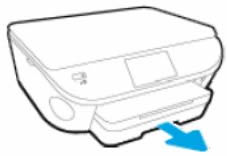
  3. Pull out the input tray, but do not remove it.

    Image: Pull out input tray

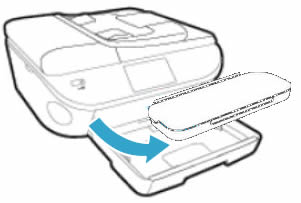
  4. Remove the output tray.

    Image: Remove the output tray

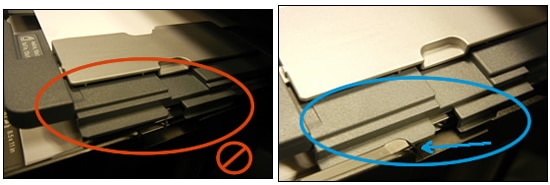
  5. Make sure the photo tray is seated correctly, and that the photo tray guide tabs (grey) are sliding beneath the main tray guides (black) on both the left and right side of the input tray.

    Image: Photo tray properly functioning

    Image: Tabs outside and inside guide rails

    If they are not in the correct position, gently move the photo tray to align the tab gaps, and then gently press the tabs back into position.

    The photo tray should move freely with no resistance.

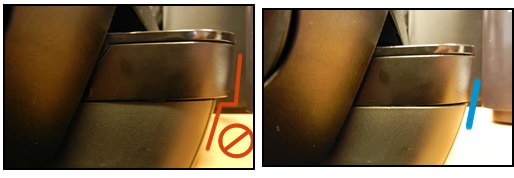
  6. Reinstall the output tray, and then make sure the edges line up with the input tray.

    Image: Line up the edges

  7. Try to print.

  8. If the error persists, try printing or copying a document with the output tray removed.

    If the error only happens with the output tray installed, the output tray might need to be replaced.


Step 1: Make sure the photo tray is seated correctly

This error can occur if the printer trays are installed incorrectly. Make sure the printer is located on a flat surface, and then make sure the photo tray moves smoothly within the paper tray guides.

  1. Make sure the printer is positioned on a flat surface.

  2. Push in the output tray extender.

  3. Pull out the input tray, but do not remove it.

    Image: Pull out input tray

  4. Remove the output tray.

    Image: Remove the output tray

  5. Make sure the photo tray is seated correctly, and that the photo tray guide tabs (grey) are sliding beneath the main tray guides (black) on both the left and right side of the input tray.

    Image: Photo tray properly functioning

    Image: Tabs outside and inside guide rails

    If they are not in the correct position, gently move the photo tray to align the tab gaps, and then gently press the tabs back into position.

    The photo tray should move freely with no resistance.

  6. Reinstall the output tray, and then make sure the edges line up with the input tray.

    Image: Line up the edges

  7. Try to print.

  8. If the error persists, try printing or copying a document with the output tray removed.

    If the error only happens with the output tray installed, the output tray might need to be replaced.

Keep me posted, how it goes!

If the information I've provided was helpful, give us some reinforcement by clicking the Accepted Solution and Kudos buttons, that'll help us and others see that we've got the answers!

Have a great day!

Cheers:)

Raj1788
I am an HP Employee 

HP Recommended

does not work. Photo tray still says it’s blocked and there is nothing blocking it that I can see

HP Recommended

I followed all of the steps outlined here and the problem persists. What’s the next step?

HP Recommended

This did not work for me. Is this possibly a bad sensor? 

HP Recommended

I had this error on the photo tray show yesterday on my 5660 and I followed your direction but the printer still defaults back to the photo tray blocked. 

a

Anxious to resolve this since this is my only printer.

Archived This topic has been archived. Information and links in this thread may no longer be available or relevant. If you have a question create a new topic by clicking here and select the appropriate board.
† The opinions expressed above are the personal opinions of the authors, not of HP. By using this site, you accept the <a href="https://www8.hp.com/us/en/terms-of-use.html" class="udrlinesmall">Terms of Use</a> and <a href="/t5/custom/page/page-id/hp.rulespage" class="udrlinesmall"> Rules of Participation</a>.