• ×
    Information
    Need Windows 11 help?
    Check documents on compatibility, FAQs, upgrade information and available fixes.
    Windows 11 Support Center.
  • post a message
  • ×
    Information
    Need Windows 11 help?
    Check documents on compatibility, FAQs, upgrade information and available fixes.
    Windows 11 Support Center.
  • post a message
Guidelines
Seize the moment! nominate yourself or a tech enthusiast you admire & join the HP Community Experts!
HP Recommended
W2G55A
macOS 10.13 High Sierra

I have a  M28W printer connected through Wifi.

Just installed a new HP brand cartridge .

Printer works fine, prints and scans ok.

But regularly an popup windows appears stating that the printer cannot authenticate the cartridge:

HP Cartridge Error.jpg

Pressing "Don't authenticate" or "Authenticate Later" dismisses the popup for a little while but then it apears again.

This happens in a iMac with HighSierra and also happens on a MacBook Air with Catalina.

What can I do, besides keep pressing one of the buttons til eternity?
I'm asking this question now with the new cartridge because it was sugested that this may only happen with the cartridge that came with the printer. This is not the case,

Thanks.

3 REPLIES 3
HP Recommended

@jprospero, Welcome to the HP Support Community!


Is this is a genuine HP ink toner?

To check the authenticity of a toner cartridge using either a QR code app to scan the QR code on the toner cartridge box, or go to hp.com/go/ok, type the toner cartridge serial number, and then click Verify


To disable the notifications, follow the steps below:

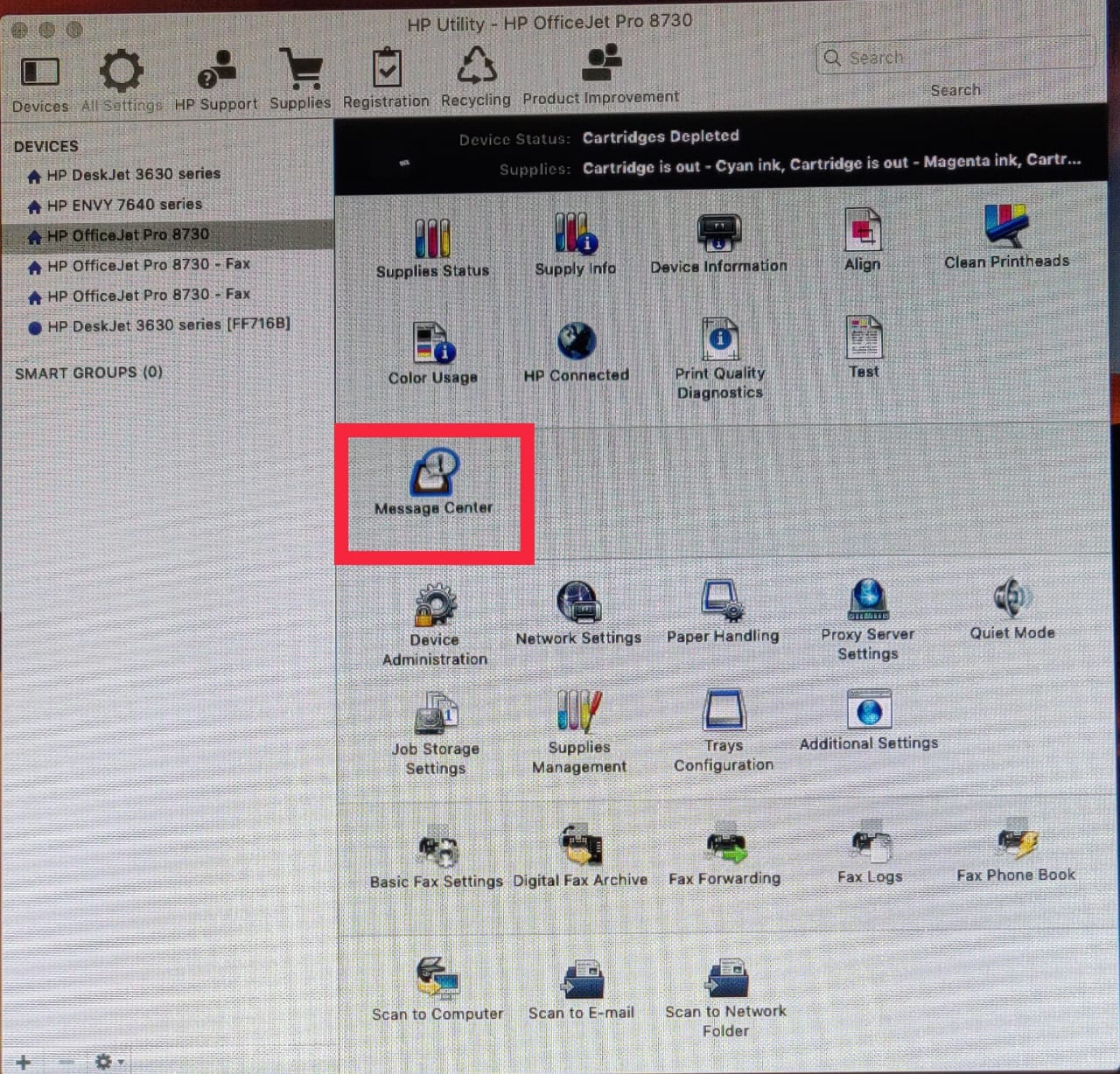
Go to Finder > Applications > HP > Open HP Utility > Select HP Laserjet M28w > All Settings(gear icon) > Select Message Center


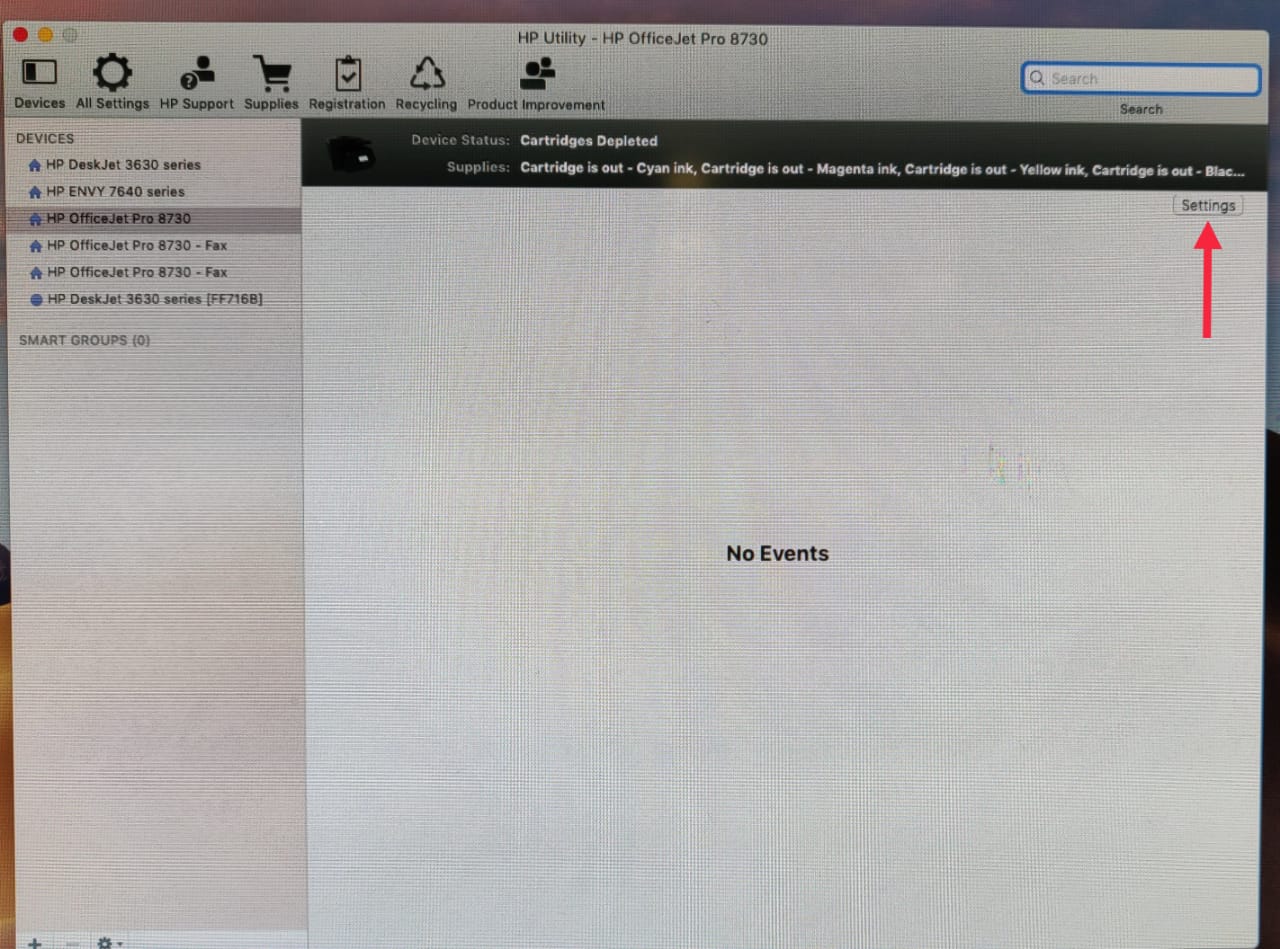
Select Settings on the next screen (refer to the image below)


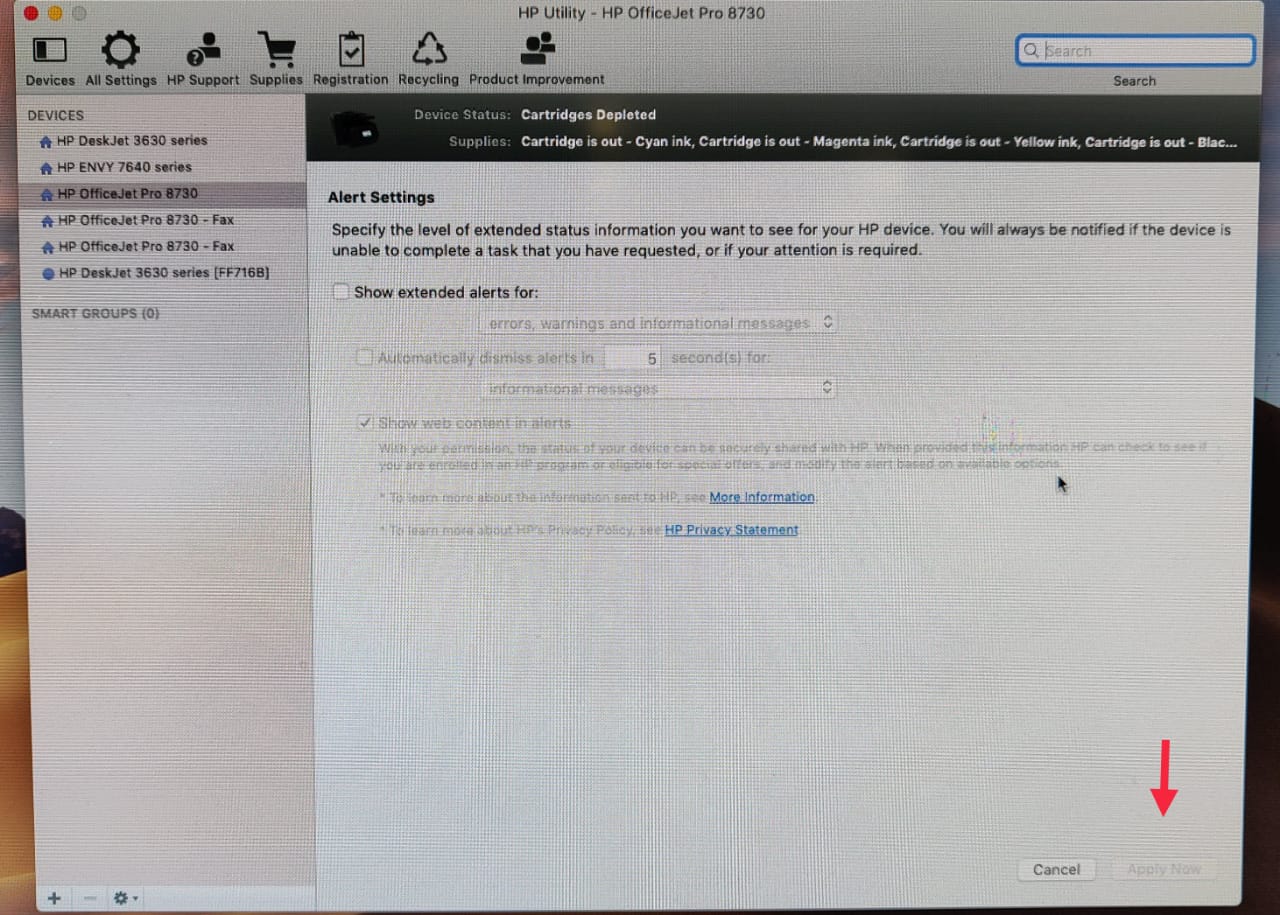
If you don't wish to get Notifications at all uncheck the box beside-> Show extended alerts for: 

If you only wish to receive alerts for errors but not for warnings, choose Errors Only-> Select Apply (refer to the image below)


Hope this helps! Keep me posted. 


Please click “Accept as Solution” if you feel my post solved your issue, it will help others find the solution.

Click the “Kudos, Thumbs Up" on the bottom right to say “Thanks” for helping!

Have a great day! 

KUMAR0307
I am an HP Employee

HP Recommended

The cartidge IS an original HP cartridge.

The printer itself states that.

jprospero_1-1605878657036.png

The problem, aparently is that the printer cannot access the Internet, which it should.

jprospero_0-1605878594441.png


HP Recommended

@jprospero


Let's try the below steps to see if that helps - 


1.) Remove All Barriers: Certain building materials can get in the way of weaker signals like Bluetooth. Metal, bulletproof glass, concrete, and plaster are particularly bad, and marble, plaster and brick aren’t great easy. So if you’re really struggling with interference, your first step should be to move your Bluetooth devices away from these materials. That means no brick walls between you and your devices, and definitely no metal desks! 


2.) Change Router Channel: If you have an Apple router and you’re constantly getting interference with your WiFi, try rebooting it. Upon restart, the station will search for a new channel. Specifically, a different channel than the one your Bluetooth devices is using to communicate. If you don’t have an Apple router, you may need to instead go into your router settings and try changing the channel manually. Experiment with different channels to see which one works best. 


3.) Move Closer to Your Router: If you often find that you’re getting interference when talking on a wireless headset while on a WiFi call (you’ll know because you’ll hear static), try moving closer to your router. This will give you a more robust WiFi connection, so the Bluetooth frequency can’t overpower it. 


4.) Get Away From Microwaves and Fluorescent Lighting: Both emit frequencies of 2.4GHz, and moving away from them will distance you from the source. 


  • Make sure the printer and the MAC are connected to the same wireless network.
  • If you have a Dual-band router and both 2.4GHz and 5GHz networks share the same name/SSID, the printer will not be able to connect to the network. In this case, contact your Internet service provider to assign different names to both the networks.
  • Also, check with your Internet service provider if your router is able to forward 'Bonjour packets'.
  • Bonjour locates devices such as printers, other computers, and the services that those devices offer on a local network using multicast Domain Name System (mDNS) service records. The software comes built-in with Apple's macOS and iOS operating systems.

Perform a ping test to check the connectivity

  1. Obtain the IP address of the printer by clicking on the Wireless icon on the printer
  2. On the MAC Go to Spotlight > search for Network utility > select Ping tab > enter the IP address of the printer in the box
  3. Check the second box that says Send only > 10 pings
  4. Click on ping > Check the results at the end if any packets are lost
  5. Note: There should be 0% packet loss, share the results in your next post.


Update the printer firmware

Click here to download and install the latest printer firmware from your MAC.

Click here to know different methods of updating printer firmware.


Also, check for any software updates on MAC

Click the Apple icon > About This Mac > Software Update and install any available update.


Let me know how it goes.

KUMAR0307
I am an HP Employee

† The opinions expressed above are the personal opinions of the authors, not of HP. By using this site, you accept the <a href="https://www8.hp.com/us/en/terms-of-use.html" class="udrlinesmall">Terms of Use</a> and <a href="/t5/custom/page/page-id/hp.rulespage" class="udrlinesmall"> Rules of Participation</a>.