
-
×InformationNeed Windows 11 help?Check documents on compatibility, FAQs, upgrade information and available fixes.
Windows 11 Support Center. -
-
×InformationNeed Windows 11 help?Check documents on compatibility, FAQs, upgrade information and available fixes.
Windows 11 Support Center. -
- HP Community
- Printers
- LaserJet Printing
- DUPLEX STOP WORKING M277DW

Create an account on the HP Community to personalize your profile and ask a question
Your account also allows you to connect with HP support faster, access a personal dashboard to manage all of your devices in one place, view warranty information, case status and more.

It has been a while since anyone has replied. Simply ask a new question if you would like to start the discussion again.

05-22-2018 07:40 AM - edited 05-23-2018 04:17 AM
 HP Recommended
Product: M277 DW
Operating System: Microsoft Windows 10 (64-bit)
Hi all, my printer m277dw. all of a sudden it stopped printing duplex. not thru laptop not even from andriod. it used to b print thru andriod mobile and i know how to select double side but keep getting msg for manual duplex.
i've updated firmware it showing 20180205 don't what happened. read all solutions here none of them i can say i fit in that criteria. mobile i can see 'short edge' n 'long edge' but still printing simplex. send thru laptop with selection double side still no luck. pls help me. i need to print lots of pages for duplex. where i am doing wrong. help me pls.
is it i need to clean rom? if yes how?
5 REPLIES 5


05-23-2018 11:59 AM
HP Recommended
Hi! @MrBuddyLuv, Welcome to HP forums.
I understand you have issues printing two-sided from your printer.
Don't worry I'll try to help you out.
Did you make any changes to your printer?
Does the issue persist when you make a copy from your printer?
Have you tried changing the paper size?
As you mentioned you have issues printing two-sided from your printer.
Try changing the paper size from the app and check if it helps.
Try the steps recommended below.
You can print on both sides of a sheet of paper automatically by using the automatic two-sided printing mechanism (duplexer).
1. From your software, select Print.
2. Make sure your printer is selected.
3. Click the button that opens the Properties dialog box.
Depending on your software application, this button might be called Properties, Options, Printer Setup,
Printer Properties, Printer, or Preferences.
4. Select the appropriate options.
On the Layout tab, select Portrait or Landscape orientation, and select Flip on Long Edge or Flip
on Short Edge from the Print on Both Sides drop-down list.
● On the Paper/Quality tab, select the appropriate paper type from the Media drop-down list in the
Tray Selection area, and then select the appropriate print quality in the Quality Settings area.
● Click the Advanced button, in the Paper/Output area, select the appropriate paper size from the
Paper Size drop-down list.
Click OK to print.
NOTE: After one page of the document has been printed, wait for the printer to reload the paper
automatically to print on the other side. You do not need to take any action.
Refer this article to know more information about printing from an Android device. Link: https://hp.care/2s6WGHA
Also, refer this article to know more information about printing two-sided from your printer. Link: https://hp.care/2GINGh1
If the solution provided worked for you, please mark accepted solution for this post.
Hope this answers your query!
Have a great day ahead! 🙂
Please click “Accept as Solution” if you feel my post solved your issue, it will help others find the solution.
Click the “Kudos, Thumbs Up" on the bottom right to say “Thanks” for helping!
A4Apollo
I am an HP Employee
05-25-2018 03:40 AM
HP Recommended
Hi, thanks for your reply. sorry for the delay. Stroke patient. yesterday had session and after that i was exhausted.
no going thru your step. the good news is
i've just copy duplex its work. Bingo
Now i need to install driver again.
hopefully i'll update you in an hour if i'll not have a fatigue prob. This stroke has changed me a lot. Anyway.
let me do it now. b4 i'll loose my energy.
05-25-2018 06:49 AM
HP Recommended
@MrBuddyLuv, Thanks for your quick response and time.
I appriciate your efforts for writing back to us.
As you mentioned after trying out the steps the copy duplex works fine.
I am happy to hear that your issue got resolved.
Also, please take care of your health and have a speedy recovery.
If you have any queries in future related to any HP products, you can always reach out to us.
We will try our best to help you out.
Please mark my post as accepted solution if you feel I have answered your query.
Take care,
Have a great day! 🙂
Please click “Accept as Solution” if you feel my post solved your issue, it will help others find the solution.
Click the “Kudos, Thumbs Up" on the bottom right to say “Thanks” for helping!
A4Apollo
I am an HP Employee
05-29-2018 05:14 AM
HP Recommended
Good morning Mr. Robot,
Yeah it was good news but after replying you i was struggling to print duplex through my android no success the i left as it.
but now just wanted to print something again keep coming up simplex and getting error "manual duplex load tray 2, press ok to continue". i've just checked thru printer seyup
System Setup\Paper Setup\Default Paper Size\ A4 (*) asterik on it
System Setup\Paper Setup\Default Paper Type\Plain (*)asterik on it
System Setup\Paper Setup\Tray 1\Paper Size\ A4 (*) asterik on it
System Setup\Paper Setup\Tray 1\Paper Type\ Plain (*) asterik on it
System Setup\Paper Setup\Tray 2\Paper Size\ A4 (*) asterik on it
System Setup\Paper Setup\Tray 2\Paper Type\ Plain (*) asterik on it
And from the laptop it showing Printer "HP Color Laser Jet Pro MFP M277 PCL6"
and when i click on Properties
* Paper size showing <A4>
* Paper source i've select first <Tray 2> and print but didn't print duplex then i select <printer auto select> still no duplex on both cases it keep printing side 2.
* Paper type <Plain>
* Print on both side (manually) i've select <Yes, flip over>
* Pages per sheet <1 page per sheet>
* Print in Grayscale <Off>
I made test word doc, first paper saying "Page 1" and second page "Page 2". so at least i know which side it printing.
I've noticed it keep printing Page 2, skipping Page 1.
its all happened when i was trying to print thru android fone which is another issue has to be sorted coz my daughter home comes thru their show my home work. we'll discuss later once this sorted.
Options are very simple looking thru both setup but can't see where i am doing wrong. please help.
this causing my anxiety build up.
Thanks in advance, i am taking an hour rest now. away from laptop. will be back by 2pm.
Thanks Mr. Robot for helping me.
@A4Apollo wrote:@MrBuddyLuv, Thanks for your quick response and time.
I appriciate your efforts for writing back to us.
As you mentioned after trying out the steps the copy duplex works fine.
I am happy to hear that your issue got resolved.
Also, please take care of your health and have a speedy recovery.
If you have any queries in future related to any HP products, you can always reach out to us.
We will try our best to help you out.
Please mark my post as accepted solution if you feel I have answered your query.
Take care,
Have a great day! 🙂
Please click “Accept as Solution” if you feel my post solved your issue, it will help others find the solution.
Click the “Kudos, Thumbs Up" on the bottom right to say “Thanks” for helping!
@A4Apollo wrote:@MrBuddyLuv, Thanks for your quick response and time.
I appriciate your efforts for writing back to us.
As you mentioned after trying out the steps the copy duplex works fine.
I am happy to hear that your issue got resolved.
Also, please take care of your health and have a speedy recovery.
If you have any queries in future related to any HP products, you can always reach out to us.
We will try our best to help you out.
Please mark my post as accepted solution if you feel I have answered your query.
Take care,
Have a great day! 🙂
Please click “Accept as Solution” if you feel my post solved your issue, it will help others find the solution.
Click the “Kudos, Thumbs Up" on the bottom right to say “Thanks” for helping!
05-29-2018 07:39 AM
HP Recommended
@MrBuddyLuv, Thanks for writing back to us.
I appriciate your efforts for trying out the steps.
As you mentioned the issue still persists after trying out the steps.
Please try the steps recommended below.
Clear the Android OS Print Spooler cache
Sometimes resetting and clearing the Android OS Print Spooler cache can resolve the issue.
On your Android device, tap Settings, and then select Apps or Applications.
Select Show System Apps.
Scroll down the list, and then select Print Spooler.
Depending on your Android device, tap Storage, and then select Print Spooler.
Select Clear Data.
Try to print again.
HP's mobile app only provide automatic duplexing when available, manual duplexing can only be done from a computer, not from a mobile device.
Remove the print from print service plugin and install it again.
-
On your Android device, tap Settings
 .
. -
Tap More, More networks, More settings, or NFC and sharing, and then tap Print or Printing.
-
Tap HP Inc., and then tap More.
-
Tap Add printer, and then tap Manage printers.
-
Find the printer you want to edit or remove, and then press and hold the printer name until the Manage printers menu displays.
-
Tap Modify to edit the printer name or update the printer IP address, or tap Forget printer to remove the printer.
Install and turn on the HP Print Service Plugin
-
Make sure your Android device is connected to the same wireless network that your printer is connected to, or that Wi-Fi Direct on your printer and Android device is enabled.
-
On your Android device, install or update the HP Print Service Plugin (in English) from the Google Play Store.
-
Once the installation or update is complete, choose a method to turn on the HP Print Service Plugin:
NOTE:
On Android devices with 7.0 (Nougat) and later, the HP Print Service Plugin is turned on automatically after installation. Skip to the step to Print with the HP Print Service Plugin.
-
If this is the first time you installed the HP Print Service Plugin, swipe down the home screen to display the notification dashboard, and then find HP Inc. service installed.
Figure : Example of HP Inc. service installed
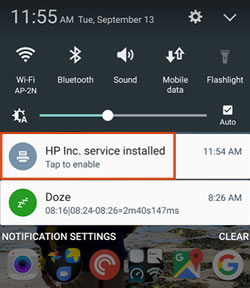
-
If you updated the HP Print Service Plugin, tap Settings
, tap More, More networks, More settings, or NFC and sharing, and then tap Print or Printing.Figure : Example of HP Inc.
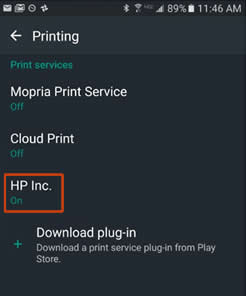
-
-
Tap HP Inc. service installed or HP Inc., and then tap On.
-
Turn off any other print service plugins, if necessary.
Clear the Cache on your android device
- Press your Menu button then select Settings (or System Settings).
- Tap Application Manager (or Apps).
- Tap the app icon you want to repair.
- Tap Clear Cache.
Please mark my post as accepted solution if you feel I have answered your query.
Let me know if this works!
Have a great day ahead! 🙂
Please click “Accept as Solution” if you feel my post solved your issue, it will help others find the solution.
Click the “Kudos, Thumbs Up" on the bottom right to say “Thanks” for helping!
A4Apollo
I am an HP Employee

Be alert for scammers posting fake support phone numbers and/or email addresses on the community.
If you think you have received a fake HP Support message, please report it to us by clicking on "Flag Post".
† The opinions expressed above are the personal opinions of the authors, not of HP. By using this site, you accept the Terms of Use and Rules of Participation.


Didn't find what you were looking for?
Ask the community
† The opinions expressed above are the personal opinions of the authors, not of HP. By using this site, you accept the <a href="https://www8.hp.com/us/en/terms-of-use.html" class="udrlinesmall">Terms of Use</a> and <a href="/t5/custom/page/page-id/hp.rulespage" class="udrlinesmall"> Rules of Participation</a>.