
-
×InformationNeed Windows 11 help?Check documents on compatibility, FAQs, upgrade information and available fixes.
Windows 11 Support Center. -
-
×InformationNeed Windows 11 help?Check documents on compatibility, FAQs, upgrade information and available fixes.
Windows 11 Support Center. -
- HP Community
- Printers
- LaserJet Printing
- Re: HP 8740 periodically loses connection

Create an account on the HP Community to personalize your profile and ask a question
Your account also allows you to connect with HP support faster, access a personal dashboard to manage all of your devices in one place, view warranty information, case status and more.

It has been a while since anyone has replied. Simply ask a new question if you would like to start the discussion again.

03-14-2018 02:57 PM
 HP Recommended
Product: OfficeJet 8740
Operating System: Microsoft Windows 7 (64-bit)
I am getting more and more annoyed with this printer's inability to stay available. How do I cure this once and for l?. Is this printer just very fragile with network connections?
From time-to-time since purchase this printer shows as offline and I get printing errors showing as "error-Offline" in the spooler. This seems to relate to when the printer sleeps (set for 10 minutes). At that time I can connect to the Web GUI with no problem (except for cert warning). If I sign in to the printer that seems to wake the printing function.
A power cycle also works, but it is annoying and ridiculous to have to do it. The scan and fix seems happy, but says little.
HP 8740 on wired LAN. Laptops connect to LAN wirelessly. Firmware: WEBPDLPP1N001.1803A.00. Windows Printer Properties shows "HP OfficeJet Pro 8740 (v3) Version 8.00.1324.3808". Problem with wireless W7 and W10 laptops.
Solved! Go to Solution.
1 ACCEPTED SOLUTION
Accepted Solutions

03-14-2018 03:07 PM
HP Recommended
These settings are for setting up your wireless or wired printers to:
* Stay connected to your router
* Fix printer ‘offline’ status
* Wake from sleep mode
* Speed up wireless printing
While DHCP is convenient, devices such as printers (wired and wireless) should always be assigned a static (fixed) IP address manually to avoid conflicts on your wireless network and MUST be outside the DHCP address range of the router. This is because printers are the only external devices that do not have the ability to automatically interrupt the router for a new DHCP address once the least time expires. Again, do not have the printers static IP within the DHCP range of the router as this is against Networking 101 rules and will confuse the router. Make things simple – In the router, set starting DHCP address range 192.168.1.100 (or 192.168.0.100). Ending DHCP address range 192.168.1.150 (or 192.168.0.150). Set Printer Static IP to 192.168.1.10 (or 192.168.0.10).
After setting the static IP, the computer(s) must be updated under Printer Properties/Ports to show a Standard TCP/IP port with the printers’ new static IP address.
1. Set a static IP in the printer outside the DHCP range of the router (check your manual). This Static IP is important as DHCP IP addresses will change upon different power up sequences of your devices. You always want your printer to come up with the same IP address all the time. See how to do this here:
This is for Linksys routers but can be used for all routers. Verify your DHCP range and change this first if needed. Then after setting the static IP in the printer, the computer(s) must be updated under Printer Properties/Ports to show a Standard TCP/IP port with the printers IP address.
To see why this problem exists and how to fix it, watch this video here for Windows. Scroll down for MAC information.
https://www.youtube.com/watch?v=ZEqvUKxWmq4
How to set a Standard TCP/IP port. This is important.
a). Click Start/Devices and Printers. Right click on your HP Printer. Select Printer Properties. Select the Ports tab at the top.
b). Select Add Port. Select Standard TCP/IP Port. Select New Port.
c). Follow the Add Port Wizard. Under Printer Name or IP Address, input the Static IP address you just set from the above information. Example: 168.1.15. The IP address will be copied under Port Name. This is OK to leave this alone or you can put in your Printer Model.
d). Select Next and Finish the Wizard.
If you create a TCP/IP port without a static IP above, you may lose your TCP/IP connection and have the same issue. This is because your network has powered up differently giving you a different DHCP address to the printer that does not match the TCP/IP address above. This could occur at anytime just like the video shows.
For MAC PCs perform the above Static IP setting in the router and then watch here on how to perform your IP setting for MAC computers.
https://www.youtube.com/watch?v=A5tNFjEBDOw
By performing the above, the printers Embedded Web Server (EWS) will now work all the time by going to your Printers Static IP address in your browser.
2. Wireless connection only, turn off the Wired LAN in the printer.
a). Login to your printers EWS from a web browser using your Static IP in the address bar.
b). Go to the menu item Network at the top.
c). On the side menu expand WIRED network settings.
d). Click on advanced.
e). Set the Network Interface to off.
3. Verify in the printer that 'Auto Off/Sleep/Energy Saving Mode' is disabled and/or the System Mode Time Out is set to zero (0) if your printer supports this. Use the Embedded Web Server (EWS) by going to the printers IP address in your browsers address bar, click Settings Tab/Auto Off, or use the Printer Assistant, Printer Home Page (EWS). Also check your Printer Properties. This feature is automatically disabled when the printer is connected to a computer or mobile device, a network, or a fax line (if supported). However, you may not find this setting.
4. If the printer supports and has IPv6 enabled, disable IPv6 in the printer.
5. Make sure printer is plugged directly into a wall outlet and not into a UPS, power strip or surge protector. This may cause the printer to intermittently drop offline and disconnect.
6. Make sure your printer and router are at least 5 feet apart from each other.
7. Check the HP web site for your printer to see if there is a Firmware Upgrade that affects the wireless operation. If yes, update the firmware via USB cable only. Never wireless.
So simple a 5th grader can do it… and has.
Additional steps to be taken if you continue to have the problem (if they are posted)…
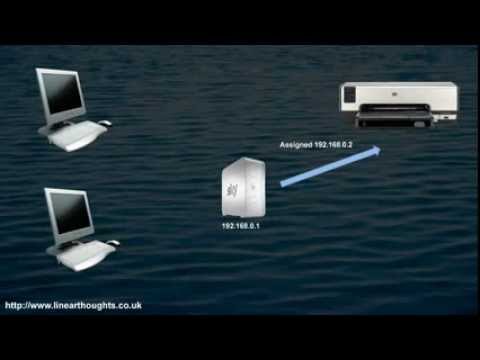
Printer offline issues can happen because the IP address of the printer keeps changing. This video explains how that can happen and what to do to fix it. For more tech tips, check out https://www.linearthoughts.co.uk . 00:00 - Introduction 00:18 - The Problem and Why it Occurs 03:47 - Solution ...
Printer offline issues can happen because the IP address of the printer keeps changing. This video explains how that can happen and what to do to fix it. For more tech tips, check out https://www.linearthoughts.co.uk . 00:00 - Introduction 00:18 - The Problem and Why it Occurs 03:47 - Solution ...
2 REPLIES 2
03-14-2018 03:07 PM
HP Recommended
These settings are for setting up your wireless or wired printers to:
* Stay connected to your router
* Fix printer ‘offline’ status
* Wake from sleep mode
* Speed up wireless printing
While DHCP is convenient, devices such as printers (wired and wireless) should always be assigned a static (fixed) IP address manually to avoid conflicts on your wireless network and MUST be outside the DHCP address range of the router. This is because printers are the only external devices that do not have the ability to automatically interrupt the router for a new DHCP address once the least time expires. Again, do not have the printers static IP within the DHCP range of the router as this is against Networking 101 rules and will confuse the router. Make things simple – In the router, set starting DHCP address range 192.168.1.100 (or 192.168.0.100). Ending DHCP address range 192.168.1.150 (or 192.168.0.150). Set Printer Static IP to 192.168.1.10 (or 192.168.0.10).
After setting the static IP, the computer(s) must be updated under Printer Properties/Ports to show a Standard TCP/IP port with the printers’ new static IP address.
1. Set a static IP in the printer outside the DHCP range of the router (check your manual). This Static IP is important as DHCP IP addresses will change upon different power up sequences of your devices. You always want your printer to come up with the same IP address all the time. See how to do this here:
This is for Linksys routers but can be used for all routers. Verify your DHCP range and change this first if needed. Then after setting the static IP in the printer, the computer(s) must be updated under Printer Properties/Ports to show a Standard TCP/IP port with the printers IP address.
To see why this problem exists and how to fix it, watch this video here for Windows. Scroll down for MAC information.
https://www.youtube.com/watch?v=ZEqvUKxWmq4
How to set a Standard TCP/IP port. This is important.
a). Click Start/Devices and Printers. Right click on your HP Printer. Select Printer Properties. Select the Ports tab at the top.
b). Select Add Port. Select Standard TCP/IP Port. Select New Port.
c). Follow the Add Port Wizard. Under Printer Name or IP Address, input the Static IP address you just set from the above information. Example: 168.1.15. The IP address will be copied under Port Name. This is OK to leave this alone or you can put in your Printer Model.
d). Select Next and Finish the Wizard.
If you create a TCP/IP port without a static IP above, you may lose your TCP/IP connection and have the same issue. This is because your network has powered up differently giving you a different DHCP address to the printer that does not match the TCP/IP address above. This could occur at anytime just like the video shows.
For MAC PCs perform the above Static IP setting in the router and then watch here on how to perform your IP setting for MAC computers.
https://www.youtube.com/watch?v=A5tNFjEBDOw
By performing the above, the printers Embedded Web Server (EWS) will now work all the time by going to your Printers Static IP address in your browser.
2. Wireless connection only, turn off the Wired LAN in the printer.
a). Login to your printers EWS from a web browser using your Static IP in the address bar.
b). Go to the menu item Network at the top.
c). On the side menu expand WIRED network settings.
d). Click on advanced.
e). Set the Network Interface to off.
3. Verify in the printer that 'Auto Off/Sleep/Energy Saving Mode' is disabled and/or the System Mode Time Out is set to zero (0) if your printer supports this. Use the Embedded Web Server (EWS) by going to the printers IP address in your browsers address bar, click Settings Tab/Auto Off, or use the Printer Assistant, Printer Home Page (EWS). Also check your Printer Properties. This feature is automatically disabled when the printer is connected to a computer or mobile device, a network, or a fax line (if supported). However, you may not find this setting.
4. If the printer supports and has IPv6 enabled, disable IPv6 in the printer.
5. Make sure printer is plugged directly into a wall outlet and not into a UPS, power strip or surge protector. This may cause the printer to intermittently drop offline and disconnect.
6. Make sure your printer and router are at least 5 feet apart from each other.
7. Check the HP web site for your printer to see if there is a Firmware Upgrade that affects the wireless operation. If yes, update the firmware via USB cable only. Never wireless.
So simple a 5th grader can do it… and has.
Additional steps to be taken if you continue to have the problem (if they are posted)…
Printer offline issues can happen because the IP address of the printer keeps changing. This video explains how that can happen and what to do to fix it. For more tech tips, check out https://www.linearthoughts.co.uk . 00:00 - Introduction 00:18 - The Problem and Why it Occurs 03:47 - Solution ...
Printer offline issues can happen because the IP address of the printer keeps changing. This video explains how that can happen and what to do to fix it. For more tech tips, check out https://www.linearthoughts.co.uk . 00:00 - Introduction 00:18 - The Problem and Why it Occurs 03:47 - Solution ...
04-01-2018 04:22 PM
HP Recommended
@Sabretooth04
I followed some of your suggestions and have not had the problems repeat in about 2 weeks. My experience might help some reader later on.
I believe the main issue was the "HP Network Rediscovery port monitor" that the HP printer software created. I changed it to a TCP/IP port with a reserved dynamic IP address. I have since read a number of posts showing problems with the rediscovery port.
These was no 'Auto Off/Sleep/Energy Saving Mode' option. I suspect that it only applies to USB connections.
Protocols were set to IPv4 and IPv6. I changed to IPv4 only.
I left printer plugged into the same power strip that it has been plugged into for a year and its predecessor for over 5 years. Simple strip with capacity for heavier loads.
I left the printer within 5 feet of one of my access points because I have disabled the 8740 wireless.
The firmware was up to date.
Thank you for your suggestions,
Joe

Be alert for scammers posting fake support phone numbers and/or email addresses on the community.
If you think you have received a fake HP Support message, please report it to us by clicking on "Flag Post".
† The opinions expressed above are the personal opinions of the authors, not of HP. By using this site, you accept the Terms of Use and Rules of Participation.


Didn't find what you were looking for?
Ask the community
† The opinions expressed above are the personal opinions of the authors, not of HP. By using this site, you accept the <a href="https://www8.hp.com/us/en/terms-of-use.html" class="udrlinesmall">Terms of Use</a> and <a href="/t5/custom/page/page-id/hp.rulespage" class="udrlinesmall"> Rules of Participation</a>.