• ×
    Information
    Need Windows 11 help?
    Check documents on compatibility, FAQs, upgrade information and available fixes.
    Windows 11 Support Center.
  • post a message
  • ×
    Information
    Need Windows 11 help?
    Check documents on compatibility, FAQs, upgrade information and available fixes.
    Windows 11 Support Center.
  • post a message
Guidelines
Seize the moment! nominate yourself or a tech enthusiast you admire & join the HP Community Experts!
HP Recommended
Laser Jet Pro MFP
Microsoft Windows 7 (64-bit)

Authenication by HP says it can not connect to the internet. But no problem in printing.

3 REPLIES 3
HP Recommended

@BarryB40


Welcome to HP forums, I see that you are getting HP authentication error.

  • Provide the printer model number or the product number?

Reply with the requested information for more assistance.

Cheers.

Sandytechy20
I am an HP Employee

HP Recommended

Model M277dw

HP Recommended

@Mims74


Thanks for the reply.

I appreciate your time and effort'.


Run the HP Print and Scan Doctor

HP provides a free tool called HP Print and Scan Doctor to diagnose and resolve printing and scanning problems. Download and run HP Print and Scan Doctor to quickly and automatically perform several troubleshooting tasks known to resolve this issue. When this link is clicked, HP Print and Scan Doctor is downloaded using your Internet browser's download capabilities.
  1. After HP Print and Scan Doctor opens, click Start on the Welcome screen.

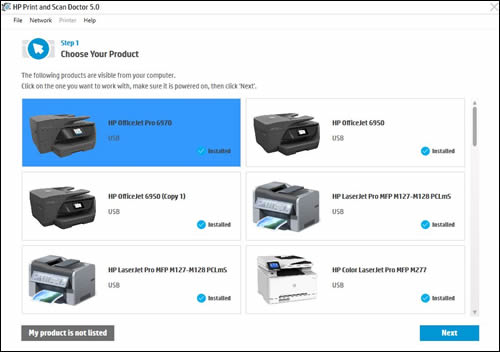
  2. If your printer is not listed, make sure the printer is turned on and connected, click My product is not listed, and then click Retry.

  3. Select your printer, and then click Next.

    Figure : Select your printer

    Select your printer
  4. If a connection problem is detected, click the method being used to connect the printer, follow the instructions on the screen, and then click Retry.

Temporarily disable firewall software on the computer

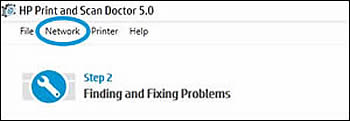
  1. Return to the Print and Scan Doctor window, and then click Network.

    Figure : Click Network in the HP Print and Scan Doctor window

    Click Network in the HP Print and Scan Doctor window.
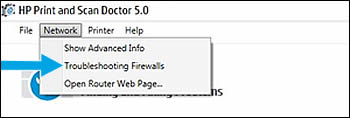
  2. In the drop-down menu, click Troubleshooting Firewalls.

    Figure : Click Troubleshoot Firewalls in the drop-down menu

    Click Troubleshooting Firewalls in the drop-down menu.
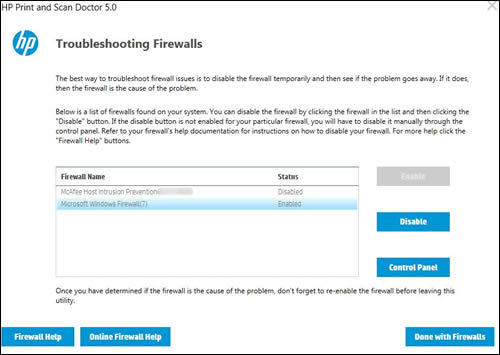
  3. Click the name of any firewall software on your system that has an Enabled status, and then click Disable.

    Figure : Example of the Troubleshooting Firewalls window

    Image: Example of the Advanced Info window
  4. Try installing the HP driver and software again.

You can refer to this HP document for more assistance:- Click here

(Note:- Though the title of the document is different, these steps should fix the issue)


Let me know how it goes.

To thank me for my efforts to help you, please mark my post as an accepted solution so that it benefits several others.

Cheers.

Sandytechy20
I am an HP Employee

† The opinions expressed above are the personal opinions of the authors, not of HP. By using this site, you accept the <a href="https://www8.hp.com/us/en/terms-of-use.html" class="udrlinesmall">Terms of Use</a> and <a href="/t5/custom/page/page-id/hp.rulespage" class="udrlinesmall"> Rules of Participation</a>.