• ×
    Information
    Need Windows 11 help?
    Check documents on compatibility, FAQs, upgrade information and available fixes.
    Windows 11 Support Center.
  • post a message
  • ×
    Information
    Need Windows 11 help?
    Check documents on compatibility, FAQs, upgrade information and available fixes.
    Windows 11 Support Center.
  • post a message
Guidelines
Join the HP Community Solve‑a‑thon | Help Others & Share Your Solutions | Live on Zoom | 2:30 PM to 2:30 AM IST | Every Wednesday Click here to know more
HP Recommended
CP1215
Microsoft Windows 7 (32-bit)

My CP1215 printer will not print. This was initially an intermittant problem, but now it won't print at all. It churns and churns but won't print - it appears that it is not pulling the media correctly. There is no associated error message. However, the last time I tried to cancel a job I got "engine communication error" before it finally cancelled.


The on-line help says that I may need to change the pick up rollers and separation pad. Is this worthwhile for a 9 year old printer, or should I just replace it? 


Thanks for any advice,

Kate

1 REPLY 1
HP Recommended

@KateCCI

Welcome to HP Forums, 

This is a great place to get support, find answers and tips to your technical queries.


Clean the paper feed rollers


Dust, paper fiber, and other debris might accumulate on the paper feed rollers and cause paper jams and paper feed issues. Clean the rollers inside the printer, and then try to print again.

  1. Turn off the printer, and then disconnect the power cord.

       WARNING:

    Disconnect the power cord before reaching inside the printer to avoid risk of injuries or electric shock.

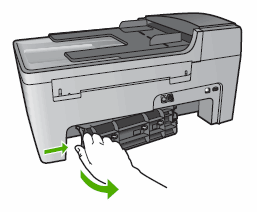
  2. Press in the tab on the left side of the rear access door to release the door. Pull the door away from the printer to remove it.

    Illustration of removing the rear access door

  3. Lightly dampen a clean, lint-free cloth with bottled or distilled water, and then squeeze any excess liquid from the cloth.

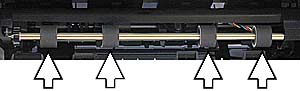
  4. Press the cloth against the rollers and rotate them up with your fingers. Apply a moderate amount of pressure to remove any dust or dirt buildup.

    Illustration of the rollers inside the printer

  5. Check the rollers on the rear access door. Make sure that no rollers are missing and that the rollers can turn freely.

    Photograph of the rollers on the rear access door

  6. Clean the surface and the rollers of the rear access door as you did the rollers inside the printer.

  7. Allow the rollers to dry for 10 or 15 minutes.

  8. Reattach the rear access door. Gently push the door forward until it snaps into place.

       NOTE:

    Make sure the rear access door seats correctly in the printer. An incorrectly positioned rear access door might cause more paper jams.

  9. Reconnect the power cord to the rear of the printer, and then turn on the printer.

Try to print. If the error persists, continue to the next step.


Reset the printer


Sometimes a paper jam error persists even though there is no jammed paper (false paper jam). Reset the printer, which might clear a false paper jam error, and then try to print again.

  1. Turn the printer on, if it is not already on.

  2. Wait until the printer is idle and silent before you continue.

  3. With the printer turned on, disconnect the power cord from the rear of the printer.

  4. Unplug the power cord from the wall outlet.

  5. Wait at least 60 seconds.

  6. Plug the power cord back into the wall outlet.

       NOTE:

    HP recommends connecting the printer power cord directly to the wall outlet.

  7. Reconnect the power cord to the rear of the printer.

  8. Turn on the printer, if it does not automatically turn on.

  9. Wait until the printer is idle and silent before you proceed.

Try to print. 


Keep me posted, how it goes!

If the information I've provided was helpful, give us some reinforcement by clicking the Accepted Solution and Kudos buttons, that'll help us and others see that we've got the answers!

Have a great day!

Cheers:)

Raj1788
I am an HP Employee 

† The opinions expressed above are the personal opinions of the authors, not of HP. By using this site, you accept the <a href="https://www8.hp.com/us/en/terms-of-use.html" class="udrlinesmall">Terms of Use</a> and <a href="/t5/custom/page/page-id/hp.rulespage" class="udrlinesmall"> Rules of Participation</a>.