• ×
    Information
    Need Windows 11 help?
    Check documents on compatibility, FAQs, upgrade information and available fixes.
    Windows 11 Support Center.
  • post a message
  • ×
    Information
    Need Windows 11 help?
    Check documents on compatibility, FAQs, upgrade information and available fixes.
    Windows 11 Support Center.
  • post a message
Guidelines
Seize the moment! nominate yourself or a tech enthusiast you admire & join the HP Community Experts!
HP Recommended

I've been having the exact same problem- all my test pages print and scan fine, but anything else I send prints out blank. I've completely deleted and reinstalled all HP software on my computer, cleaned/realligned the print head, checked the ink, tried creating a printer port directly to the IP address, and nothing works. It must be something in the computer/printer connection but I cannot for the life of me figure it out. 

Please help!

6 REPLIES 6
HP Recommended

@AlessandraB


Welcome to HP forums, I see that you are getting blank printouts.

  • Provide the printer model number?
  • Which operating system is installed on the computer to which this printer is connected?
  • How is the printer connected, USB or Wireless?

Reply with the requested information for more assistance.

Cheers.

Sandytechy20
I am an HP Employee

HP Recommended

Hi! My printer is an Officejet 6978 All in One, connected to my mac with an OS X El Capitan. I've been using it wirelessely.

HP Recommended

@AlessandraB


Thanks for the reply.

I appreciate your time and effort.


Since the printer is printing the test page successfully.

Looks like the issue is with drivers.


Remove existing printer driver and set up the printer with Apple AirPrint to fix this issue.

Please ensure that the printer is up to date with its firmware and Mac is up to date with it's software. If you are unsure you may use the links below to update the printer and Mac software:


Update printer firmware

Update software on Mac 


1. Click the Apple menu, click System Preferences, and then click Print & Scan or Printers & Scanners.

2. Check if your printer name displays in the Printers list, If your printer is listed, click the printer name, click the minus sign to delete the printer.

3. If you see multiple printer queues for the same printer, remove all extra printers by selecting them one at a time, and then clicking the minus button  at the bottom of the list.

4. Click the plus sign , click Add Printer or Scanner, click the printer name.
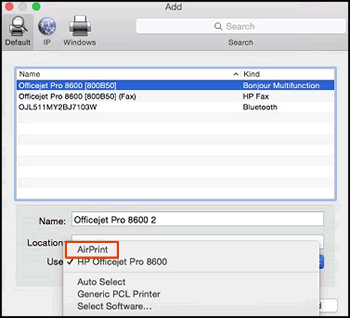

5. Click the Use or Print Using menu, select AirPrint in the pop-up menu. Then click Add.

Select AirPrint from the Use menu


6. Try to print.


Let me know how it goes.

To thank me for my efforts to help you, please mark my post as an accepted solution so that it benefits several others.

Cheers.

Sandytechy20
I am an HP Employee

HP Recommended

Hi,

After double checking those updates I attempted to add the printer through Airprint and it still only printed blank pages.

Any other thoughts?

HP Recommended

@AlessandraB


Thanks for writing back to us.


I am sending you a private message. Please check the mailbox icon at the top-right corner of this screen.

I hope this helps resolve this issue completely


Cheers.

Sandytechy20
I am an HP Employee

HP Recommended

SandyTechie, 

Sorry, but I'm unsure if I'm looking in the right place.  Now that I'm hit reply, I see an envelope icon in the upper right corner.  When I just clicked on that, there were no private messages.  Would it be possible to speak with someone rather than all these little messages?  I think it would be rather more helpful and efficient in the bigger picture.  

thanks, 

† The opinions expressed above are the personal opinions of the authors, not of HP. By using this site, you accept the <a href="https://www8.hp.com/us/en/terms-of-use.html" class="udrlinesmall">Terms of Use</a> and <a href="/t5/custom/page/page-id/hp.rulespage" class="udrlinesmall"> Rules of Participation</a>.