• ×
    Information
    Need Windows 11 help?
    Check documents on compatibility, FAQs, upgrade information and available fixes.
    Windows 11 Support Center.
  • post a message
  • ×
    Information
    Need Windows 11 help?
    Check documents on compatibility, FAQs, upgrade information and available fixes.
    Windows 11 Support Center.
  • post a message
Guidelines
Join the HP Community Solve‑a‑thon | Help Others & Share Your Solutions | Live on Zoom | 2:30 PM to 2:30 AM IST | Every Wednesday Click here to know more
HP Recommended
Laser Jet Pro M251 nw
Microsoft Windows 10 (64-bit)

I was printing fine and then all of a sudden I started getting paper jam errors. The paper I was printing on was glossy. I tried cleaning the rollers. I have reset the printer 3 times. I updated the firmware. I have looked at the front and back rollers. There doesn't appear to be any paper stuck in there. I have tried running clean page, but it says load paper in manuel feed, I hit okay, (because the paper is in there already) and then it goes straight back to the paper jam error.

I have tried switching to plain paper, but I still get the paper jam.

I opened the jam access door in the front of the printer while I tried printing one more time. It looks like the issue is that the paper is not being lifted so that it feeds into the rollers. Any idea how I can fix this?

1 REPLY 1
HP Recommended

@web20005

Welcome to the HP Community


Clear the jammed paper.


Clear jams in the paper input tray

   CAUTION: 

Do not use sharp objects, such as tweezers or needle-nose pliers, to remove jams. Damage caused by sharp objects is not covered by the warranty.


When removing jammed paper, pull it straight out from the product. Pulling jammed paper out of the product at an angle can damage the product.

NOTE: 

Depending on where the jam is located, some of the following steps might not be necessary.

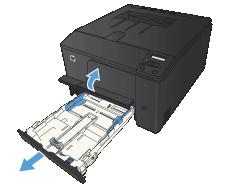
  1. Pull out the tray, and lift the jam access door above the tray.

    Figure: Pull out the tray

  2. With both hands, grasp the paper, and carefully pull it free from the product.

    Figure: Remove the jammed paper

  3. Replace the tray.

    Figure: Replace the tray

  4. Press the OK button to continue printing.

Clear jams from the output bin

   CAUTION: 

Do not use sharp objects, such as tweezers or needle-nose pliers, to remove jams. Damage caused by sharp objects will not be covered by the warranty.

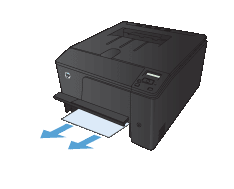
  1. With both hands, grasp the paper, and carefully pull it free from the product.

    Figure: Gently remove the jammed paper

Clear jams from the rear door

  1. Open the rear door.

       CAUTION: 

    The fuser is located above the rear door, and it is hot. Do not attempt to reach into the area above the rear door until the fuser is cool.

    Figure: Open the rear door

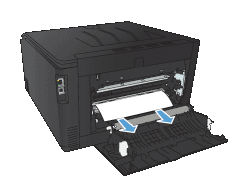
  2. With both hands, grasp the paper, and carefully pull it free from the product.

    NOTE: 

    If the sheet tears, remove all fragments before continuing. Do not use sharp objects to remove fragments.

    Figure: Gently remove the jammed paper

  3. Close the rear door.

    Figure: Close the rear door


I suggest you do a Hard Reset on the printer


(1) Turn the printer on, if it is not already on.

(2) Wait until the printer is idle and silent before you continue.

(3) With the printer turned on, disconnect the power cord from the rear of the printer.

(4) Unplug the power cord from the wall outlet.

(5) Wait at least 60 seconds.

(6) Plug the power cord back into the wall outlet.

NOTE: HP recommends connecting the printer power cord directly to the wall outlet.

(7) Reconnect the power cord to the rear of the printer.

(8) Turn on the printer, if it does not automatically turn on.


The printer might go through a warm-up period. The printer lights might flash, and the carriage might move.

Wait until the warm-up period finishes and your printer is idle and silent before you proceed.


Refer to this link: https://support.hp.com/in-en/product/hp-laserjet-pro-200-color-printer-m251-series/5097632/model/509... for Load Paper' Message Displays and the Printer Does Not Feed Paper.


Keep me posted, how it goes!

If the information I've provided was helpful, give us some reinforcement by clicking the Accepted Solution and Kudos buttons, that'll help us and others see that we've got the answers!

Have a great day!

Cheers:)

Raj1788
I am an HP Employee 

† The opinions expressed above are the personal opinions of the authors, not of HP. By using this site, you accept the <a href="https://www8.hp.com/us/en/terms-of-use.html" class="udrlinesmall">Terms of Use</a> and <a href="/t5/custom/page/page-id/hp.rulespage" class="udrlinesmall"> Rules of Participation</a>.