• ×
    Information
    Need Windows 11 help?
    Check documents on compatibility, FAQs, upgrade information and available fixes.
    Windows 11 Support Center.
  • post a message
  • ×
    Information
    Need Windows 11 help?
    Check documents on compatibility, FAQs, upgrade information and available fixes.
    Windows 11 Support Center.
  • post a message
Guidelines
Join the HP Community Solve‑a‑thon | Help Others & Share Your Solutions | Live on Zoom | 2:30 PM to 2:30 AM IST | Every Wednesday Click here to know more
HP Recommended
Color LaserJet Pro M254dw
macOS 10.15 Catalina

Hope you can help. When I try to print (with either wifi or USB) my document goes to the printer, shows up in the queue, the printer begins to spool and then... nothing. The printer stops spooling and the file is deleted from the queue. I've deleted and reinstalled the printer. I've also removed the HP Easy Start software and started again. Still the same problem.

3 REPLIES 3
HP Recommended

Hi @Ed-Qwerty


Welcome to the HP Support Community. I'd be happy to assist you.


Try the steps below to resolve the error -


Let's try a power reset on the printer


Reset the product

  • With the printer turned on, disconnect the power cord from the rear of the printer.
  • Unplug the power cord from the wall outlet.
  • Wait at least 60 seconds.
  • Plug the power cord back into the wall outlet.
  • Reconnect the power cord to the printer.
  • Turn the printer on. HP recommends plugging the printer directly into a wall outlet.

 Clear the print queue

Close scanning apps that might prevent jobs from printing, and then clear the queue.

  1. Close Apple Image CaptureHP Easy Scan, and HP Scan, if they are open.

  2. Click Finder, select Applications, click Utilities, and then double-click Terminal.
  3. Type Cancel -a, and then press Enter.

  4. Close the Terminal window, and then restart the computer.

Add the AirPrint printer to the Mac printer queue

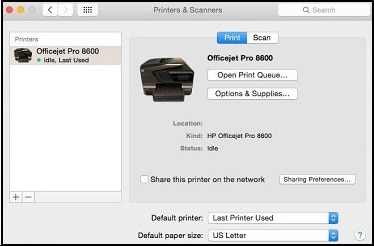
  1. Click the Apple menu, click System Preferences, and then click Print & Scan or Printers & Scanners.

    Figure : Example of the Printers & Scanners window

     Example of the Printers & Scanners window
  2. Check if your printer name displays in the Printers list, and then do one of the following steps.

    • If your printer is listed, remove and re-add the printer to confirm it is set up for AirPrint. Click the printer name, click the minus sign  to delete the printer, click the plus sign , click Add Printer or Scanner, click the printer name and then continue to the next step.
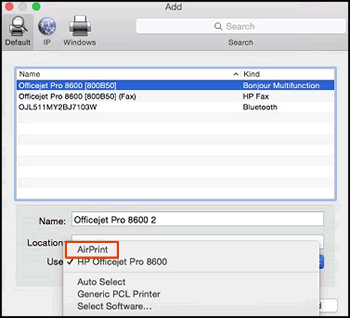

    • If your printer is not listed, click the plus sign, click Add Printer or Scanner, click the name of your printer, and then continue to the next step.

    • If your printer is not listed in the Add Printer or Scanner window, go to the Frequently asked questions in this document to resolve connection issues, try to add the printer again, and then continue to the next step.

  3. Confirm AirPrint or Secure AirPrint displays in the Use or Print Using menu, and then click Add.

    Figure : AirPrint displays in the Use menu

    Select AirPrint from the Use menu
  4. Open a document or photo, click File, and then click Print.

Hope this helps! Keep me posted. 


Please click “Accept as Solution” if you feel my post solved your issue, it will help others find the solution.

Click the “Kudos, Thumbs Up" on the bottom right to say “Thanks” for helping!


Have a great day! 

HP Recommended

Hi @Jay_G24,


I tried those things but it still doesn't work I'm afraid. Any other ideas?


Thanks,


Ed

HP Recommended

Hi,

Please try resetting the printing system as following:


*Be aware that resetting the printer system will remove any existing print queue and reset any customized driver settings.

Click the Apple menu, and then click System Preferences .
Select Printers & Scanners.
Right-click (or Ctrl + click) your product in the Printers list in the left panel, and then click Reset printing system .
Click OK to confirm the reset.
Type your user Name and Password .
Click OK . The printing system resets.


Now try adding the printer again and check for any difference.


Click the Yes button to reply that the response was helpful or to say thanks.
If my post resolve your problem please mark it as an Accepted Solution 🙂
† The opinions expressed above are the personal opinions of the authors, not of HP. By using this site, you accept the <a href="https://www8.hp.com/us/en/terms-of-use.html" class="udrlinesmall">Terms of Use</a> and <a href="/t5/custom/page/page-id/hp.rulespage" class="udrlinesmall"> Rules of Participation</a>.