
-
×InformationNeed Windows 11 help?Check documents on compatibility, FAQs, upgrade information and available fixes.
Windows 11 Support Center. -
-
×InformationNeed Windows 11 help?Check documents on compatibility, FAQs, upgrade information and available fixes.
Windows 11 Support Center. -
- HP Community
- Printers
- LaserJet Printing
- Lost Control over Maintenance Features

Create an account on the HP Community to personalize your profile and ask a question
Your account also allows you to connect with HP support faster, access a personal dashboard to manage all of your devices in one place, view warranty information, case status and more.

It has been a while since anyone has replied. Simply ask a new question if you would like to start the discussion again.

03-06-2020 12:08 PM
 HP Recommended
Product: Laserjet P1102w
Operating System: macOS 10.15 Catalina
Hey, there -
Beyond straightforward printing tasks sent to it (via USB - I was never able to get the Wi-Fi to work consistently), I seem to have lost most control to it.
I’d like to, say, running a cleaning of it, but no luck.
Accessing Printer via System Preferences > Printers & Scanners > Utility > Open Printer Utility.
Print Info > Cleaning Page > OK > …. nothing happens.
HTML Config > …. crashes out of these windows back to Printers and Scanners.
I appear to be running the most recent drivers for it.
I downloaded the stand-alone HP Utility - when I try and add it, it scans and does not find it.
Are Printer Maintenance features simply toast on Catalina?
From System Report:
HP LaserJet 1102w:
Status: Idle
Print Server: Local
Driver Version: 6.9
Default: Yes
System Printer Sharing: Yes
Shared: Yes
URI: usb://Hewlett-Packard/HP%20LaserJet%20Professional%20P%201102w?serial=000000000W444P57PR1a
PPD: HP LaserJet Professional P1100w, 6.9
PPD File Version: 6.9
PostScript Version: (3010.000) 0
CUPS Version: 2.3.0 (cups-483.2)
Scanning support: Yes
Scanning app (bundleID path): -
Scanning app version: -
Scanner UUID: 30303030-3030-3030-3057-343434503537
Printer Commands: ReportLevels
Added: Monday, July 9, 2018 at 11:43:57 AM Eastern Daylight Time
CUPS filters:
usbink:
Bundle: hpRaster.bundle
Path: /Library/Printers/hp/laserjet/p1100_1560_1600series/hpRaster.bundle/Contents/MacOS/usbink
Permissions: rwxr-xr-x
Version: 6.0
rastertozjs:
Bundle: hpRaster.bundle
Path: /Library/Printers/hp/laserjet/p1100_1560_1600series/hpRaster.bundle/Contents/MacOS/rastertozjs
Permissions: rwxr-xr-x
Version: 6.0
Fax support: No
Printer utility: /Library/Printers/hp/laserjet/p1100_1560_1600series/HP LaserJet Professional Utility.app
Printer utility version: 5
Solved! Go to Solution.
1 ACCEPTED SOLUTION
Accepted Solutions


03-12-2020 09:24 AM - edited 03-12-2020 09:24 AM
HP Recommended
@Baz01, thank you for the response. This shows that the printer hardware is working fine and the issue could be with the drivers. Let us try these steps:
Uninstall all the HP drivers from the MAC
Kindly refer to this document to know how to uninstall the drivers.
Click on the Apple icon > System preferences > printers and scanners > remove/delete the printer.
Reboot the MAC.
Install the printer using AirPrint driver
Please ensure that the printer is up to date with its firmware and Mac is up to date with its software. If you are unsure you may use the links below to update the printer firmware and Mac software:
1.) Click the Apple menu, click System Preferences, and then click Print & Scan or Printers & Scanners.
2.) Check if your printer name displays in the Printers list, If your printer is listed, click the printer name, click the minus sign to delete the printer.
3.) If you see multiple printer queues for the same printer, remove all extra printers by selecting them one at a time, and then clicking the minus button at the bottom of the list.
4.) Click the plus sign, click Add Printer or Scanner, click the printer name.
5.) Click the Use or Print Using menu, select AirPrint in the pop-up menu. Then click Add.
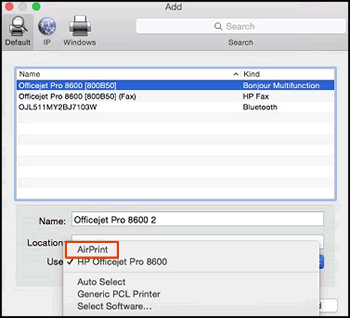
6.) Try to print a normal document from your MAC.
Once you are able to print, install HP Utility
Click here to download the file. Try printing the cleaning page.
Let me know how this goes.
KUMAR0307
I am an HP Employee
10 REPLIES 10
03-10-2020 11:55 AM
HP Recommended
Hi @Baz01
Welcome to the HP Support Community. I'd be happy to assist you. Let us try these steps to resolve this issue:
Reset the printer
- With the printer turned on, disconnect the power cord from the rear of the printer.
- Wait at least 60 seconds.
- Reconnect the power cord to the rear of the printer.
- Turn ON the printer, if it does not automatically turn on.
- Wait until the printer is idle and silent before you proceed.
Note: HP recommends connecting the printer directly to a wall outlet rather than a surge protector or a power strip.
Install the full-featured driver for the printer from the HP Support site.
Click here to download. Now, try printing the cleaning page.
To know how to connect the printer to a wireless network, refer to this document.
Hope this helps! Keep me posted.
Please click “Accept as Solution” if you feel my post solved your issue, it will help others find the solution.
Click the “Kudos, Thumbs Up" on the bottom right to say “Thanks” for helping!
Have a great day!
KUMAR0307
I am an HP Employee
03-10-2020 01:24 PM
HP Recommended
Hey Kumar0307 -
Thanks for your reply.
I went step-by-step through the procedures you listed (my HP is always plugged into the wall BTW), including the installation of the 5.1 Drivers (incidentally, I get a window pop up telling me the package has a certificate that's expired - 
I let it install regardless.
Then I went back into System Preferences > Printers and Scanners > HP P1102w. I get this screen -

I click Utility > Open Printer Utility > Print Information Pages > Cleaning Page. I get this -

I click OK, the button flashes blue when I do so, and...nothing. Same as before.
And, closing out this window and tapping HTML Config causes Printer Utility to Crash. Same as before.
So....is there a Plan B?
03-11-2020 12:52 PM
HP Recommended
Let us try to print a test page from the printer to check if that works.
-
Press and hold the Cancel button
 until the Ready light
  blinks.
 -
Release the Cancel button
.The Self Test/Device Configuration page prints.
Let me know how this goes for further assistance.
KUMAR0307
I am an HP Employee

03-12-2020 09:24 AM - edited 03-12-2020 09:24 AM
HP Recommended
@Baz01, thank you for the response. This shows that the printer hardware is working fine and the issue could be with the drivers. Let us try these steps:
Uninstall all the HP drivers from the MAC
Kindly refer to this document to know how to uninstall the drivers.
Click on the Apple icon > System preferences > printers and scanners > remove/delete the printer.
Reboot the MAC.
Install the printer using AirPrint driver
Please ensure that the printer is up to date with its firmware and Mac is up to date with its software. If you are unsure you may use the links below to update the printer firmware and Mac software:
1.) Click the Apple menu, click System Preferences, and then click Print & Scan or Printers & Scanners.
2.) Check if your printer name displays in the Printers list, If your printer is listed, click the printer name, click the minus sign to delete the printer.
3.) If you see multiple printer queues for the same printer, remove all extra printers by selecting them one at a time, and then clicking the minus button at the bottom of the list.
4.) Click the plus sign, click Add Printer or Scanner, click the printer name.
5.) Click the Use or Print Using menu, select AirPrint in the pop-up menu. Then click Add.
6.) Try to print a normal document from your MAC.
Once you are able to print, install HP Utility
Click here to download the file. Try printing the cleaning page.
Let me know how this goes.
KUMAR0307
I am an HP Employee
03-12-2020 12:36 PM
HP Recommended
Kumar0307 -
Thanks for the additional instructions.
Following these, I uninstalled the drivers via the HP Uninstaller (not, incidentally, found as an app in Applications or a HP Folder there, but rather, via a Search in Finder). I also manually deleted the HP folder from Library > Printers, ensured that the Printer was not listed in System Preferences > Printers and Scanners, emptied the Trash and rebooted.
- I have Printer Drivers 5.1 from an earlier try still - website suggested no updates to Firmware. I did *not* install this printer software yet, as your instructions only suggested the Firmware.
- Mac is running most recent OS - no updates available.
System Preferences > Printers and Scanners > HP still not listed. Tapped the + sign, and the window opened up with it showing there. Clicked it. 'Use' does not offer me AirPrint -

Which I assume means the 1102 does not support it (if Apple's own page on updating printer software is anything to go by - https://support.apple.com/en-ca/guide/mac-help/mchlp1077/mac). So if that's the case, do I allow Apple to install their version of the HP software (which is the installation default) or do I now install the 5.1 and assume either this software guides me to a correct install, or do I manually direct the Mac to the software via 'Other'. And if manually, where am I going looking for what?
Thanks once again. Jeez, all this...
03-12-2020 01:18 PM
HP Recommended
ADDENDUM:
Tossing fate to the wind, I re-installed 5.1 Drivers pack onto my Mac. Then went into Printers and Scanners > + > clicked on the Laserjet P 1100w > 'Use' then showed the Driver (albeit 6.9, which is confusing) and let it install.
Success!
While the HP Utility app (buried in Library > Printers > HP > Utilities) still doesn't see the printer - and there's absolutely no folder / apps for HP in Applications - the more important thing is that in System Preferences > Printers and Scanners > HP Laserjet P1100 > Options and Supplies > Utility I have regained control over both maintenance features and the HTML Config.
I guess something got corrupted over the various updates / upgrades to Mac / Mac's drivers conflicting with HP drivers for the same thing and only a full and complete HP purge was going to fix it.
Thanks!
03-13-2020 08:31 AM
HP Recommended
Thanks for the assistance, Kumar0307!
Just a reminder - according to the installation process of the downloaded drivers (5.1), we still get the window notifying us it's certificate has expired. While it seemed to install without issue (and with that, faster reaction to printing and scanning) by ignoring that warning, it's enough to give users pause before installing.
HP really needs to keep its active software updated with correct certificates for security reasons. Its a bit of a Wild West out there, and HP is a big enough company that it should know better.

Be alert for scammers posting fake support phone numbers and/or email addresses on the community.
If you think you have received a fake HP Support message, please report it to us by clicking on "Flag Post".
† The opinions expressed above are the personal opinions of the authors, not of HP. By using this site, you accept the Terms of Use and Rules of Participation.


Didn't find what you were looking for?
Ask the community
† The opinions expressed above are the personal opinions of the authors, not of HP. By using this site, you accept the <a href="https://www8.hp.com/us/en/terms-of-use.html" class="udrlinesmall">Terms of Use</a> and <a href="/t5/custom/page/page-id/hp.rulespage" class="udrlinesmall"> Rules of Participation</a>.