
-
×InformationNeed Windows 11 help?Check documents on compatibility, FAQs, upgrade information and available fixes.
Windows 11 Support Center. -
-
×InformationNeed Windows 11 help?Check documents on compatibility, FAQs, upgrade information and available fixes.
Windows 11 Support Center. -
- HP Community
- Printers
- LaserJet Printing
- Re: M276nw disable EcoSMART

Create an account on the HP Community to personalize your profile and ask a question
Your account also allows you to connect with HP support faster, access a personal dashboard to manage all of your devices in one place, view warranty information, case status and more.

It has been a while since anyone has replied. Simply ask a new question if you would like to start the discussion again.

02-09-2017 11:39 AM
 HP Recommended
Product: Laserjet Pro 200 M276nw
Operating System: Mac OS X 10.11 El Capitan
Once my printer goes to sleep, the only way to get it to respond to network print requests is to power cycle it. This is EXTREMELY frustrating, so I went to turn off the EcoSMART Auto Off feature. Unfortunately I don't seem to be able to do this. The only options in the EcoSMART section are 5 minutes, 15 minutes, 30 minutes, and 1 hour. There's no way to turn it off. This is completely ridiculous. The printer does not wake up properly on the network, and yet there's no option for turning off this annoying feature. I'm hardwired into a network port and have wireless turned off. I'm using DHCP but the lease is set to not expire so the printer always gets the same IP on the network.
Is there a workaround of some kind or a firmware update that fixes this and allows me to turn off the Auto Off feature?? If there is a firmware update, how to I update it? I've been through every tab and left column selection and can't find anything on firmware update. My fireware datacode is 20150212. HP either needs to allow me to turn off EcoSMART, OR fix the issue with the printer not responding on the network once it's gone to sleep. I realy wish I'd bought a Canon. 😞
Solved! Go to Solution.
1 ACCEPTED SOLUTION
Accepted Solutions


02-10-2017 09:55 AM
HP Recommended
Welcome to HP Support Forums. 🙂 I came across your post and would like to help.
I understand that you have an HP LaserJet Pro 200 color MFP M276nw printer and it loses network connectivity when it enters sleep mode. You have to power cycle it to work. I read that you've tried to turn off the sleep mode and that option is not available. I appreciate the steps you have performed and have certainly done a good job.
I would like to mention that HP printers do not have an option to turn off the sleep mode completely. However, I suggest you to assign a static/manual IP address to the printer and that should do the trick. Please follow the below steps to assign a static/manual IP address:
- Print a new Network Configuration Page. Print the page from the Wireless, Network Settings, or Setup menu.
- The network configuration n page will have the IP address of the printer. If the URL for the EWS is http://0.0.0.0, the printer is not connected to a wireless network. Reconnect your printer to the wireless network, and then print a new Network Configuration Page. Make sure the report shows the status as Connected. If the wireless connection drops, continue troubleshooting.
- On your computer, open an Internet browser. Type the IP address in the address bar of the web browser and hit enter. Make sure to type the IP address into the Internet browser's address box. If typed into a toolbar search box or search engine, the EWS does not open.
- If a website security certificate displays in the Internet browser, click Continue.
- The EWS webpage for the printer opens, which confirms that the printer is on the same network as the computer.
- On the EWS webpage, click the Network tab.
- In the Wireless section, click Wireless (802.11), and then click Manual IP. If a Suggest a Manual IP Address option is available, click it, click Apply, and then reconnect your printer. If the wireless connection drops, continue to the next step.
- If a Suggest a Manual IP Address option is not available, continue troubleshooting.
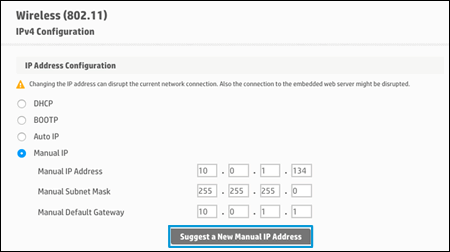
- On the Network Configuration Page, locate the IP Address, Subnet Mask, and Default Gateway.

- On the EWS webpage, type the IP Address, Subnet Mask, and Default Gateway numbers from the Network Configuration Page in the matching fields, and then click Apply. If the wireless connection drops, continue to the next step.
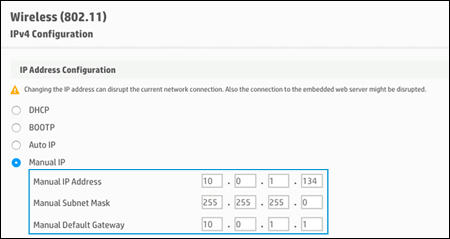
I sincerely hope this fixes the issue. Let me know how it goes. All the best! 🙂
4 REPLIES 4
02-10-2017 09:55 AM
HP Recommended
Welcome to HP Support Forums. 🙂 I came across your post and would like to help.
I understand that you have an HP LaserJet Pro 200 color MFP M276nw printer and it loses network connectivity when it enters sleep mode. You have to power cycle it to work. I read that you've tried to turn off the sleep mode and that option is not available. I appreciate the steps you have performed and have certainly done a good job.
I would like to mention that HP printers do not have an option to turn off the sleep mode completely. However, I suggest you to assign a static/manual IP address to the printer and that should do the trick. Please follow the below steps to assign a static/manual IP address:
- Print a new Network Configuration Page. Print the page from the Wireless, Network Settings, or Setup menu.
- The network configuration n page will have the IP address of the printer. If the URL for the EWS is http://0.0.0.0, the printer is not connected to a wireless network. Reconnect your printer to the wireless network, and then print a new Network Configuration Page. Make sure the report shows the status as Connected. If the wireless connection drops, continue troubleshooting.
- On your computer, open an Internet browser. Type the IP address in the address bar of the web browser and hit enter. Make sure to type the IP address into the Internet browser's address box. If typed into a toolbar search box or search engine, the EWS does not open.
- If a website security certificate displays in the Internet browser, click Continue.
- The EWS webpage for the printer opens, which confirms that the printer is on the same network as the computer.
- On the EWS webpage, click the Network tab.
- In the Wireless section, click Wireless (802.11), and then click Manual IP. If a Suggest a Manual IP Address option is available, click it, click Apply, and then reconnect your printer. If the wireless connection drops, continue to the next step.
- If a Suggest a Manual IP Address option is not available, continue troubleshooting.
- On the Network Configuration Page, locate the IP Address, Subnet Mask, and Default Gateway.
- On the EWS webpage, type the IP Address, Subnet Mask, and Default Gateway numbers from the Network Configuration Page in the matching fields, and then click Apply. If the wireless connection drops, continue to the next step.
I sincerely hope this fixes the issue. Let me know how it goes. All the best! 🙂
02-10-2017 11:01 AM
HP Recommended
I will certainly give the static IP a try, but I'm not sure I understand how that will help. Is the printer losing it's DHCP info when it goes to sleep, and then not sending a new DHCP request when it wakes up?
02-10-2017 12:10 PM
HP Recommended
Thank you for replying. 🙂
Yes, you are correct. This is the main reasons why the network connectivity is lost while the printer is in sleep mode.
All the best! 🙂

Be alert for scammers posting fake support phone numbers and/or email addresses on the community.
If you think you have received a fake HP Support message, please report it to us by clicking on "Flag Post".
† The opinions expressed above are the personal opinions of the authors, not of HP. By using this site, you accept the Terms of Use and Rules of Participation.


Didn't find what you were looking for?
Ask the community
† The opinions expressed above are the personal opinions of the authors, not of HP. By using this site, you accept the <a href="https://www8.hp.com/us/en/terms-of-use.html" class="udrlinesmall">Terms of Use</a> and <a href="/t5/custom/page/page-id/hp.rulespage" class="udrlinesmall"> Rules of Participation</a>.