
-
×InformationNeed Windows 11 help?Check documents on compatibility, FAQs, upgrade information and available fixes.
Windows 11 Support Center. -
-
×InformationNeed Windows 11 help?Check documents on compatibility, FAQs, upgrade information and available fixes.
Windows 11 Support Center. -
- HP Community
- Printers
- LaserJet Printing
- Re: M402dw Won't Wake Up

Create an account on the HP Community to personalize your profile and ask a question
Your account also allows you to connect with HP support faster, access a personal dashboard to manage all of your devices in one place, view warranty information, case status and more.

It has been a while since anyone has replied. Simply ask a new question if you would like to start the discussion again.

10-24-2017 04:43 PM
 HP Recommended
Product: LaserJet Pro M402dw
Operating System: Other
After obeying the energy saving settings the printer will not wake up. It must be physically turned off and on again. Yes, it has a static IP. There is no way to disable the energy saving settings from this printer's menu (not that I would, and if that's the answer there's a whole 'nother problem). Yes, I have flashed the latest firmware.
This is a home printer - it is not in constant use. It is located in the utility room (because printing is a utility) and having to go turn it off and on again makes me feel like a user from 'The IT Crowd.'
My 20-year-old HP LaserJet (may it rest in pieces) and the Epson all-in-ones I've had in the past decade have not had this problem. Fix this, please.
9 REPLIES 9

10-24-2017 05:28 PM
HP Recommended
These settings are for setting up your wireless or wired printers to:
* Stay connected to your router
* Fix printer ‘offline’ status
* Wake from sleep mode
* Speed up wireless printing
While DHCP is convenient, devices such as printers (wired and wireless) should always be assigned a static (fixed) IP address manually to avoid conflicts on your wireless network and MUST be outside the DHCP address range of the router. This is because printers are the only external devices that do not have the ability to automatically interrupt the router for a new DHCP address once the least time expires. Again, do not have the printers static IP within the DHCP range of the router as this is against Networking 101 rules and will confuse the router.
After setting the static IP, the computer(s) must be updated under Printer Properties/Ports to show a Standard TCP/IP port with the printers’ new static IP address.
1. Set a static IP in the printer outside the DHCP range of the router (check your manual). This Static IP is important as DHCP IP addresses will change upon different power up sequences of your devices. You always want your printer to come up with the same IP address all the time. See how to do this here:
http://www.watchingthenet.com/linksys-tip-assign-static-ip-address-to-printer-while-using-dhcp-on-yo...
This is for Linksys routers but can be used for all routers. Verify your DHCP range and change this first if needed. Then after setting the static IP in the printer, the computer(s) must be updated under Printer Properties/Ports to show a Standard TCP/IP port with the printers IP address.
To see why this problem exists and how to fix it, watch this video here for Windows. Scroll down for MAC information.
https://www.youtube.com/watch?v=ZEqvUKxWmq4
How to set a Standard TCP/IP port. This is important.
a. Click Start/Devices and Printers. Right click on your HP Printer. Select Printer Properties. Select the Ports tab at the top.
b. Select Add Port. Select Standard TCP/IP Port. Select New Port.
c. Follow the Add Port Wizard. Under Printer Name or IP Address, input the Static IP address you just set from the above information. Example: 192.168.1.15. The IP address will be copied under Port Name. This is OK to leave this alone or you can put in your Printer Model.
d. Select Next and Finish the Wizard.
If you create a TCP/IP port without a static IP above, you may lose your TCP/IP connection and have the same issue. This is because your network has powered up differently giving you a different DHCP address to the printer that does not match the TCP/IP address above. This could occur at anytime just like the video shows.
For MAC PCs perform the above Static IP setting in the router and then watch here on how to perform your IP setting for MAC computers.
https://www.youtube.com/watch?v=A5tNFjEBDOw
By performing the above, the printers Embedded Web Server (EWS) will now work all the time by going to your Printers Static IP address in your browser.
2. Verify in the printer that 'Auto Off/Sleep/Energy Saving Mode' is disabled and/or the System Mode Time Out is set to zero (0) if your printer supports this. Use the Embedded Web Server (EWS) by going to the printers IP address in your browsers address bar, click Settings Tab/Auto Off, or use the Printer Assistant, Printer Home Page (EWS). Also check your Printer Properties. This feature is automatically disabled when the printer is connected to a computer or mobile device, a network, or a fax line (if supported). However, you may not find this setting.
3. If the printer supports and has IPv6 enabled, disable IPv6 in the printer.
4. Make sure printer is plugged directly into a wall outlet and not into a UPS, power strip or surge protector. This may cause the printer to intermittently drop offline and disconnect.
5. Make sure your printer and router are at least 5 feet apart from each other.
6. Check the HP web site for your printer to see if there is a Firmware Upgrade that affects the wireless operation.
Additional steps to be taken if you continue to have the problem (if they are posted)…

Click on the link to subscribe and get the latest video uploads: https://goo.gl/y4Rcn1 This tutorial shows how to add a printer using the IP address for macOS 10.12 Sierra. The added printer is sometimes more stable and also helps to resolve some print and scan issues such printer offline. HP ...
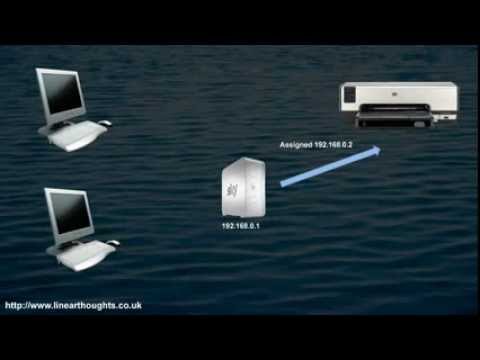
Printer offline issues can happen because the IP address of the printer keeps changing. This video explains how that can happen and what to do to fix it. For more tech tips, check out https://www.linearthoughts.co.uk . 00:00 - Introduction 00:18 - The Problem and Why it Occurs 03:47 - Solution ...
10-24-2017 05:37 PM
HP Recommended
This is not the solution! Please read the original post, and the follow up that I know what I'm doing with network stuff. This is a problem with the printer's firmware. I have NEVER had this problem with another brand, all of them wireless.
10-27-2017 03:07 PM
HP Recommended
No, I won't be calling as I've already wasted too much time on what should be a simple plug-and-play set up. In the year 2017 network-attached devices cannot have a static IP, as network monitors cannot monitor such items agaont IoT attacks. Again I bring up that two color Epson printers I've had in the past decade have not had an issue waking up while being DHCP connected.
So here's the problem in a nutshell: a DHCP printer needs to be able to wake up when it gets a print request.
I am willing to discuss at length, but you'll find my hourly fee a bit steep. Let me know and I can clear my calendar.

02-20-2019 07:52 AM
HP Recommended
Steveyclip: did you ever get an answer, a really good answer, for this problem?
I have the same problem with a 426 laser and all I see is a bunch of "shotgun" ideas when it appears there is really something wrong with these HP models and HP has not been able to fix them. I hope someone from HP that has read all these forums for the last 2 years understands HP has a problem here. I am the IT support guy for a small non-profit and they are fed up with this printer. Seems hp could have issued some new microcode with the option not to go to sleep to just fix it.
Hope someone at HP knows something definite! Thanks.


02-20-2019 08:19 AM
HP Recommended
Hello,
Thank you for posting in this thread. Unfortunately based on when the last response was made, I have closed this thread to help keep comments current and up to date. We recommend starting a new thread for your issue by clicking here.
To be more helpful with your post, you can add key information if you desire:
1. Product Name and Number (please do not post Serial Number)
• Example: HP Pavilion DV2-1209AX or HP Deskjet 3000 Printer CH393A
2. Operating System installed (if applicable)
• Example: Windows XP, Windows Vista 32-bit, Windows 7 64-bit
3. Error message (if any)
• Example: ""Low disk space"" error in Windows
4. Any changes made to your system before the issue occurred
• Examples: Upgrading your Operating System or installing a new software; or installing new hardware like a printer, modem, or router.
If you have any other questions about posting in the community, please feel free to send me a private message!
Thank you
I work on behalf of HP

Be alert for scammers posting fake support phone numbers and/or email addresses on the community.
If you think you have received a fake HP Support message, please report it to us by clicking on "Flag Post".
† The opinions expressed above are the personal opinions of the authors, not of HP. By using this site, you accept the Terms of Use and Rules of Participation.


Didn't find what you were looking for?
Ask the community
† The opinions expressed above are the personal opinions of the authors, not of HP. By using this site, you accept the <a href="https://www8.hp.com/us/en/terms-of-use.html" class="udrlinesmall">Terms of Use</a> and <a href="/t5/custom/page/page-id/hp.rulespage" class="udrlinesmall"> Rules of Participation</a>.