• ×
    Information
    Need Windows 11 help?
    Check documents on compatibility, FAQs, upgrade information and available fixes.
    Windows 11 Support Center.
  • post a message
  • ×
    Information
    Need Windows 11 help?
    Check documents on compatibility, FAQs, upgrade information and available fixes.
    Windows 11 Support Center.
  • post a message
Guidelines
Seize the moment! nominate yourself or a tech enthusiast you admire & join the HP Community Experts!
HP Recommended
HP Officejet 3831 all in one
macOS 10.14 Mojave

I have macbook air running Mojave 10.14.4. I have an HP Officejet 3831 allinone. I am having dreadful recent problems printing, ( it used to be seamless) . Must have spent 10 hours trying to solve. I have reset everything, de-installed and re-installed everything. I have switched off router, printer, mac,iphone.....sometimes ( like after 3 hours ). Finally I can sometimes get it to re-add the printer, thenit prints one things and then says when I try it to print something else The printer is not connected and I'm back to square one, and going round in circles trying the same steps all over and over again. Help please. I can't print from my iphone either...

6 REPLIES 6
HP Recommended

@TREKKINGWHITE, Welcome to HP Support Community!


To be able to assist you better, I would like to know the following:

  • Are the printer and PC connected to the same network?
  • Could you perform a ping test using the Mac Network Utility and let me know the results?

Use the printer IP address to perform a ping test, the printer IP can be located by selecting the wireless icon on the printer display.


The wireless status menu on your Mac should also give us quite a lot of information that would help us identify the issue. You can press and hold option-click the WiFi icon and then use shift-command-5 to take the screenshot. Press the space bar when the icon turns into a camera.


Keep me posted.

Cheers 🙂


Please click “Accept as Solution” if you feel my post solved your issue, it will help others find the solution. Click the “Kudos/Thumbs Up" on the bottom right to say “Thanks” for helping!

TEJ1602
I am an HP Employee

HP Recommended

Thank you for your reply.  Yes they are on the same network. I'm currently working away from home. As my Mac is a home use mac so I'm not going to be able to access it for another week so when I get back I'll try as you advise. Thank you so much, and hopefully it will be good news. Thanks again

HP Recommended

@TREKKINGWHITE


Sure. Take your time.


Keep me posted.

Cheers 🙂

TEJ1602
I am an HP Employee

HP Recommended

Thankyou for your help. I am still unable to print anc cant even add the printer now ! So here are the 2 screenshots you asked for. Most grateful...Screenshot 2019-05-03 at 18.29.31.pngScreenshot 2019-05-03 at 18.23.23.png

HP Recommended

I'm not sure I pingd the right IP address, so here's the one from the address on with wifi status.Screenshot 2019-05-03 at 18.36.38.png

HP Recommended

@TREKKINGWHITE


Please ensure that the printer is up to date with its firmware and Mac is up to date with it's software. If you are unsure you may use the links below to update the printer firmware and Mac software:


Update printer firmware

Update software on Mac 

1.) Click the Apple menu, click System Preferences, and then click Print & Scan or Printers & Scanners.

2.) Check if your printer name displays in the Printers list, If your printer is listed, click the printer name, click the minus sign to delete the printer.

3.) If you see multiple printer queues for the same printer, remove all extra printers by selecting them one at a time, and then clicking the minus button  at the bottom of the list.

4.) Click the plus sign , click Add Printer or Scanner, click the printer name.
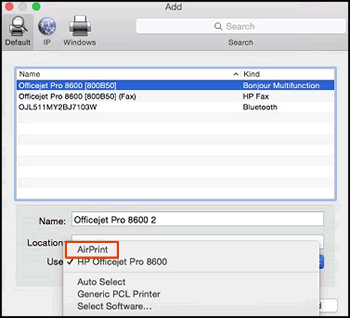
5.) Click the Use or Print Using menu, select AirPrint in the pop-up menu. Then click Add.

Select AirPrint from the Use menu

6.) Try to print.


Let me know how it goes!

Cheers 🙂


Please click “Accept as Solution” if you feel my post solved your issue, it will help others find the solution. Click the “Kudos/Thumbs Up" on the bottom right to say “Thanks” for helping!

TEJ1602
I am an HP Employee

† The opinions expressed above are the personal opinions of the authors, not of HP. By using this site, you accept the <a href="https://www8.hp.com/us/en/terms-of-use.html" class="udrlinesmall">Terms of Use</a> and <a href="/t5/custom/page/page-id/hp.rulespage" class="udrlinesmall"> Rules of Participation</a>.