• ×
    Information
    Need Windows 11 help?
    Check documents on compatibility, FAQs, upgrade information and available fixes.
    Windows 11 Support Center.
  • post a message
  • ×
    Information
    Need Windows 11 help?
    Check documents on compatibility, FAQs, upgrade information and available fixes.
    Windows 11 Support Center.
  • post a message
Guidelines
Seize the moment! nominate yourself or a tech enthusiast you admire & join the HP Community Experts!
HP Recommended
M148fdw
macOS 10.14 Mojave

Impossible to properly set up the printer.  Finally got it printing, but very slow response time.  Bigger problem is it will not print envelopes unless I go through cumbersome process of going into setting every time I want to print an envelope and then going back again to reset to print on regular paper.  Have downloaded firmware from HP web site (don't know whether it is actually new or not.

3 REPLIES 3
HP Recommended

@sewnsurg


A warm welcome to HP Support Community!

On Mac, once the print job is complete, the selected settings will be set as default for future print jobs until you select a new preset or change settings. Creating a Preset is the easiest way to save your settings for future print jobs and to switch between different print jobs. In order to create a new Presets, click the Presets menu on the print dialogue window, and then select Save Current Settings as Preset.

How is the print speed when you copy a document?

How is the printer connected, USB or Wireless?


Senan6806


I am an HP Employee

HP Recommended

I am using the printer wirelessly.  Copying is no problem with instant reponse.  Printing from the iMAC, on the other hand is a disaster.  I have tried using presets, and the results are inconsistent.  Generally, I can print envelopes, or 81/2.x 11, but not both.  Speed to first print is terrible (was excellent for the first two weeks of ownership).  Sometimes it will not print at all.  Error messages are common, etc.

HP Recommended

@sewnsurg


Since the print speed is good while copying a document, it could be an issue with the printer driver installed on your Mac. Removing the existing printer driver and then setting up the printer with Apple AirPrint may resolve the issue. Let's try these steps:

Please ensure that the printer is up to date with its firmware and Mac is up to date with it's software. If you are unsure you may use the links below to update the printer firmware and Mac software:

Update printer firmware

Update software on Mac 


1.) Click the Apple menu, click System Preferences, and then click Print & Scan or Printers & Scanners.

2.) Check if your printer name displays in the Printers list, If your printer is listed, click the printer name, click the minus sign to delete the printer.

3.) If you see multiple printer queues for the same printer, remove all extra printers by selecting them one at a time, and then clicking the minus button  at the bottom of the list.

4.) Click the plus sign , click Add Printer or Scanner, click the printer name.
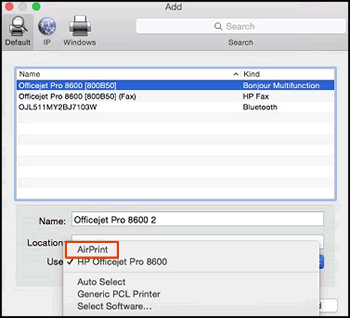
5.) Click the Use or Print Using menu, select AirPrint or Secure AirPrint in the pop-up menu. Then click Add.

Select AirPrint from the Use menu


6.) Try to print.

Let me know how it goes!


If the information I've provided was helpful, give us some reinforcement by clicking the Accepted Solution and Kudos buttons, that'll help us and others see that we've got the answers!
Have a great day!

Senan6806


I am an HP Employee

† The opinions expressed above are the personal opinions of the authors, not of HP. By using this site, you accept the <a href="https://www8.hp.com/us/en/terms-of-use.html" class="udrlinesmall">Terms of Use</a> and <a href="/t5/custom/page/page-id/hp.rulespage" class="udrlinesmall"> Rules of Participation</a>.

