• ×
    Information
    Need Windows 11 help?
    Check documents on compatibility, FAQs, upgrade information and available fixes.
    Windows 11 Support Center.
  • post a message
  • ×
    Information
    Need Windows 11 help?
    Check documents on compatibility, FAQs, upgrade information and available fixes.
    Windows 11 Support Center.
  • post a message
Guidelines
Seize the moment! nominate yourself or a tech enthusiast you admire & join the HP Community Experts!
HP Recommended

All pages have a 2.5-inch wide pink streak.

7 REPLIES 7
HP Recommended

@KarenES

Thank you for joining HP Forums.

It's a pleasure assisting you in finding answers to your technical queries.


To provide you with an accurate solution, I'll need a few more details:

Could you please help me with the exact model name or the product number and the operating system to assist you better.

Are you using genuine HP Ink cartridge?

Any hardware changes made in the printer?

Are you facing the same issue while making a copy?


Keep me posted, how it goes!

Have a great day!

Cheers:)

Raj1788
I am an HP Employee 

HP Recommended

Hi Raj -- It is an HP MFP M273 laser printer. it's about 6 years old. I bought the cheap ink this time so assume that's the problem, although this happened previously and I was able to resolve it for a couple of weeks by running the cleaning program. This does not happy with photocopies.


Thank you for your help

Karen

HP Recommended

@KarenES


I suggest you use genuine HP ink cartridges for the best quality and for the good life for the printer.


If the issue persists while making a copy, follow the steps in the below link.


Click here: https://support.hp.com/us-en/product/hp-color-laserjet-pro-mfp-m274-series/8109042/document/c0451848... 


If the copy is working, follow the below instructions.


Download and run HP Print and Scan Doctor

Install HP Print and Scan Doctor on the computer connected to your printer.

  1. Make sure your printer is turned on and connected to the computer.

  2. Download HP Print and Scan Doctor, and then follow the on-screen prompts to install and open the tool.

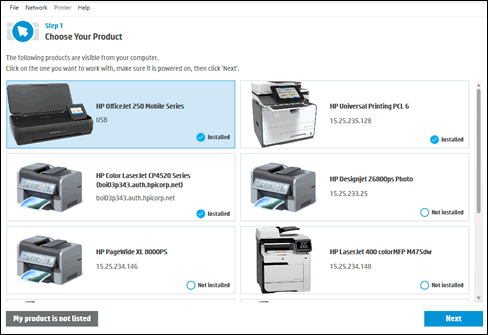
  3. On the Welcome screen, click Start to view a list of available printers.

  4. Select your printer in the list, and then click Next.

    If your printer is not listed or a connection problem is detected, click My product is not listed or select your connection type, follow the on-screen instructions, and then click Retry.

    Example of a list of available printers

  5. Click either Fix Printing or Fix Scanning.

    If you are prompted to install the printer software, follow the on-screen instructions. The software can resolve many printer issues.

    Example of a list of available printers

  6. Review the list of test results, and then resolve any issues found.

    • If you see a checkmark, the printer passed the test.

    • If you see a wrench, HP Print and Scan Doctor found an issue and repaired it.

    • If you see an exclamation point, the test failed and required user action, but the step was skipped.

    • If you see an X, follow the on-screen instructions to resolve the issue.

    Example of the results screen with a problem detected

Keep me posted, how it goes!

Have a great day!

Cheers:)

Raj1788
I am an HP Employee 

HP Recommended

Hi  Raj -- Thanks for your response. I can't download what you sent because I work from a Mac. Sorry, I forgot to answer your question re operating system.


I'm Mac OS High Sierra.


Thanks!

HP Recommended

@KarenES


Let's try the below steps that could resolve the issue


Step 1: Remove multiple printers from the printer list


Check for multiple devices in the Printers list, and then remove any extra entries other than one in idle status.

  1. Search the Mac for Print, and then click Print & Fax, Print & Scan, or Printers & Scanners in the list of results.

  2. Find the printer names that match your printer from the list of devices.

    Figure : Printers and Scanner window with multiple names of a printer in the list

     Printers and Scanner window with multiple names of HP Photosmart 7520 printers shown  in the list
  3. If you see multiple printer queues for the same printer, remove all extra printers by selecting them one at a time, and then clicking the minus button  at the bottom of the list. Leave one 'idle' printer in the list that matches your printer if available and use this printer as the Default printer.

  4. Try printing again.

    • If the printer prints, you can stop troubleshooting.

    • If the printer remains offline or displays an error, continue to the next step.

Step 2: Delete the existing print queue and add the printer

Remove the printer queue from the list of printers, and then add it again. Doing so creates a new printing session.

  1. Make sure your Mac is connected to the Internet.

  2. In the Printers list, click your HP printer, and then click the Minus button  to delete it.

  3. Click the Add button .

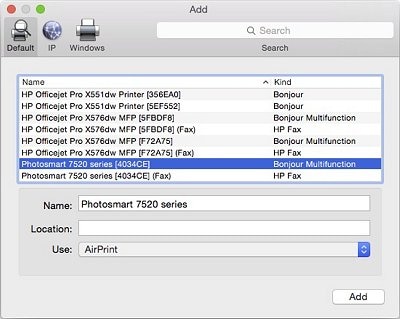
  4. Find and select the name of your printer from the Printer list, and then click Add to add your printer. Do not select an HP Fax driver.

    Figure : Example of the printer selection list

    Image: The Add window showing a selection of printers with one model selected.
  5. Click Print Using or Use.

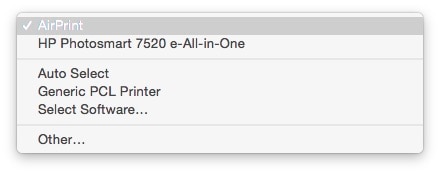
  6. Select the name of your printer (if available) or AirPrint.

    Figure : Menu showing AirPrint selected

    Image: Menu showing AirPrint selected

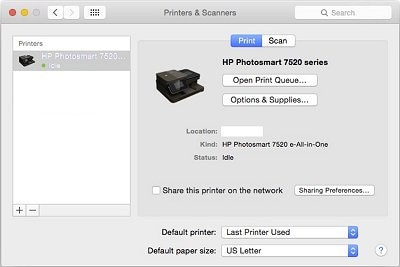
    Your new printer queue displays in the Printers list in an Idle status .

    Figure : Example of a newly added printer in the Printers & Scanners list

    Image: The printers and scanners windows with one printer in the printers list
  7. Try printing again.

Keep me posted, how it goes!

If the information I've provided was helpful, give us some reinforcement by clicking the Accepted Solution and Kudos buttons, that'll help us and others see that we've got the answers!

Have a great day!

Cheers:)

Raj1788
I am an HP Employee 

HP Recommended

I don't think you understand my issue. It relates to printing a pink streak, not to printing at all. Removing other printers does not address the issue. I need some way to clean it that isn't just accessing clean from the menu. Thank you.

HP Recommended

@KarenES


I see that you were interacting with @Raj1788. I'd like to help.


Thanks for the reply.

I appreciate your time and effort.


Eager to know, did you try the steps mentioned in this HP document:- Click here

If yes, what is the outcome if it?


I hope that helps.

To thank me for my efforts to help you, please mark my post as an accepted solution so that it benefits several others.

Cheers.​​​​​​​

Sandytechy20
I am an HP Employee

† The opinions expressed above are the personal opinions of the authors, not of HP. By using this site, you accept the <a href="https://www8.hp.com/us/en/terms-of-use.html" class="udrlinesmall">Terms of Use</a> and <a href="/t5/custom/page/page-id/hp.rulespage" class="udrlinesmall"> Rules of Participation</a>.