• ×
    Information
    Need Windows 11 help?
    Check documents on compatibility, FAQs, upgrade information and available fixes.
    Windows 11 Support Center.
  • post a message
  • ×
    Information
    Need Windows 11 help?
    Check documents on compatibility, FAQs, upgrade information and available fixes.
    Windows 11 Support Center.
  • post a message
Guidelines
Seize the moment! nominate yourself or a tech enthusiast you admire & join the HP Community Experts!
HP Recommended
Laserjet M277
Microsoft Windows 8.1 (64-bit)

I appear to have a paper jam - I have cleared all paper from the tray removed the paper tray and opened the back door and removed the paper from there, I can not see any trace of paper, I have sprayed an air duster through the rollers to see if that might blow it out, I have turned the printer off and back on again still the message comes on the screen telling me to open the back door and removet he paper, I have left it 24hrs turned off hoping there maybe a glitch in the system that might put it's self right, but no change! any one who can give me advise I'd be really grateful.Thanks


3 REPLIES 3
HP Recommended

Hi! @JOSIEJ1, Thanks for stopping by the HP Support Forums!


Don't worry I'll try to help you out. Please answer a few questions below to assist you better.


Did you make any changes to the printer?


Have you tried checking with a different brand paper?


Excellent description and a great diagnosis done. It is greatly appreciated.


Let's continue with the troubleshooting steps now.


Please try the steps recommended below.


Try updating the printer firmware and check if it helps.


Update the printer firmware using this link. Click Here


Use the following procedure to check for paper in the duplexer. When a jam occurs, the control panel displays an error message that assists in clearing the jam.

  1. Turn off the printer, and then disconnect the power cord from the wall socket or power strip.

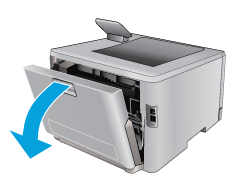
  2. At the rear of the printer, open the duplexer door.

    Open the duplexer

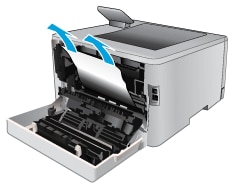
  3. Remove any jammed or damaged sheets of paper.

       WARNING:

    The fuser is located above the rear door, and it is hot. Do not attempt to reach into the area above the rear door until the fuser is cool.

    Remove any jammed paper

  4. Close the duplexer door.

    Close the duplexer

  5. Reconnect the power cord to the wall outlet or power strip, and then turn on the printer.

Try to print again.


Resetting the printer can clear carriage jam errors.


Turn the printer on, if it is not already on.
Wait until the printer is idle and silent before you continue.
With the printer turned on, disconnect the power cord from the rear of the printer.
Unplug the power cord from the wall outlet.
Wait at least 60 seconds.
Plug the power cord back into the wall outlet.
   NOTE:
HP recommends connecting the printer power cord directly to the wall outlet.
Reconnect the power cord to the rear of the printer.
Turn on the printer, if it does not automatically turn on.
The printer might go through a warm-up period. The printer lights might flash, and the carriage might move.
Wait until the warm-up period finishes and your printer is idle and silent before you proceed.


Refer this article to further troubleshoot paper jam issues with your printer. Click Here


If the issue still persists after trying out the steps. It is a hardware issue with the printer.


Please contact HP support for service options. Click Here


Hope this helps!

Have a beautiful day ahead! 🙂


Please click “Accept as Solution” if you feel my post solved your issue, it will help others find the solution.

Click the “Kudos, Thumbs Up" on the bottom right to say “Thanks” for helping!

A4Apollo
I am an HP Employee

HP Recommended

I had already done all that and cleaned the roller paper feed there is no paper jam that's what I'm trying to say I think it needs technical help to clear the issue from its memory I do know how to removed jammed paper from a printer I have been working with printers for over 10 years so can do the basic stuff Mr Robot

HP Recommended

@JOSIEJ1, thanks for your quick response again.


You did a Marvellous job by trying the steps recommended previously.


As you need to know how to perform an NVRAM reset on the printer.


I will share the steps through a private message. As the steps to perform an NVRAM reset is confidential and dedicated to your printer


Please watch your inbox for more information.


Also, if the issue still persists after trying out the steps. It is a hardware issue with the printer.


Please contact HP support for service options. Click Here


Hope this helps!

Take Care! 🙂


Please click “Accept as Solution” if you feel my post solved your issue, it will help others find the solution.

Click the “Kudos, Thumbs Up" on the bottom right to say “Thanks” for helping!

A4Apollo
I am an HP Employee

† The opinions expressed above are the personal opinions of the authors, not of HP. By using this site, you accept the <a href="https://www8.hp.com/us/en/terms-of-use.html" class="udrlinesmall">Terms of Use</a> and <a href="/t5/custom/page/page-id/hp.rulespage" class="udrlinesmall"> Rules of Participation</a>.