• ×
    Information
    Need Windows 11 help?
    Check documents on compatibility, FAQs, upgrade information and available fixes.
    Windows 11 Support Center.
  • post a message
  • ×
    Information
    Need Windows 11 help?
    Check documents on compatibility, FAQs, upgrade information and available fixes.
    Windows 11 Support Center.
  • post a message
Guidelines
Seize the moment! nominate yourself or a tech enthusiast you admire & join the HP Community Experts!
HP Recommended
DeskJet 3636
Microsoft Windows 7 (64-bit)

The error which occurred since two  weeks ago is: Paper Mismatch  

I followed the instructions from hp to solve the issue: "go to EWS>settings>preferences>tray and paper management" but it did not help. Is anyone can help, please?

3 REPLIES 3
HP Recommended

@perspolis


Welcome to HP forums, I see that you are getting a paper mismatch error and you have tried few troubleshooting steps.


Follow the below steps to fix this issue

Adjust the paper size settings in the printer properties.

  1. In the program you want to print from, click File, and then click Print.

  2. Make sure your printer is in the Name or Printers drop-down list box, and then click Properties, Printer Properties or Preferences.

  3. Click the Paper/Quality tab.

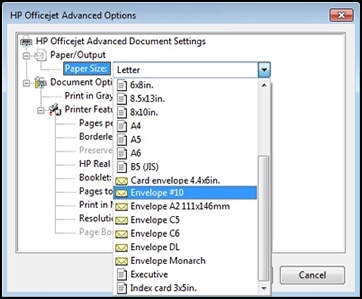
  4. Click Advanced, if necessary, and then click Paper Size.

    Selecting the correct paper size

  5. Select the paper size that matches the size and type of paper loaded in the printer tray, and then click OK. If there are no matching paper sizes, select the size from the list that is closest to the size of the paper loaded in the tray.

  6. Click OK, and then try to print.

Check the paper source setting.

  1. Remove all the paper from all the printer input trays.

  2. Reload the paper, and then adjust the paper width guides so they gently rest against the edge of the paper stack.

  3. In the program you want to print from, click File, and then click Print.

  4. Make sure your printer is in the Name or Printers drop-down list box, and then click Properties, Printer Properties or Preferences.

  5. Click the Paper/Quality tab, and then click Paper Source to select the correct tray.

  6. Click OK, and then try to print.

Reset the printer

  1. Turn the printer on, if it is not already on.

  2. Wait until the printer is idle and silent before you continue.

  3. With the printer turned on, disconnect the power cord from the rear of the printer.

  4. Unplug the power cord from the wall outlet.

  5. Wait at least 60 seconds.

  6. Plug the power cord back into the wall outlet.

       NOTE:

    HP recommends connecting the printer power cord directly to the wall outlet.

  7. Reconnect the power cord to the rear of the printer.

  8. Turn on the printer, if it does not automatically turn on.

  9. Wait until the printer is idle and silent before you proceed.

You can refer to this HP document for more assistance:- Click here


Let me know how it goes.

To thank me for my efforts to help you, please mark my post as an accepted solution so that it benefits several others.

Cheers.

Sandytechy20
I am an HP Employee

HP Recommended

Thank you very much Sandytechy20 for your suggested solutions. I reset the printer. In addition, I checked the paper source setting: I have only one option to choose (Main tray) and then I chose plain paper.

I only use A4 paper. So regarding the first suggested solution, for the paper size, I selected A4 as well. At EWS, I selected also Large > ISO and JIS A4 & Plain paper.


Unfortunately, non of the recommended solutions helped me to solve the problem 😞


HP Recommended

@perspolis


Thanks for the reply.

I appreciate your time and effort.


I am sending you a private message. Please check the mailbox icon at the top-right corner of this screen.

I hope this helps resolve this issue completely.


Cheers.

Sandytechy20
I am an HP Employee

† The opinions expressed above are the personal opinions of the authors, not of HP. By using this site, you accept the <a href="https://www8.hp.com/us/en/terms-of-use.html" class="udrlinesmall">Terms of Use</a> and <a href="/t5/custom/page/page-id/hp.rulespage" class="udrlinesmall"> Rules of Participation</a>.